
Short answer. Put the script
in SYSVOL, list your apps by Store ID, and add it to a GPO under
User Configuration → Windows Settings → Scripts (Logon/Logoff) → Logon, on the
Scripts tab, as powershell.exe with
-ExecutionPolicy Bypass -NoProfile -WindowStyle Hidden -File "<path>".
On each logon it checks which apps the user already has and installs only the missing ones with
winget. In our tests, real Store packages installed without admin rights.
What the script does
The script runs at every logon, but it only does real work when something is missing. One run looks like this:
- Hands off to the background. The logon script itself returns in about a second and starts a hidden copy of itself, so it never delays sign-in.
- Checks what is already installed — one
winget exportcall lists every Store app the user has, in about two seconds. - Skips what's there. Installed apps are never touched — no reinstall, no upgrade. The Store keeps them up to date on its own.
- Installs what's missing silently with
winget install --source msstore, checks again that the app is really there, and opens it once. - Writes a short log to
%LOCALAPPDATA%\StoreAppInstall\install.logwith one result line per run: OK, FAILED, POSTPONED, CONFIG_ERRORS.
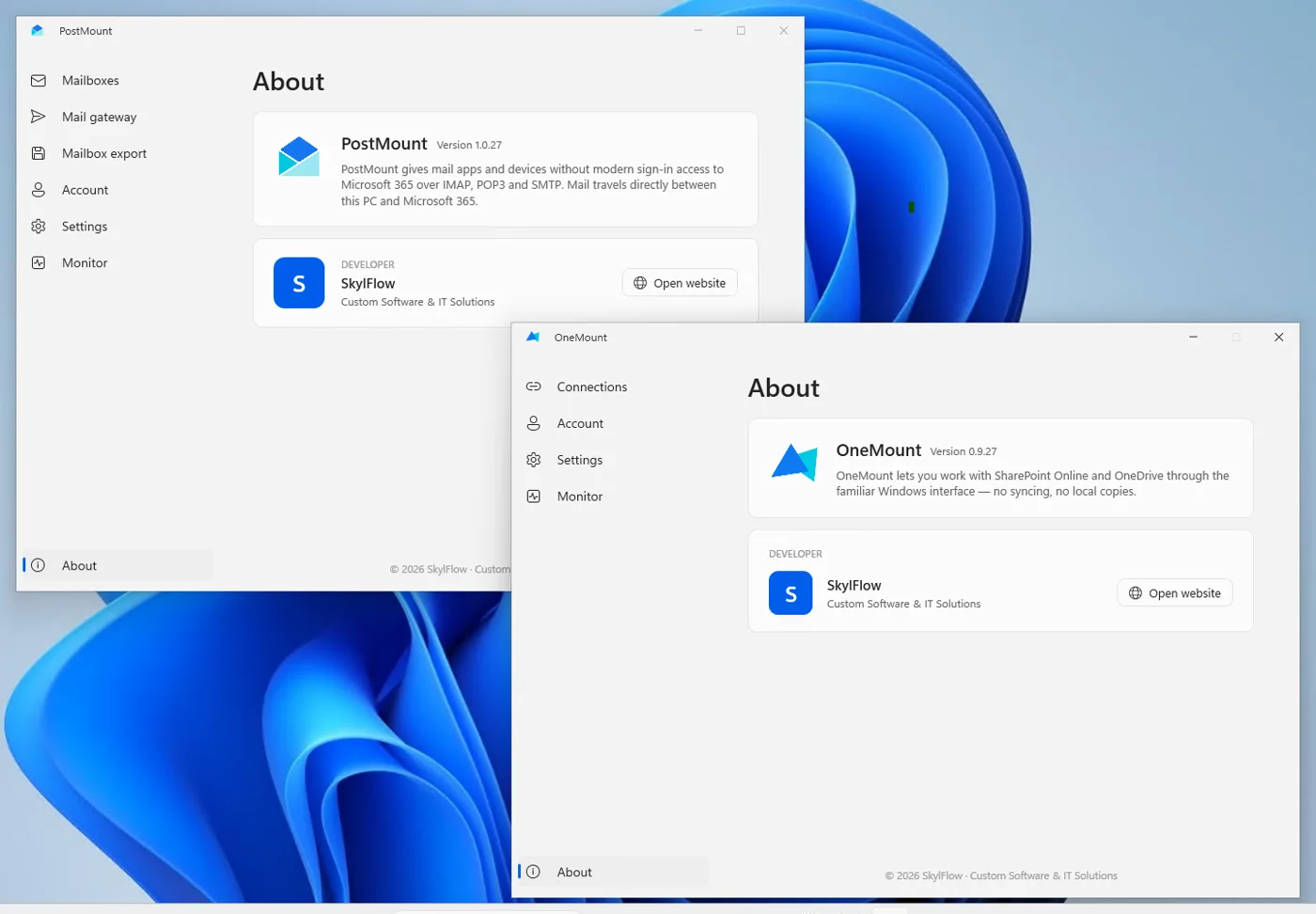
Out of the box it installs our own two apps, OneMount and PostMount, as the working example. Replace them with any Store apps you need — the list is the only thing you edit.
Tested in a real domain
Every number below comes from a lab domain (Windows Server domain controller, Windows 11 22H2 clients, a standard non-admin domain user), not from documentation.
| What happened | Time |
|---|---|
| Logon script returns control to Windows | ~1 s |
| First logon: OneMount installed from the Store and opened | 2 min 14 s |
| First logon: PostMount installed and opened | 1 min 58 s |
| WhatsApp, the slowest app we tried | 5 min 12 s |
| Every later logon (both apps already installed) | 4 s |
Most of a first install is the Store fetching the package for the user, not the script. That is also why the script works in the background: a single slow app would otherwise run into the Group Policy script time limit.
Before you start
- Windows 10 or 11 with winget (App Installer). It ships with current Windows; on a brand-new profile it appears a minute or so after the first logon, and the script waits for it. We tested on Windows 11 22H2; Windows 10 with a current App Installer should behave the same, but we haven't verified it.
- winget can reach the
msstoresource. Check withwinget source liston a user's PC. That's what matters, not whether the Store app opens: Microsoft notes that blocking the Store app doesn't necessarily stop installs through winget. - Domain-joined PCs and GPMC (
gpmc.msc) on a machine with RSAT or on the domain controller. - A test OU with one test user. Link the GPO there first, then widen it.
Step 1 — Find the Store ID of each app
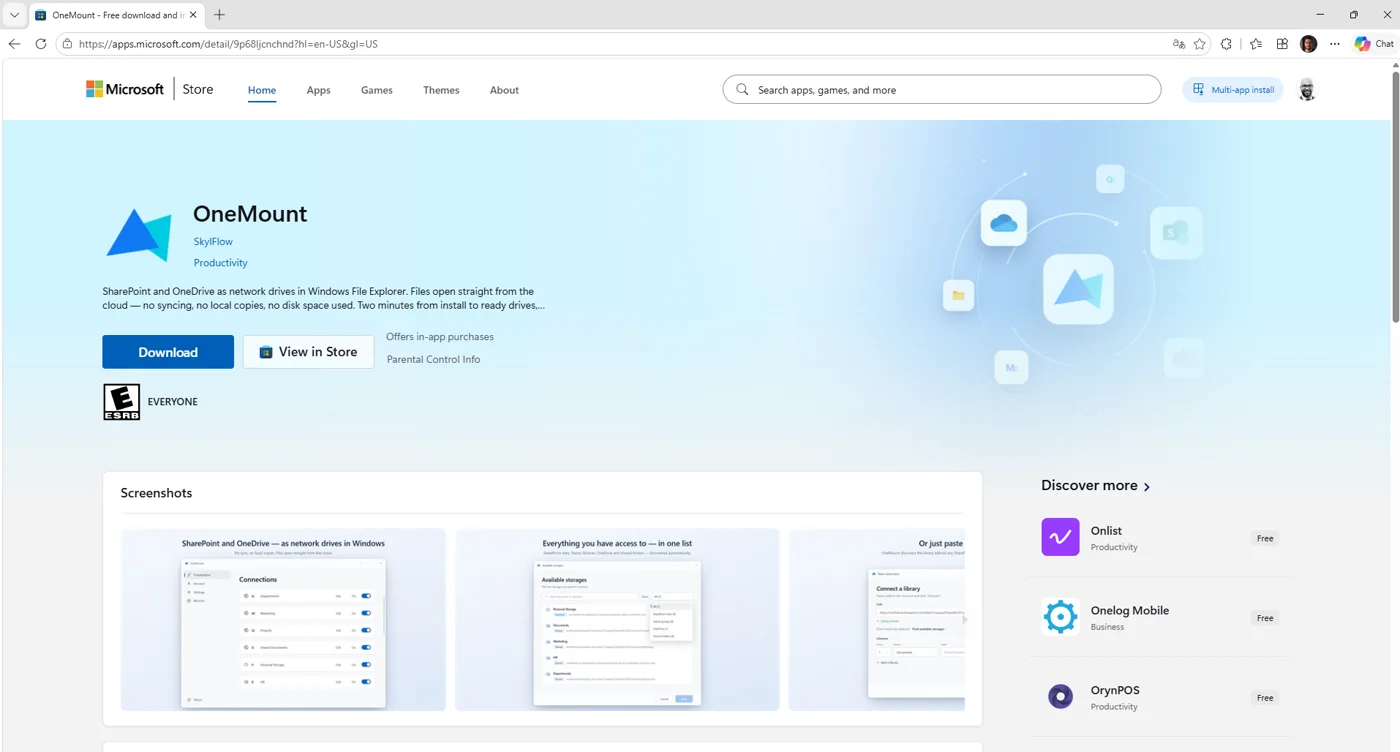
Open the app's page on apps.microsoft.com. The Store ID is the last part of the
address — for OneMount it's 9P68LJCNCHND. You can also run
winget search "app name" --source msstore and take the Id column. Most IDs
look like 9XXXXXXXXXXX; listings that run a publisher's own installer use longer IDs
starting with XP.
Step 2 — List your apps in the script
At the top of StoreAppInstall.ps1 there is one list. Each line is one app: a
Name for the log and the StoreId. Add Launch = $false if the
app shouldn't open after installing, or add -NoLaunch to the script parameters so that
nothing opens at all.
[object[]]$Apps = @(
  @{ Name = 'OneMount';  StoreId = '9P68LJCNCHND' }
  @{ Name = 'PostMount'; StoreId = '9PN0511DJX9K' }
  @{ Name = 'WhatsApp';  StoreId = '9NKSQGP7F2NH'; Launch = $false }
)
Nothing else needs editing. The script checks the list itself: a malformed or duplicate Store ID is reported in the log as a configuration error instead of breaking the run.
Step 3 — Put the script in SYSVOL
The script has to sit where every domain user can read it:
\\<your-domain>\SYSVOL\<your-domain>\scripts\. Copying it straight to that
network path from your own PC will most likely fail — writing to SYSVOL over the network is
restricted. Do it on one of the domain controllers instead: copy the file into the local folder
C:\Windows\SYSVOL\sysvol\<your-domain>\scripts\ (in our test domain,
C:\Windows\SYSVOL\sysvol\skylflow.local\scripts\).
That local folder is exactly what's shared as SYSVOL, and Windows replicates it to the other domain controllers on its own. Open the network path afterwards to check the file is there — that's the address the GPO will use.

Step 4 — Create a GPO and link it to the OU
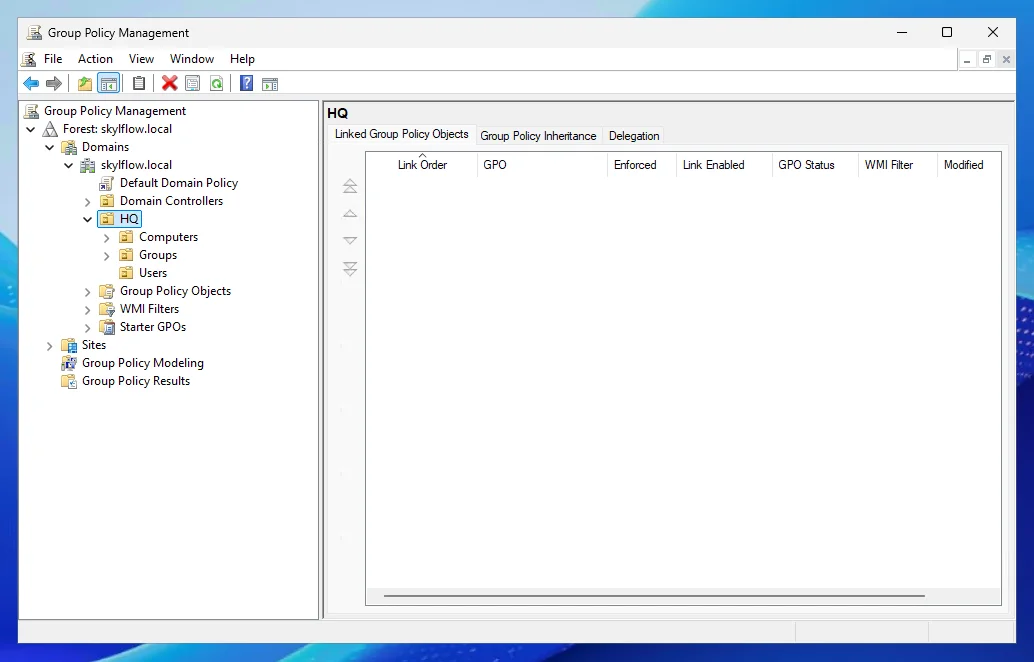
In Group Policy Management, right-click the OU that holds your users →
Create a GPO in this domain, and Link it here…, and give it a clear name — we used
StoreAppInstall. Then right-click the new link → Edit.


Step 5 — Add it as a logon script (the Scripts tab)
In the editor go to User Configuration → Policies → Windows Settings → Scripts (Logon/Logoff) and open Logon. Stay on the Scripts tab — not PowerShell Scripts — and click Add:
Script Name:       powershell.exe
Script Parameters: -ExecutionPolicy Bypass -NoProfile -WindowStyle Hidden -File "\\your-domain\SYSVOL\your-domain\scripts\StoreAppInstall.ps1"
Why not the PowerShell Scripts tab? It runs scripts under the machine's execution policy,
which on most PCs blocks unsigned scripts unless you add one more policy (Turn on Script
Execution). Calling powershell.exe with -ExecutionPolicy Bypass
from the Scripts tab needs nothing else, and -WindowStyle Hidden keeps the user from
seeing a console window.
-ExecutionPolicy Bypass.


Step 6 — Check the scope and test
On the GPO's Scope tab, make sure it's linked to the right OU and that
Security Filtering includes your users (Authenticated Users by default). Then, on a
test PC, run gpupdate /force, sign out, and sign in as a user from that OU.

A minute or two after sign-in the apps open on their own. The log shows exactly what happened — this is a real first logon from our test:
Logon script handed off to background process (PID 10180).
RUN START  2026-10-14 18:00:12  User: SKYLFLOW\demo.user  Host: SKT-NB-001
--- OneMount (9P68LJCNCHND) ---
[INFO] [OneMount] Installing (time limit 20 min)...
[INFO]   winget> Successfully installed
[OK] [OneMount] Installed.
[OK] [OneMount] Opened (OneMount).
--- PostMount (9PN0511DJX9K) ---
[OK] [PostMount] Installed.
[OK] [PostMount] Opened (PostMount).
RUN END    2026-10-14 18:04:36  RESULT: 2 OK, 0 FAILED, 0 POSTPONED, 0 CONFIG_ERRORS
And the next logon, four seconds in total:
[OK] [OneMount] Already installed - skipping.
[OK] [PostMount] Already installed - skipping.
RUN END    2026-10-14 19:14:32  RESULT: 2 OK, 0 FAILED, 0 POSTPONED, 0 CONFIG_ERRORS
Which Store apps can be deployed this way
Not every Store listing is the same kind of package. winget show --id <StoreId> --source msstore
tells you the Installer Type, and that decides whether a regular user can install it.
We tried these:
| App | Installer type | Standard user, no admin |
|---|---|---|
| OneMount, PostMount, Telegram Desktop, WhatsApp, ChatGPT, Pinterest | msstore — a real Store package | Installs |
| Microsoft Teams, Zoom Workplace | exe — publisher's installer, per-user | Installs |
| Adobe Acrobat Reader, TeamViewer | exe — publisher's installer, per-machine | Needs admin (UAC prompt) |
| Microsoft 365 (Office) | — not a package at all | Can't be installed this way |
The rule of thumb: every msstore listing we tried installed without admin rights,
though your organization's policies can still restrict it. exe
listings are the publisher's own setup program behind a Store page — some install per user, some
ask for elevation, which a standard user can't approve. The script warns about these in the log
before installing. Microsoft 365 returns "No package found": its Store page is a sign-up page, and
Office is deployed with the Office Deployment Tool instead.
Why the script is built this way
A user logon script, not a computer startup script
Store packages are installed for a user, and the Store refuses installs from the SYSTEM account — winget reports "Device wide install for msstore type is not supported under admin context". A startup script runs as SYSTEM, so it can't do this job. A logon script runs as the user who should get the app, which is exactly what's needed.
It works in the background
Windows stops Group Policy scripts after 10 minutes by default (the Maximum wait time for Group Policy scripts policy). A first install of several apps can take longer than that — WhatsApp alone took five minutes. So the logon script starts a hidden copy of itself and exits immediately: sign-in isn't delayed, and nothing is cut off midway. Each install still has its own 20-minute limit, so a download stuck in the Store can't hang the run forever.
It never updates apps
winget install on an app that's already installed doesn't stop there — it tries to
upgrade it. A logon script doing that would silently update apps on someone's schedule other than
yours. That's why the script first asks winget export what's installed and only calls
install for apps that are missing. Updates stay with the Store.
One caveat: winget export lists the apps winget can match to the Store source. An app
installed some other way — say, Zoom from the vendor's MSI — may not be matched. The script then
tries the Store install, and winget, finding the existing copy, tries to upgrade it. Leave apps you
already deploy another way out of the list.
No state files, nothing to clean up
The script keeps no cache and no markers — only its log. What's installed is read fresh every time, so a user who uninstalls an app gets it back at the next logon, and a reimaged PC simply starts over. Two copies never run at once: a per-user lock catches parallel sessions.
Troubleshooting
Every problem shows up in %LOCALAPPDATA%\StoreAppInstall\install.log with a hint. The ones we met:
| In the log | What it means | What to do |
|---|---|---|
0x8A150014 — No package found | The Store ID isn't an installable package | Check the ID; some listings (Microsoft 365) are only web pages |
0x800704C7 — Canceled | The installer asked for admin rights and the prompt was closed | Deploy that app another way, or only to users with admin rights |
0x8A15005E — certificate mismatch | winget couldn't trust the Store server's certificate | Once per PC, as admin: winget source reset --force; if that doesn't help, check for a TLS-inspecting proxy |
| Install did not finish in 20 min | A Store download is stuck (shown as pending in Store → Library) | Nothing — it's retried at the next logon |
| winget not available | A brand-new profile, App Installer not registered yet | Usually solves itself by the next logon; otherwise check App Installer |
| "Access denied" when copying the script into SYSVOL | Writing to SYSVOL over the network is restricted | On a domain controller, copy it into C:\Windows\SYSVOL\sysvol\<your-domain>\scripts\ |
| Config error: listed twice / invalid | A typo in the app list | Fix the $Apps line named in the log |
To see what the script does without waiting for a logon, run it by hand in a normal PowerShell
window with -Foreground — it then works in that window instead of handing off to the
background.
GPO script, Intune or provisioning?
| Method | When it fits | The catch |
|---|---|---|
| GPO logon script + winget (this guide) | Active Directory domain, no Intune | Installs per user; the script is yours to maintain |
| Microsoft Intune | Devices already enrolled in Intune | Needs Intune licences and device enrollment |
Provisioning (Add-AppxProvisionedPackage) | Every account on a PC, golden images | Admin rights, the package file and an offline license |
| Installing from the Store by hand | A handful of PCs | Doesn't scale |
This approach installs an app for each user the GPO applies to, at that user's logon. That covers
the usual case — everyone in the OU gets the app the first time they sign in. If you need an app
present for every account on a machine before anyone signs in, that's provisioning
(Add-AppxProvisionedPackage): it runs as admin and needs the package file itself and,
for Store apps, an offline license — which used to come from the now-retired Microsoft Store for
Business. For most small and mid-size organizations, the per-user logon script is the practical
option.
The full script
Free to use and adapt (MIT license). Only the $Apps list needs editing; everything else is
commented in the file. The script also lives on
GitHub — issues and improvements are welcome there.
<#
.SYNOPSIS
  Silently installs Microsoft Store apps for the current user from a GPO
  logon script, using winget. No admin rights, no Intune/MDM.

.DESCRIPTION
  Made by SkylFlow for our own apps, and works the same way for any app from
  the Microsoft Store - just add it to $Apps below:
    OneMount  - https://onemount.app  - mounts SharePoint/OneDrive libraries
                as Windows network drives.
    PostMount - https://postmount.app - IMAP/POP3/SMTP relay so mail apps,
                scanners and ERP systems can still reach Microsoft 365.

  Every logon:
    1. One `winget export` call lists which Store apps this user already has.
    2. Apps already installed are skipped - never updated (the Store updates
       them on its own).
    3. Missing apps are installed silently, checked again, and opened once.

  GPO: User Configuration -> Windows Settings -> Scripts (Logon/Logoff) ->
  Logon -> "Scripts" tab:
    Script Name:       powershell.exe
    Script Parameters: -ExecutionPolicy Bypass -NoProfile -WindowStyle Hidden
                       -File "\\<domain>\SYSVOL\<domain>\scripts\StoreAppInstall.ps1"
  User logon only - winget does not work as a computer startup/SYSTEM script.
  The logon script itself returns in about a second; the work continues in a
  hidden background process (see -Foreground).

  Log: %LOCALAPPDATA%\StoreAppInstall\install.log
#>
[CmdletBinding()]
param(
  # ==========================================================================
  # APPS TO INSTALL - one line per app.
  #   Name    - any label, used in the log and to find the app to open.
  #   StoreId - the code from the app's page URL on apps.microsoft.com
  #             (last URL segment), or the Id column of `winget search "name"`.
  #   Launch  - optional, default $true. $false = install only, don't open.
  #
  # Apps marked "exe installer" are Store listings that run the publisher's own
  # setup program; some of them ask for admin rights, which a regular user
  # can't approve (the log says so). True Store apps (msstore) installed
  # without admin rights in all our tests.
  # ==========================================================================
  [object[]]$Apps = @(
    @{ Name = 'OneMount';  StoreId = '9P68LJCNCHND' }
    @{ Name = 'PostMount'; StoreId = '9PN0511DJX9K' }
    # Tested examples:
    # @{ Name = 'Telegram Desktop'; StoreId = '9NZTWSQNTD0S' }
    # @{ Name = 'WhatsApp';         StoreId = '9NKSQGP7F2NH' }
    # @{ Name = 'ChatGPT';          StoreId = '9PLM9XGG6VKS' }
    # @{ Name = 'Pinterest';        StoreId = '9PFHDSF91B9R' }
    # @{ Name = 'Microsoft Teams';  StoreId = 'XP8BT8DW290MPQ' }   # exe installer, no admin needed
    # @{ Name = 'Zoom Workplace';   StoreId = 'XP99J3KP4XZ4VV' }   # exe installer, no admin needed
    # @{ Name = 'Adobe Acrobat';    StoreId = 'XPDP273C0XHQH2' }   # exe installer, NEEDS admin
  ),

  # Never open any app after installing it.
  [switch]$NoLaunch,
  # Run in this window instead of handing off to a hidden background process
  # (for testing by hand). Without it, the logon script starts a copy of itself
  # in the background and exits at once, so it never delays logon and isn't
  # cut off by the Group Policy script time limit (10 minutes by default).
  [switch]$Foreground,
  # Max time for one app's install. Some Store apps take several minutes on a
  # first install (WhatsApp: 5 min in testing). A download stuck as pending in
  # Microsoft Store > Library never finishes - it is cut off here and retried
  # on the next logon.
  [int]$InstallTimeoutMin = 20,
  # Max time for the whole run; apps not reached are installed on the next logon.
  [int]$MaxRunMin = 60,
  # Max wait for winget on a brand-new profile (it appears a little after the
  # first logon).
  [int]$WingetWaitMin = 3,
  # Clear the log once it grows past this size.
  [int]$LogMaxKB = 100
)

$ScriptVersion = '2026.10.14.22'

$StateDir = Join-Path $env:LOCALAPPDATA 'StoreAppInstall'
New-Item -ItemType Directory -Force -Path $StateDir | Out-Null
$LogPath = Join-Path $StateDir 'install.log'
if ((Test-Path -LiteralPath $LogPath) -and ((Get-Item -LiteralPath $LogPath).Length -gt ($LogMaxKB * 1KB))) {
  Clear-Content -LiteralPath $LogPath -ErrorAction SilentlyContinue
}

function Write-Raw([string]$Line) {
  try { Add-Content -LiteralPath $LogPath -Value $Line -Encoding UTF8 } catch {}
}
function Write-Log([string]$Message, [string]$Level = 'INFO') {
  Write-Raw ('{0:yyyy-MM-dd HH:mm:ss} [{1}] {2}' -f (Get-Date), $Level, $Message)
}
$Separator = '=' * 70

# Per user, across sessions (console + RDP at once).
$Script:LockMutex = $null
function Enter-SingleInstance {
  try {
    $Script:LockMutex = New-Object System.Threading.Mutex($false, "Global\StoreAppInstall_$($env:USERDOMAIN)_$($env:USERNAME)")
    return $Script:LockMutex.WaitOne([TimeSpan]::FromSeconds(3))
  } catch [System.Threading.AbandonedMutexException] {
    return $true
  } catch {
    return $false
  }
}
function Exit-SingleInstance {
  if ($Script:LockMutex) {
    try { $Script:LockMutex.ReleaseMutex() } catch {}
    $Script:LockMutex.Dispose()
  }
}

function Find-Winget {
  $cmd = Get-Command winget.exe -ErrorAction SilentlyContinue
  if ($cmd) { return $cmd.Source }
  $alias = Join-Path $env:LOCALAPPDATA 'Microsoft\WindowsApps\winget.exe'
  if (Test-Path -LiteralPath $alias) { return $alias }
  return $null
}

# Output goes to a temp file via cmd.exe rather than a pipe, and every call has
# a hard timeout. On timeout, taskkill /T takes down winget.exe too - killing
# only cmd.exe would leave it running.
function Invoke-Winget([string]$Winget, [string]$Arguments, [int]$TimeoutSec) {
  $tempOut = [System.IO.Path]::GetTempFileName()
  try {
    $psi = New-Object System.Diagnostics.ProcessStartInfo
    $psi.FileName = 'cmd.exe'
    $psi.Arguments = "/c `"`"$Winget`" $Arguments > `"$tempOut`" 2>&1`""
    $psi.UseShellExecute = $false
    $psi.CreateNoWindow = $true
    $proc = [System.Diagnostics.Process]::Start($psi)
    if (-not $proc.WaitForExit($TimeoutSec * 1000)) {
      try { & taskkill.exe /PID $proc.Id /T /F 2>&1 | Out-Null } catch {}
      return [PSCustomObject]@{ TimedOut = $true; Rc = $null; Lines = @() }
    }
    $lines = @(Get-Content -LiteralPath $tempOut -Encoding UTF8 -ErrorAction SilentlyContinue | Where-Object { "$_".Trim() })
    return [PSCustomObject]@{ TimedOut = $false; Rc = $proc.ExitCode; Lines = $lines }
  } finally {
    Remove-Item -LiteralPath $tempOut -Force -ErrorAction SilentlyContinue
  }
}

# Every Store app this user has installed, as StoreIds, in one call. Covers
# both true Store packages and Store listings with an exe installer. Ok=$false
# means "unknown" - never treat that as "nothing installed", or every app
# would get an install attempt (and winget upgrades apps it finds installed).
function Get-InstalledStoreIds([string]$Winget) {
  $exportFile = Join-Path ([System.IO.Path]::GetTempPath()) ("storeappinstall-{0}.json" -f [guid]::NewGuid())
  try {
    $r = Invoke-Winget $Winget "export -o `"$exportFile`" --source msstore --accept-source-agreements --disable-interactivity" 60
    if ($r.TimedOut -or -not (Test-Path -LiteralPath $exportFile)) {
      return [PSCustomObject]@{ Ok = $false; Ids = @() }
    }
    $json = Get-Content -LiteralPath $exportFile -Raw -Encoding UTF8 | ConvertFrom-Json
    $ids = @($json.Sources | ForEach-Object { $_.Packages } | ForEach-Object { $_.PackageIdentifier } | Where-Object { $_ })
    return [PSCustomObject]@{ Ok = $true; Ids = $ids }
  } catch {
    return [PSCustomObject]@{ Ok = $false; Ids = @() }
  } finally {
    Remove-Item -LiteralPath $exportFile -Force -ErrorAction SilentlyContinue
  }
}

$TraditionalInstallerTypes = @('exe', 'msi', 'inno', 'nullsoft', 'wix', 'burn', 'portable', 'zip')
function Get-InstallerType([string]$Winget, [string]$StoreId) {
  $r = Invoke-Winget $Winget "show --id $StoreId --source msstore --exact --accept-source-agreements --disable-interactivity" 30
  if ($r.TimedOut) { return $null }
  $line = $r.Lines | Where-Object { $_ -match 'Installer Type:\s*(\S+)' } | Select-Object -First 1
  if ($line -and $line -match 'Installer Type:\s*(\S+)') { return $Matches[1] }
  return $null
}

# Start menu entries (AppID -> Name). AppID works with shell:AppsFolder for
# both Store and exe apps.
function Get-StartEntries {
  $map = @{}
  try { Get-StartApps | ForEach-Object { $map[$_.AppID] = $_.Name } } catch {}
  return $map
}

# Opens the Start menu entry that appeared with this install. Uninstall
# shortcuts are ignored; if several entries are left, the one matching the
# app's Name is used; if it's still ambiguous, nothing is opened.
function Start-NewApp([hashtable]$Before, [string]$AppName) {
  $after = Get-StartEntries
  $new = @($after.Keys | Where-Object { -not $Before.ContainsKey($_) -and $after[$_] -notlike 'Uninstall*' })
  if ($new.Count -gt 1) { $new = @($new | Where-Object { $after[$_] -like "*$AppName*" }) }
  if ($new.Count -ne 1) {
    Write-Log "[$AppName] Installed, but couldn't tell which Start menu entry to open - not opening it." 'WARN'
    return
  }
  try {
    Start-Process -FilePath 'explorer.exe' -ArgumentList "shell:AppsFolder\$($new[0])"
    Write-Log "[$AppName] Opened ($($after[$new[0]]))." 'OK'
  } catch {
    Write-Log "[$AppName] Could not open it: $($_.Exception.Message)" 'WARN'
  }
}

function Format-Rc($Rc) { if ($null -eq $Rc) { 'none' } else { '0x{0:X8}' -f $Rc } }

function Get-FailureHint($Rc, [string]$InstallerType) {
  switch ($Rc) {
    -1978335212 { return 'StoreId not found in the Microsoft Store catalog - check it. Some listings (e.g. Microsoft 365) are only a web page, not an installable package.' }
    -2147023673 { return 'Canceled - an admin (UAC) prompt was closed or declined. This app needs admin rights to install.' }
    -1978335138 { return 'Certificate pinning mismatch. Run once as admin: winget source reset --force. If that does not help, check for a TLS-inspecting proxy.' }
  }
  if ($InstallerType -in $TraditionalInstallerTypes) {
    return "This listing runs the publisher's own '$InstallerType' installer, which may need admin rights."
  }
  return 'Install failed - will retry on next logon.'
}

function Invoke-Main {
  Write-Raw $Separator
  Write-Raw ('RUN START  {0:yyyy-MM-dd HH:mm:ss}  User: {1}\{2}  Host: {3}  Script: {4}' -f (Get-Date), $env:USERDOMAIN, $env:USERNAME, $env:COMPUTERNAME, $ScriptVersion)
  Write-Raw $Separator
  $deadline = (Get-Date).AddMinutes($MaxRunMin)

  # @(...) everywhere: a one-item result would otherwise unwrap to a bare
  # hashtable, and .Count on a hashtable counts its keys.
  $valid = @()
  $seen = @{}
  foreach ($app in $Apps) {
    if (-not $app.Name -or "$($app.StoreId)" -notmatch '^[A-Za-z0-9]{10,16}$') {
      Write-Log "Config error: entry '$($app.Name)' / StoreId '$($app.StoreId)' is invalid - skipped." 'ERROR'
      continue
    }
    $key = "$($app.StoreId)".ToUpperInvariant()
    if ($seen.ContainsKey($key)) {
      Write-Log "Config error: StoreId '$($app.StoreId)' is listed twice ('$($seen[$key])' and '$($app.Name)') - second one skipped." 'ERROR'
      continue
    }
    $seen[$key] = $app.Name
    $valid += $app
  }
  $configErrors = $Apps.Count - $valid.Count
  $ok = 0; $failed = 0; $postponed = 0

  $winget = Find-Winget
  $sw = [Diagnostics.Stopwatch]::StartNew()
  while (-not $winget -and $sw.Elapsed.TotalMinutes -lt $WingetWaitMin) {
    Start-Sleep -Seconds 10
    $winget = Find-Winget
  }

  if (-not $winget) {
    Write-Log "winget not available after $WingetWaitMin min - nothing done, will retry on next logon." 'ERROR'
    $failed = $valid.Count
  } else {
    $inventory = Get-InstalledStoreIds $winget
    if (-not $inventory.Ok) {
      Write-Log 'Could not list installed Store apps (winget export failed) - nothing done, will retry on next logon.' 'ERROR'
      $failed = $valid.Count
    } else {
      $pending = @()
      foreach ($app in $valid) {
        if ($inventory.Ids -contains $app.StoreId) {
          Write-Log "[$($app.Name)] Already installed - skipping." 'OK'
          $ok++
        } else {
          $pending += $app
        }
      }

      foreach ($app in $pending) {
        $remainingSec = [int]($deadline - (Get-Date)).TotalSeconds
        if ($remainingSec -lt 60) {
          Write-Log "[$($app.Name)] Out of time for this logon - will install on the next one." 'WARN'
          $postponed++
          continue
        }
        Write-Raw "--- $($app.Name) ($($app.StoreId)) ---"
        try {
          $type = Get-InstallerType $winget $app.StoreId
          if ($type -in $TraditionalInstallerTypes) {
            Write-Log "[$($app.Name)] Installer type '$type': the publisher's own setup program, not a Store package. It may ask for admin rights." 'WARN'
          }
          $launch = ($app.Launch -ne $false) -and -not $NoLaunch
          $startBefore = if ($launch) { Get-StartEntries } else { @{} }

          $timeoutSec = [Math]::Min($InstallTimeoutMin * 60, $remainingSec - 30)
          Write-Log "[$($app.Name)] Installing (time limit $([int]($timeoutSec / 60)) min)..."
          $r = Invoke-Winget $winget "install --id $($app.StoreId) --source msstore --exact --accept-package-agreements --accept-source-agreements --disable-interactivity --silent" $timeoutSec
          if ($r.TimedOut) {
            Write-Log "[$($app.Name)] Install did not finish in $([int]($timeoutSec / 60)) min - stopped. Usually a Store download stuck as 'pending' (Microsoft Store > Library). Will retry on next logon." 'ERROR'
            $failed++
            continue
          }
          $r.Lines | Where-Object { $_ -notmatch '^[\s\-\\|/]+$|\d+\s*%|[\u2580-\u259F]|[KMG]B\s*/\s*[\d.]+\s*[KMG]B' } |
            ForEach-Object { Write-Log "  winget> $($_.Trim())" }

          $check = Get-InstalledStoreIds $winget
          $installed = if ($check.Ok) { $check.Ids -contains $app.StoreId } else { $r.Rc -eq 0 }
          if ($installed) {
            Write-Log "[$($app.Name)] Installed." 'OK'
            $ok++
            if ($launch) { Start-NewApp $startBefore $app.Name }
          } else {
            Write-Log "[$($app.Name)] Not installed (winget exit $(Format-Rc $r.Rc)). $(Get-FailureHint $r.Rc $type)" 'ERROR'
            $failed++
          }
        } catch {
          # Never let one app's unexpected error take down the whole logon script.
          Write-Log "[$($app.Name)] Unexpected error, skipped: $($_.Exception.Message)" 'ERROR'
          $failed++
        }
      }
    }
  }

  Write-Raw $Separator
  Write-Raw ('RUN END    {0:yyyy-MM-dd HH:mm:ss}  RESULT: {1} OK, {2} FAILED, {3} POSTPONED, {4} CONFIG_ERRORS' -f (Get-Date), $ok, $failed, $postponed, $configErrors)
  Write-Raw $Separator
  if ($failed -gt 0) { return 2 }
  if ($configErrors -gt 0) { return 4 }
  return 0
}

if (-not $Foreground -and -not $PSBoundParameters.ContainsKey('Apps')) {
  $argList = "-ExecutionPolicy Bypass -NoProfile -WindowStyle Hidden -File `"$PSCommandPath`" -Foreground"
  if ($NoLaunch) { $argList += ' -NoLaunch' }
  foreach ($p in 'InstallTimeoutMin', 'MaxRunMin', 'WingetWaitMin', 'LogMaxKB') {
    if ($PSBoundParameters.ContainsKey($p)) { $argList += " -$p $($PSBoundParameters[$p])" }
  }
  try {
    $bg = Start-Process -FilePath 'powershell.exe' -ArgumentList $argList -WindowStyle Hidden -PassThru
    Write-Log "Logon script handed off to background process (PID $($bg.Id))."
    exit 0
  } catch {
    Write-Log "Could not start background process ($($_.Exception.Message)) - running here instead." 'WARN'
  }
}

if (-not (Enter-SingleInstance)) {
  Write-Log 'Another instance is already running for this user - exiting.' 'WARN'
  exit 0
}
$exitCode = 1
try {
  $exitCode = Invoke-Main
} catch {
  Write-Log "Unexpected error: $($_.Exception.Message)" 'ERROR'
} finally {
  Exit-SingleInstance
}
exit $exitCode
FAQ
Can I deploy Microsoft Store apps with Group Policy without Intune?
Yes. Group Policy has no built-in "install Store app" setting, but a user logon script that calls winget does the job for Store packages. The script above has been tested end to end in an Active Directory domain.
Do users need admin rights?
Not for real Store packages (msstore) — none of the ones we tested needed them, though organization policies can still restrict installs. Some listings run the publisher's own installer, and a few of those ask for elevation — the script flags them in the log.
Will the script update apps that are already installed?
No. It checks what's installed first and only installs what's missing. The Microsoft Store updates installed apps on its own.
Does it slow down logon?
No. The logon script hands its work to a hidden background process and returns in about a second.
Can it run as a computer startup script?
No. Startup scripts run as SYSTEM, and the Store doesn't allow installs in that context. It must run as the user.
Where is the log?
In each user's profile: %LOCALAPPDATA%\StoreAppInstall\install.log. It's cleared automatically when it grows past 100 KB.
About the two apps in the example
We wrote this script for our own apps, and they stay in it as the working example. OneMount mounts SharePoint Online and OneDrive libraries as ordinary Windows drives — no sync, no local copies, Office co-authoring intact; one GPO and every user in the OU has it after the next sign-in. PostMount keeps scanners, printers, ERP systems and older mail apps sending and receiving mail through Microsoft 365 after Basic Auth was switched off. If either fits your organization, the script is already set up for them.
Related: Map SharePoint as a network drive · Create a SharePoint site for your organization · OneMount deployment & policies
Sources
- Microsoft — winget return codes (winget-cli on GitHub).
- Microsoft — winget export command.
- Microsoft — Maximum wait time for Group Policy scripts (600 seconds by default).
- Fleet — winget msstore installs are not supported under the SYSTEM account.
- Microsoft — Configure access to the Microsoft Store.