
One piece of terminology first, because every number below depends on it. Microsoft counts the sync limit in items — files and folders together. Our test library held 997,392 items: 890,191 files and 107,201 folders. Where this article says "a million files," it means items in Microsoft's sense.
The short answer
- 997,392items in the test SharePoint library
- 52 mininitial sync from scratch
- 351/secaverage rate, peaking at 590 items/sec
- 3.6 GBpeak RAM usage
- 20.6 GBpeak disk space required
- 5.9%of a 99 Mbps connection used
- 238 minlongest "Looking for changes" after signing back in
- 44 of 45attempts to open a file during that phase timed out
The question is no longer whether OneDrive can sync a million items. It can. The question is how workable that library is once the syncing is done.
The initial sync was faster than we expected, and nothing on the machine buckled: the CPU ran at 2.1 cores out of 16, the network at 5.9% of the link, and the disk queue never backed up. The trouble started after we signed out of Windows and signed back in — which is what every user does each morning.
Every claim in this article is tagged by type:
Microsoft says — confirmed by official documentation.
We measured — a number from our logs, raw CSVs exist.
We observed — what happened, with no explanation of why.
Our interpretation — our conclusion, not a fact.
Disclosure: we build OneMount, a tool that mounts SharePoint libraries as a Windows drive without syncing, so we have an obvious conflict of interest. That is why the numbers and the method come first and the product only after the conclusions. We could not find a published independent benchmark of this configuration on a million real items; if one exists, send it over and we will compare methodology.
Does OneDrive really support 1,000,000 files?
Yes. Microsoft says: in public preview the OneDrive sync client supports up to 1,000,000 items per sync instance per device (Microsoft documentation). Microsoft is rolling the feature out gradually to members of the Insider program.
Is the OneDrive limit 300,000 or 1,000,000 items?
This is the most common point of confusion. Microsoft says: 300,000 items remains the recommendation for optimal performance. One number did not replace the other — both apply at once and mean different things.
| Number | What it means |
|---|---|
| up to 300,000 items | Microsoft's recommendation for optimal performance. The number to plan around. |
| up to 1,000,000 items | The upper support boundary in public preview — not a guarantee of performance. |
Windows and hardware requirements
Microsoft says — the requirements for the 1,000,000-item preview:
- Windows 11 or Windows Server 2022 and newer;
- at least 16 GB of RAM, 32 GB recommended;
- an SSD, not an HDD;
- an Intel Core i5 / AMD Ryzen 5 class processor or better;
- the OneDrive client with the preview-builds option turned on;
- VDI is not supported.
That last point deserves separate attention: if your estate runs on virtual desktops, the 1,000,000-item limit does not apply to you yet. That is also why our test ran on a physical machine.
How we tested OneDrive with 1 million files
The test SharePoint library
The library is real and in daily use, not generated: documents, exports, scans and project folders accumulated over years, with the long names and deep nesting that come with a corpus like that.
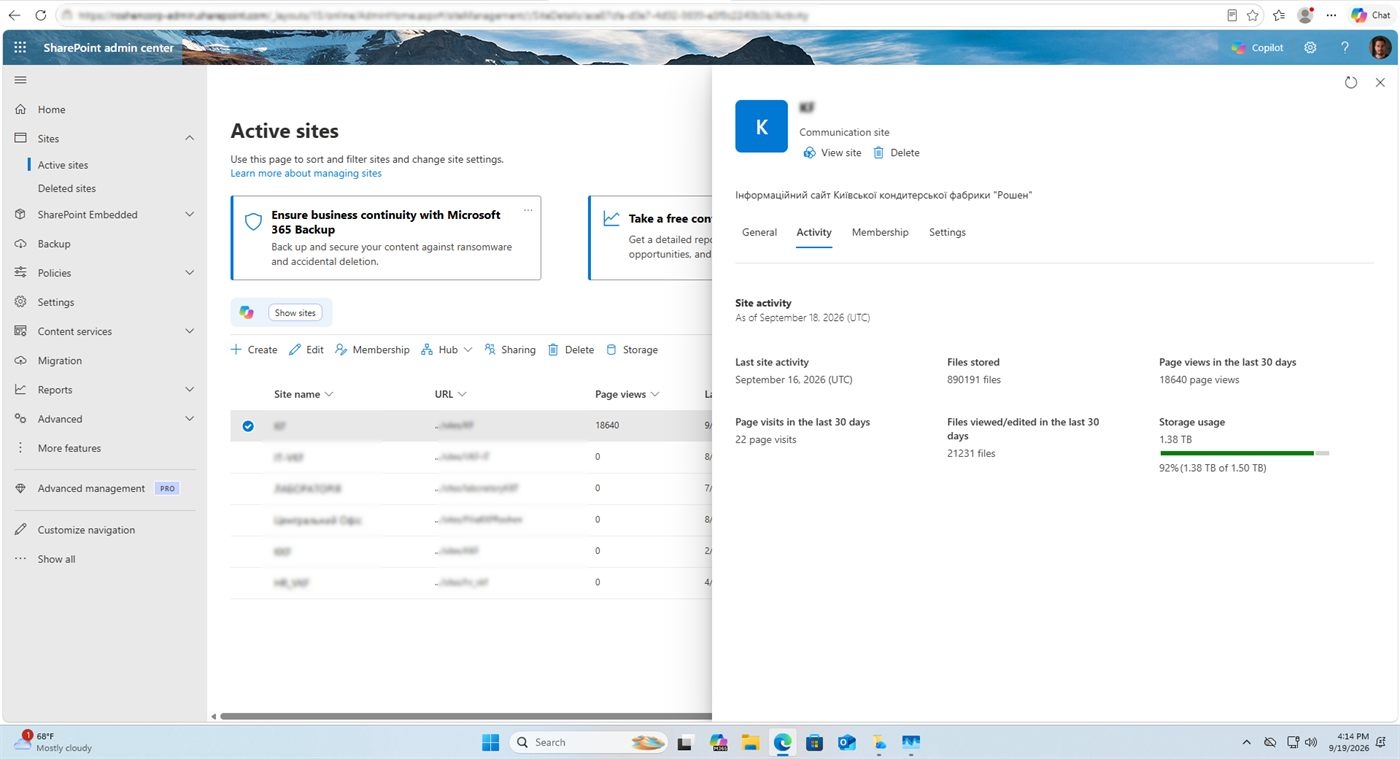
We measured: the exact item count came from the library's REST API before the sync started — 997,392. Two size figures disagree, and that is expected: the admin center reports 1.38 TB (all site storage including version history and the recycle bin), while the sync engine's own database counted 995 GB of logical size — the current versions of files, which is what actually syncs.
The test machine
| CPU | Intel Core i9-11900K, 8 cores / 16 threads |
|---|---|
| Memory | 32 GB — Microsoft's upper recommendation |
| Disk | NVMe SSD holding the user profile |
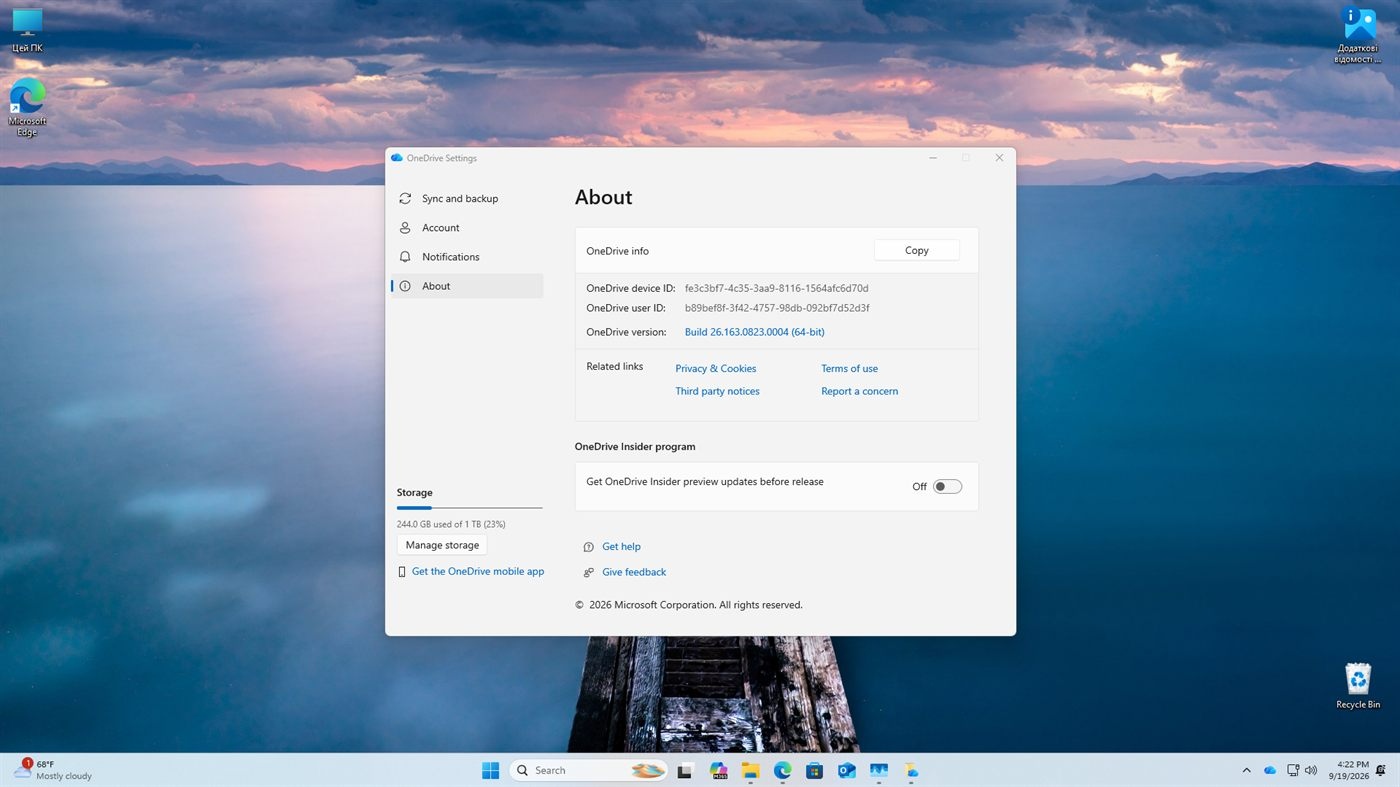
| OS | Windows 11 Pro 25H2, build 26200.9457 |
| OneDrive | 26.168.0830.0004, preview builds enabled |
| Connection | Rated 99/100 Mbps; measured before the run at 98.57 / 99.63 Mbps, 2 ms ping |
| Profile | A clean, separate Windows account |
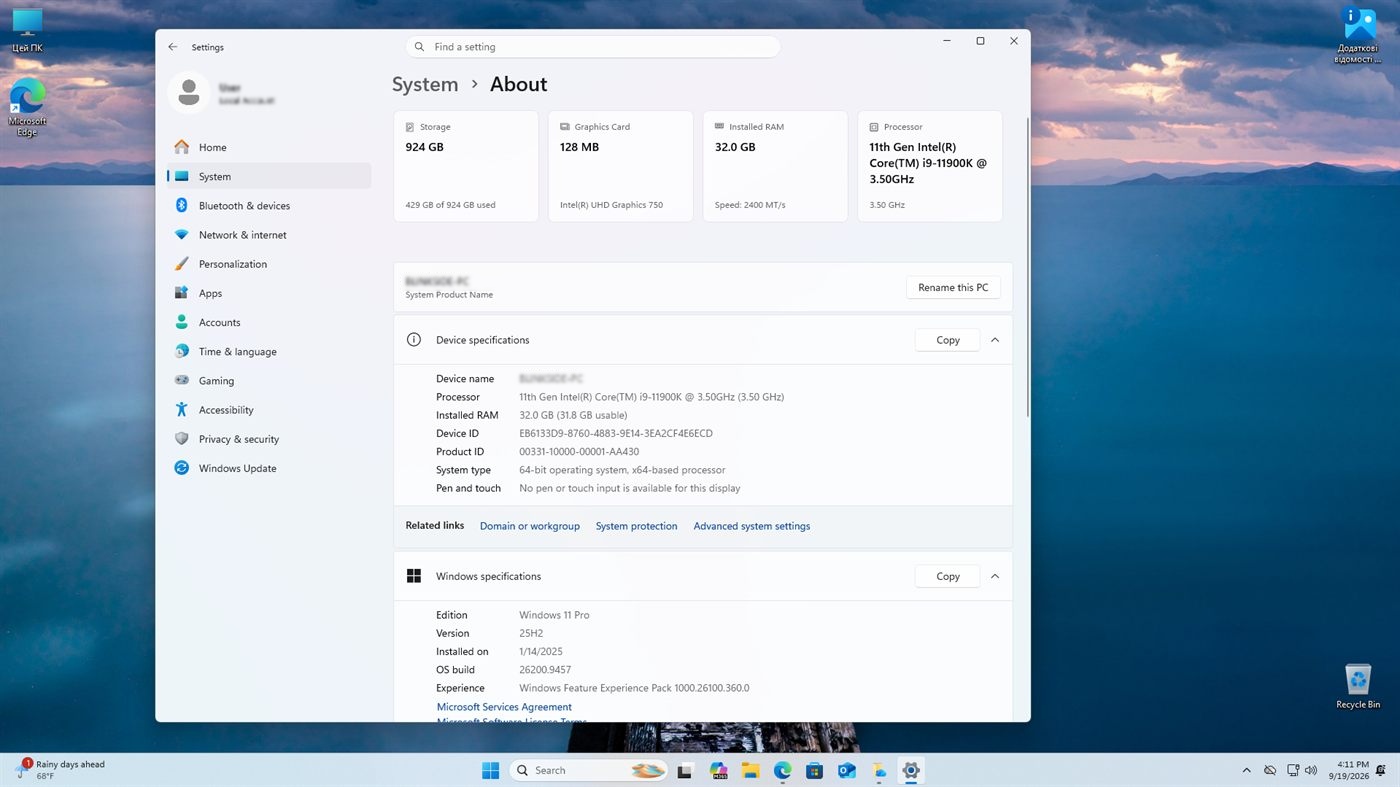
We did not measure weaker configurations, so every number below applies to this bench only. Our expectation that a machine with less memory and a slower disk would fare worse is an assumption, not a measurement.
How we measured
Walking the file tree during a sync is not an option: the walk itself touches file state and
would distort what you are trying to measure. So we did not do it. Progress is read straight
out of the OneDrive sync engine's database (SyncEngineDatabase.db, SQLite) — live
and read-only. That yields the item count, the cloud-only versus locally-downloaded split, the
seconds of service-side throttling and the response codes. Load figures come from CIM, where
property names do not depend on the OS display language.
A separate hydration probe runs alongside: the script periodically tries to open a small cloud-only file from the library with a hard timeout, records the result and the duration, then returns the file to its cloud-only state. That probe produced the most interesting data in the whole test.
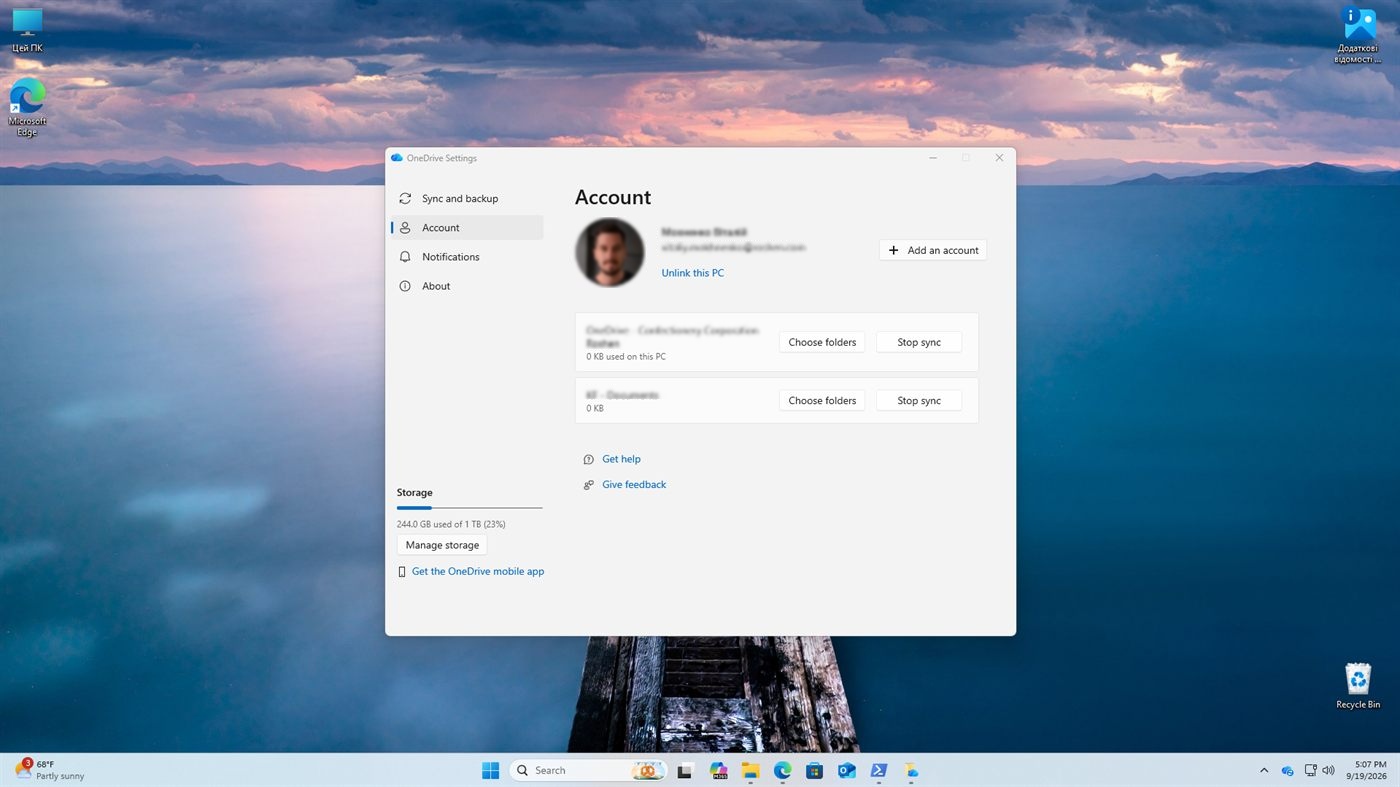
Our interpretation: we assume the records in that database are what the 300,000 / 1,000,000 limit is applied to — but Microsoft does not publish its counting method, so this is an assumption.
How long does it take to sync 1,000,000 files?
52 minutes and 1,013,795 items
The clock starts when monitoring began, with the library not yet connected. Sync was clicked five minutes in, and the item counter started moving 25 seconds after that. The millionth item was passed at 51.8 minutes, and the counter stopped growing at 52.9.
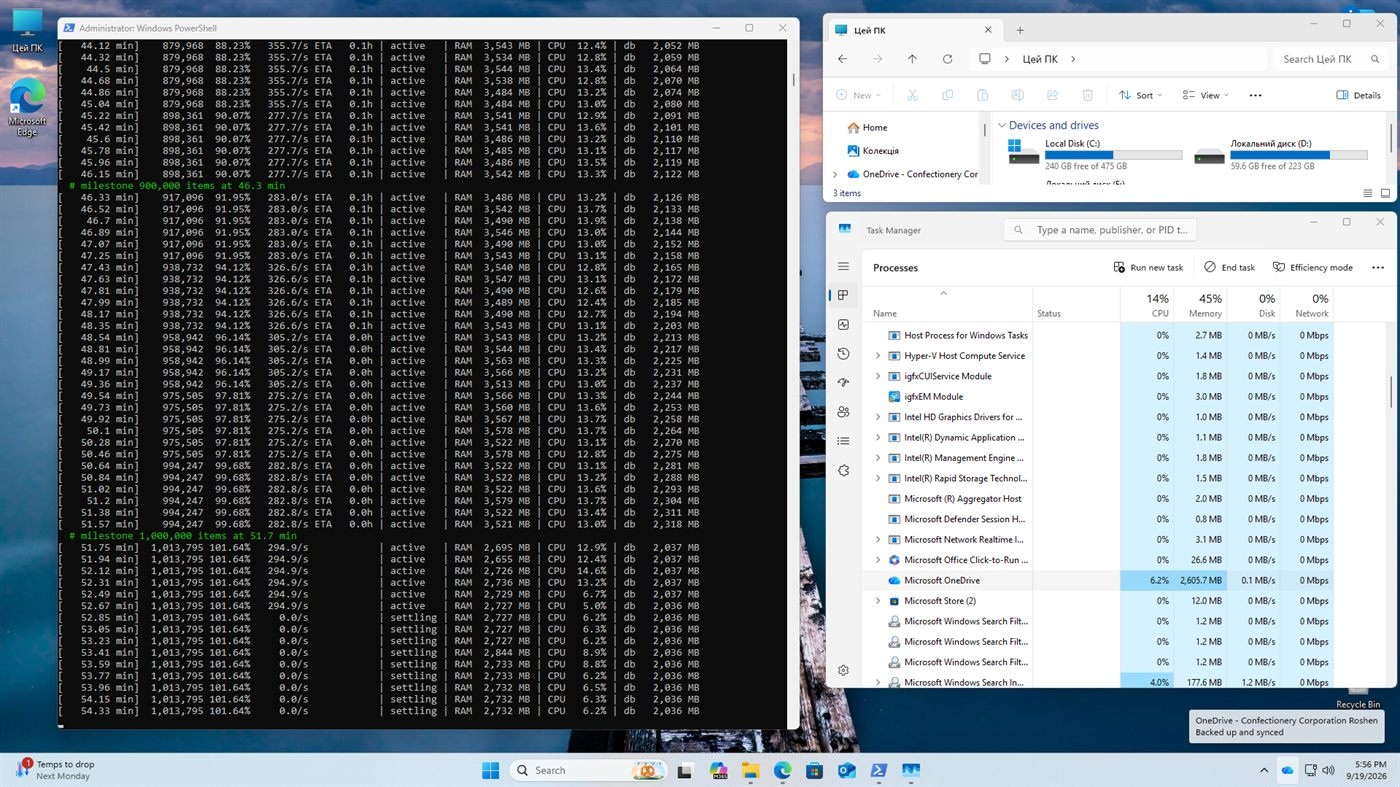
900,000 items at 46.3 min and
1,000,000 items at 51.7 min, with the counter at 1,013,795. The tray icon reads
Backed up and synced.
| Items on the device | 1,013,795 (905,313 files + 108,482 folders) |
|---|---|
| Added during this run | 997,379 — the SharePoint library |
| Present before the start | 16,418 — the same account's personal OneDrive |
| Cloud-only | 905,310 of 905,313 files (99.9997%) |
| Downloaded locally | 3 files |
The client did exactly what it promises: it built a full tree of nearly a million items without downloading content. What landed on disk were placeholders, not files. The gap between 997,379 added and the 997,392 reference is 13 items — arithmetic across two counts taken at different moments on a live library, not a list of files we went looking for.
OneDrive sync speed
| Milestone | Min from start | Rate over the segment |
|---|---|---|
| 100,000 | 8.8 | — |
| 300,000 | 16.5 | 402 items/sec |
| 500,000 | 23.1 | 469 items/sec |
| 700,000 | 34.2 | 297 items/sec |
| 900,000 | 46.3 | 296 items/sec |
| 1,000,000 | 51.8 | 297 items/sec |
We measured: over the first two segments the client held 402 and 469 items/sec, then the rate dropped to 297 items/sec and stayed there — 297.1, then 296.5, then 297.4. This is not gradual degradation but a step down onto a flat plateau around the halfway mark. The average across the active phase was 351 items/sec, with a peak of 590.
Our interpretation: we cannot name the cause. There was no service-side throttling at all — zero windows, zero seconds, 1,156 service calls and zero errors. Network, disk and CPU were no busier in the second half than the first. How flat the plateau is points to a fixed ceiling — request batch size, or the number of parallel streams — rather than an accumulating cost.
How much RAM, CPU and disk does OneDrive use?
| Resource | Measured |
|---|---|
| RAM, peak | 3,579 MB |
| RAM after completion | 2,790 MB |
| CPU, average during the active phase | 2.1 of 16 cores (13.1%) |
| CPU, peak | 2.35 cores (14.7%) |
| Network, downloaded | about 2 GB |
| Disk, read / written | 69.3 GB / 79.3 GB |
| Disk queue, 95th percentile | 1 (peak 4) |
| Sync engine database | 2,036 MB final, 2,318 MB at peak |
| Disk consumed, final | 6.57 GB |
| Peak free space required | 20.62 GB |
| Service throttling | 0 windows, 0 seconds |
A 2 GB database. We measured: the engine spends roughly 2.1 KB of its own database per item. That database sits in the user profile and is read and written on every check for changes.
149 GB of disk I/O for 2 GB of traffic. Our interpretation: that is roughly 75× write amplification relative to what came off the network. On NVMe it goes unnoticed; on an entry-level SATA SSD, or on an HDD, it is a different story — which is exactly why Microsoft lists an SSD as a requirement.
20.62 GB at peak versus 6.57 GB at rest. We measured: free space fell from 253.93 GB to 233.31 GB at the 51.6-minute mark. Transient demand was 3.1× larger than what remained when the run finished. The practical consequence: a machine with roughly 10 GB free will run out of disk mid-sync, even though the end state would have fitted comfortably.
Do you need fast internet for OneDrive sync?
We ran the test on a 99 Mbps connection specifically to answer this. We measured:
| Average download rate | 5.87 Mbps — 5.9% of the link |
|---|---|
| 95th percentile | 12.34 Mbps — 12.5% of the link |
| Samples at ≥ 80% link utilisation | 0 |
| Active-phase samples below 0.1 Mbps | 45.1% |
| Pure transfer time for all traffic | about 3 minutes |
For almost half of the active phase the network was effectively silent, and everything the client downloaded would cross this link in under three minutes — against a run that took 52.
In our test the connection was not the bottleneck. A faster line would not have shortened this run.
Our interpretation: the constraint is not bandwidth but service round-trip latency and metadata processing. A million items means a million records to fetch, parse and write into a local database, and a wider pipe does not reduce how many of those operations there are.
For planning: if you already have a stable 100 Mbps, upgrading the line to speed up syncing will not pay for itself — that money does more in RAM and NVMe. We did not measure below 100 Mbps.
What happens after the initial sync
238 minutes stuck on "Looking for changes"
With the sync finished, we signed out of Windows and signed back in. No changes to the library, no reboot.
We measured: the OneDrive process started at 18:18:03, and "Backed up and synced" appeared at 22:15:39.
14,255 seconds = 237.6 minutes = 3 hours 58 minutes — spent checking for changes in a library where nothing had changed. That is 4.6× longer than the sync itself.
An important caveat up front: those 238 minutes did not repeat. Three subsequent sign-in cycles on the same machine with the same library took 20.7–36.6 seconds, and every file-open probe during them succeeded — details in the repeat-cycle section below.
Detailed load measurements cover 116.9 of those 237.6 minutes — the monitoring script was not started at the very first second. The full duration is measured from the OneDrive process start to the status change; both points are recorded reliably.
| Service calls | 14 — two of them EnumChanges; zero errors |
|---|---|
| Downloaded | about 22 MB (an upper bound for the whole machine) |
| Disk, OneDrive process | 0.50 GB read / 0.17 GB written |
| Sync engine database | unchanged |
| Item count change | zero — not a single record |
| CPU | 1.03 cores on average, peaking at 1.79 |
| RAM | grew from 936 MB to 2,501 MB |
We measured: the item counter did not move once across the entire observed phase — 1,013,795 on every sample. Two new items appeared 33 seconds after the "Backed up and synced" status did. Of the 19 EnumChanges calls, only 2 fell inside the phase; the other 17 landed in the quarter hour after it ended.
Our interpretation: this does not look like downloading data, or even like an active conversation with the service. It looks like long internal work against the client's own state — the same 2 GB database. We cannot confirm that: Microsoft does not publish what the client does during this phase.
We observed: from the outside the phase looks normal. The tray icon reads "Looking for changes" — the same thing it shows during the five-second check after an ordinary morning start-up. We saw no progress indicator, no time estimate and no warning. In the client's standard interface we found nothing that distinguishes "wait 20 seconds" from "wait 4 hours."
Files would not open during the check
This is measured, not eyeballed: the hydration probe was running throughout.
| When | Attempts | Failed | Share |
|---|---|---|---|
| During the check for changes | 45 | 44 | 98% |
| After the client reached its working state | 9 | 0 | 0% |
We measured: of 45 attempts to open a file during the phase, one succeeded, and it took 49,342 ms — nearly 50 seconds for a file of a few hundred kilobytes. Once the client reached its working state, the same probes took 305–645 ms.
OneDrive error 0x800701AA
Precision matters here. The automated probe aborts at 60 seconds and records a
timeout, which means it kills the call before Windows returns an error code.
We observed: the code appeared when we opened a file by hand at
the start of the same phase:
0x800701AA — The cloud operation was not completed before the time-out period
expired.
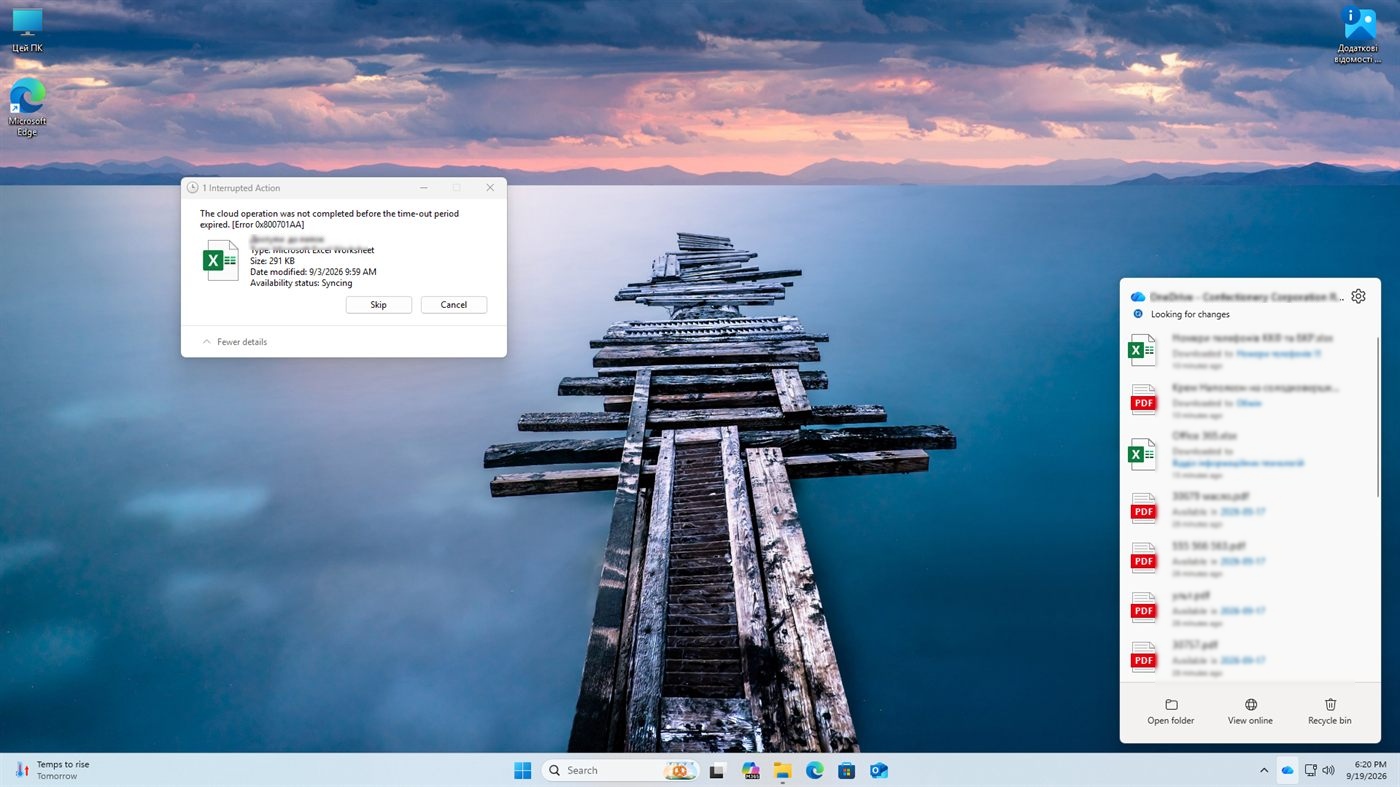
We observed: Excel responded to this twice with "file format or file extension is not valid" — the application received a partial or empty stream and drew its own wrong conclusion. Our interpretation: this is how conflicted copies and "corrupted" documents are born. The user sees a format error, saves the file under a different name, and the chain continues without OneDrive's involvement.
Does this happen after every restart?
Turning 238 minutes into a rule would be dishonest. We ran a third test — reboot and sign-in cycles on the same machine with the same library. Four runs were recorded; three captured a complete cycle.
| Cycle | Trigger | To "Backed up and synced" |
|---|---|---|
| 1 | Clean reboot | 36.6 s (129.6 s from boot) |
| 2 | Sign-in, machine up for 11 hours | 20.7 s |
| 3 | Sign-in, 74 minutes after boot | 35.8 s |
We measured: on a consistent basis the spread was 20.7–36.6 seconds. The hydration probe ran 12 times with 12 successes, and six of those probes landed squarely in the "Looking for changes" state — all successful, at 707–2,572 ms. At rest the process held 1,507–2,187 MB of memory: on a million-item library, a gigabyte and a half to two gigabytes of RAM is permanently occupied.
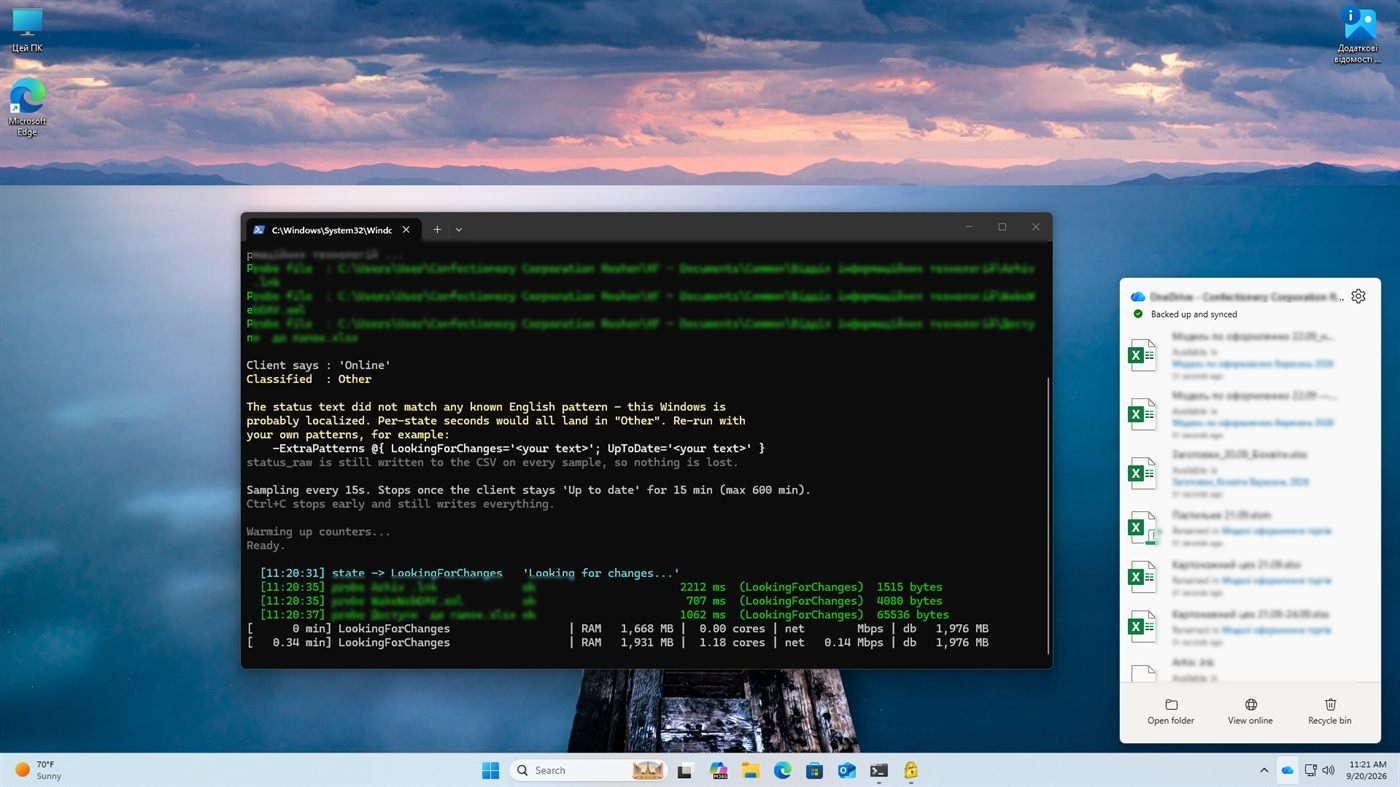
[11:20:31] state -> LookingForChanges with three consecutive successful probes
(2,212, 707 and 1,062 ms). The same state name as during the 238-minute phase, and the
opposite behaviour.
A caveat: we cannot claim the client was doing the same amount of work in those cycles. The long phase was the first sign-in after the initial sync; the three that followed were not. We did not measure how often it happens.
Our interpretation: that is precisely what makes it an operational problem. An event that is rare and unpredictable, yet lasts for hours and looks normal, is harder to manage than an outright error — an error shows up in monitoring, and this does not.
What a million files means across hundreds of PCs
Our interpretation: everything in this section is a conclusion drawn from deployment experience, not a measured number.
Resources multiply by the number of machines. 6.6 GB of disk at rest and up to 21 GB at peak — on every device. A 2 GB service database that has to be read and written on every check for changes. A 3.6 GB RAM peak: on machines with 8 GB that already competes with the applications people work in, and Microsoft's 16 GB minimum is not a formality.
A rare event stops being rare across a large estate. We do not know how often the pathological phase occurs and will not invent a figure, but the arithmetic of scale is unambiguous: across hundreds of machines even a rare, episodic problem stops being one user's problem — its size is set by the number of devices and how often such events happen.
Users do not wait. The 52 minutes came from an idle, ideal machine; on a working laptop every file opened and every Excel launch competes with the sync for the same disk and CPU.
A second device means a second identical run. The limit is defined per sync instance per device: someone with a laptop and a desktop goes through the whole cycle twice.
What the test showed
Better than expected. The initial sync of a million items is fast, predictable and cheap in resources: 52 minutes, 2 GB of traffic, 2 cores out of 16, zero service errors, zero throttling. As engineering, that is a serious result.
What turned into a problem in our test. After the initial sync the client spent 238 minutes in "Looking for changes," and 44 of 45 attempts to open a file timed out. Three subsequent sign-in cycles did not reproduce that behaviour.
Practical guidance:
- Up to 300,000 items — OneDrive sync remains a sensible choice, and our data does not contradict Microsoft's recommendation.
- Between 300,000 and 1,000,000 — it will work, but only on machines that meet the preview requirements, and with the understanding that you are in "supported" territory rather than "recommended."
- An estate of hundreds of machines — budget for the cost of running the steady state, not for the initial sync time.
- VDI — the 1,000,000-item limit does not apply to you.
Need to work with a large SharePoint library without syncing it locally?
OneMount mounts SharePoint and OneDrive as a Windows drive: files stay in the cloud and people work with them in File Explorer — with no initial sync of a large library and no local index of a million items.
Try OneMount →How to work with a large SharePoint library
Split the library
Break the corpus into several libraries or sites so that each device syncs fewer than 300,000 items. It works, but it requires restructuring, retraining people and it breaks existing links — often more expensive organisationally than technically.
Selective sync
"Choose folders" lets you avoid pulling the whole tree. But the limit counts whatever you selected, users eventually tick more than they need, and it does not spare you the check-for- changes phase on what does sync.
Keep people in the browser
The safest option from the client's point of view and the worst from the habit's: where people have worked with a drive letter for years, going back to a web interface meets resistance, and part of the team will find workarounds.
Mount SharePoint as a drive without syncing
This is the direction we took — and here we repeat the conflict-of-interest disclosure: we build OneMount, so we are not a neutral party.
The logic is simple. Every number in this article — 52 minutes, a 2 GB database, 149 GB of disk I/O, 238 minutes of checking — is the cost of maintaining a local copy of the state of a million items. Without that copy the cost goes away: there is nothing to verify after sign-in, no database growing linearly with the item count, no 21 GB peak on the system drive. In exchange you take on different trade-offs: a connection is required, and how quickly a document opens depends on the link rather than the local disk.
Our interpretation: for libraries where most of the corpus is archive that is rarely touched — in our test library, about 2% of files were touched in 30 days — keeping a full local index of a million items on every device looks like a large price for a small benefit. But that is our assessment, and your usage profile may differ.
FAQ: OneDrive and 1,000,000 files
How many files can OneDrive sync?
Up to 1,000,000 items per sync instance per device in public preview, provided the requirements are met. The limit counts items, meaning files and folders together.
Is the OneDrive limit 300,000 or 1,000,000 files?
Both. 300,000 is Microsoft's recommendation for optimal performance, and 1,000,000 is the upper support boundary in public preview. One did not replace the other.
How long does it take to sync 1 million files?
In our test, 52 minutes for 997,392 items on a machine with a Core i9, 32 GB of RAM, an NVMe SSD and a 99 Mbps connection. The average rate across the active phase was 351 items/sec. On a weaker machine, or with other work running, it will take longer.
Can OneDrive sync 1 million files on Windows 11?
In public preview Microsoft supports up to 1,000,000 items per sync instance, provided the requirements for Windows, RAM, SSD and the OneDrive client are met. In our test, Windows 11 Pro 25H2 with 32 GB of RAM and an NVMe SSD synced 997,392 items in about 52 minutes.
Why does OneDrive get stuck on "Looking for changes"?
We recorded two modes sharing one name in the interface: a short one (20.7–36.6 seconds, files available) and a long one (238 minutes, with 44 of 45 attempts to open a file timing out). We did not establish what causes the switch, and nothing in the standard interface distinguishes the two.
Why is OneDrive slow to sync a large library?
By our measurements the bottleneck is neither the network nor the disk, but service round-trip latency and metadata processing. Tellingly, the rate holds at 402–469 items/sec only through the first half of the library, then drops to a steady 297 and never recovers.
How much RAM does OneDrive use?
Peak during the initial sync was 3,579 MB. At rest, with nothing happening, the process held 1,507–2,187 MB. During the long check-for-changes phase, usage climbed from 936 MB to 2,501 MB over two hours of observation.
How much disk space does syncing a million items take?
6.57 GB at rest with all files cloud-only, peaking at 20.62 GB during the run. Of that, 2,036 MB is the sync engine's own database — roughly 2.1 KB per item.
Do you need fast internet for OneDrive sync?
By our measurements, no — not if you already have around 100 Mbps. OneDrive averaged 5.9% of the link and never came close to saturating it.
What is OneDrive error 0x800701AA?
"The cloud operation was not completed before the time-out period expired" — the request to download a cloud file's content did not finish in the time allowed. In our test we saw this code during the long check-for-changes phase; outside it, no attempt to open a file failed.
Does OneDrive support 1 million files on VDI?
No. Microsoft states explicitly that VDI is not supported in this preview.
How do you work with a large SharePoint library without syncing?
There are four options: split the library, sync selectively, keep people in the browser, or mount the library as a Windows drive with no local copy of the state. The last option removes every cost measured in this article but requires a permanent connection — more detail in how to work with a large SharePoint library.
For the practical side — how to map SharePoint to a drive letter, which methods exist and which of them hold up under load: mapping SharePoint as a network drive in Windows →
If you have been down this road and recognise the symptoms — our story of the year we spent fighting sync on a one-terabyte library →
Sources
- Microsoft — restrictions and limitations in OneDrive and SharePoint: the 300,000-item recommendation.
- Microsoft Learn — sync client support on VDI.
- Microsoft — OneDrive sync stuck on "processing changes."
- SkylFlow's own measurements, 19–20 September 2026: three tests on a physical machine, full logs in CSV and JSON.
Reproducibility. Every number here comes from our own measurement script, which reads the OneDrive sync engine database live and read-only and collects load figures through CIM. The script, the test protocol and the raw CSVs are being prepared for publication — write to us if you want to repeat the test on your own library.