
Picture two scenarios. In the first, ransomware encrypts hundreds of files on a PC in a few minutes — contracts, reports, spreadsheets — and OneDrive dutifully syncs the damaged versions to the cloud. In the second, every file is deleted from OneDrive and both recycle bins are emptied: by an employee on their way out, or by someone who has their password. It happens more often than anyone likes to admit, and that work product belongs to the company.
Is your company ready for each of these scenarios? We tested it — and the answer depends on whether you have a copy outside the user's OneDrive.
Short answer
What OneDrive saved
- ✓A single corrupted file — restored from version history with no loss at all.
- ✓A deleted folder with 58 files — back from the recycle bin in one click.
Where it didn't
- ✕531 files corrupted in 2 minutes — OneDrive gave no warning and kept showing “synced”.
- ✕Version history restores them one at a time — and some files had no good version at all. You can roll back the whole OneDrive, but that also undoes everything done after the attack.
- ✕Files deleted along with both recycle bins — in 5 clicks, by a regular user, no admin needed. Nothing brings them back.
Bottom line: OneDrive is good at undoing individual mistakes, but on its own it is not a backup under the 3‑2‑1 rule. The setup below fixes that using your own Microsoft 365.
Disclosure. We make OneMount, a Windows app for SharePoint and OneDrive that, among other things, runs backups. So methodology and numbers come first, and wherever OneDrive coped, we say so plainly. Half of the setup below works without our product at all.
Deleting every file, recycle bins included: five clicks
Let's start with the worst case: someone with access to the account — an employee about to leave, or an attacker with their password — deletes the work folders and covers their tracks. We did this as a regular test user, not an admin. The deleted Finance folder from Documents — 39 MB of reports and spreadsheets — lands in the OneDrive recycle bin, and right there the same user sees Delete next to Restore.
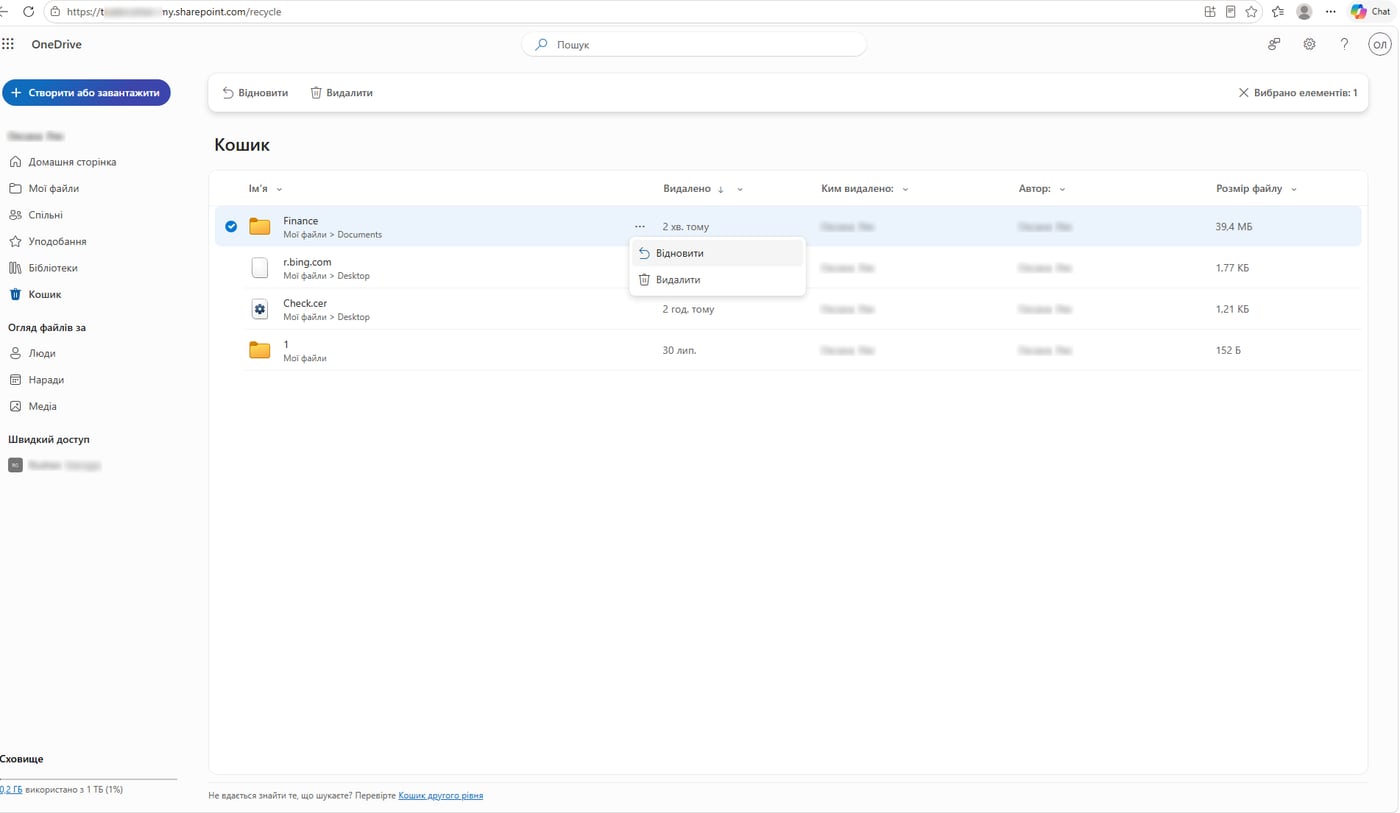
Whether it can be wiped out completely we tested on a large 543 MB file — to OneDrive a folder of documents and a single file behave the same:
- Deleted it in OneDrive on the web — it went to the recycle bin.
- Deleted it from the recycle bin — it moved to the second-stage recycle bin.
- Deleted it from the second-stage recycle bin — and it was gone everywhere.
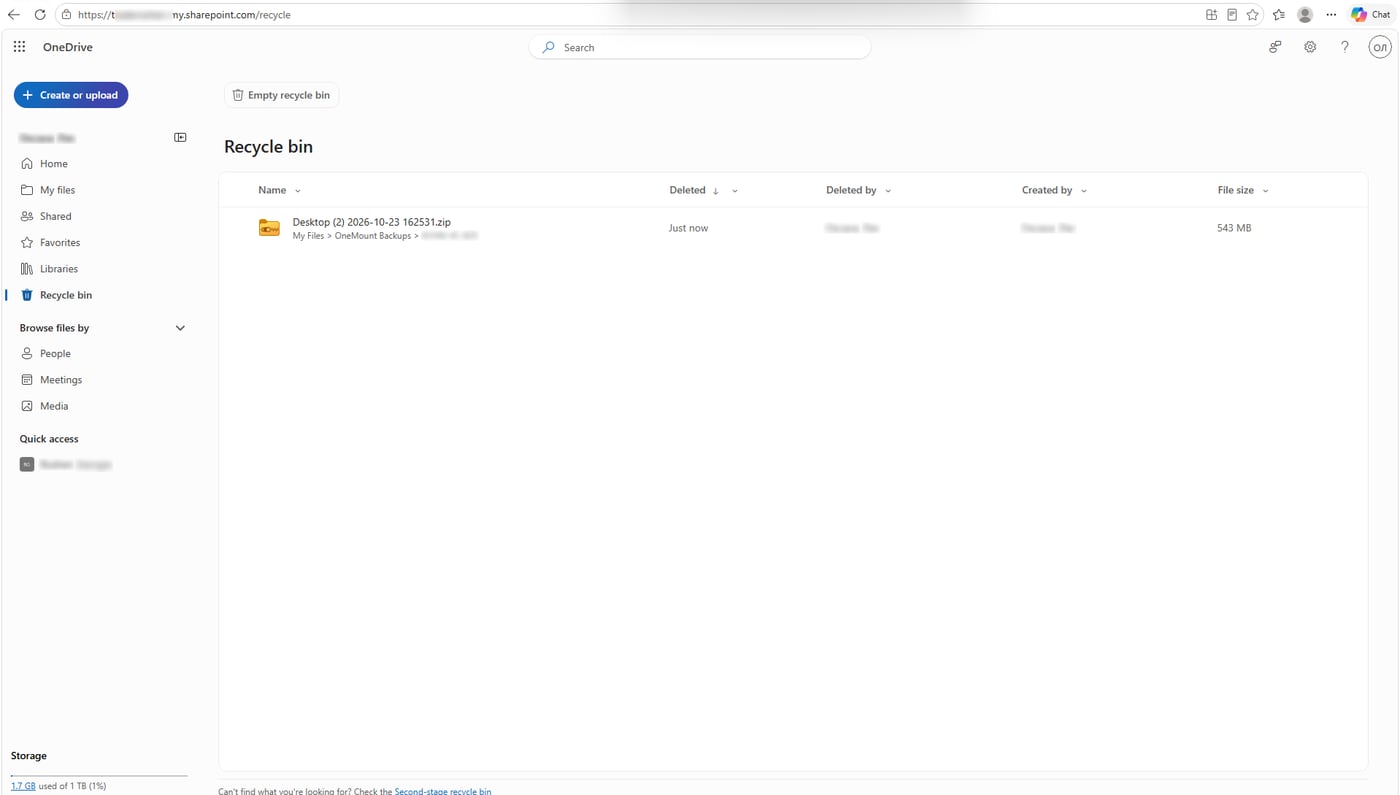
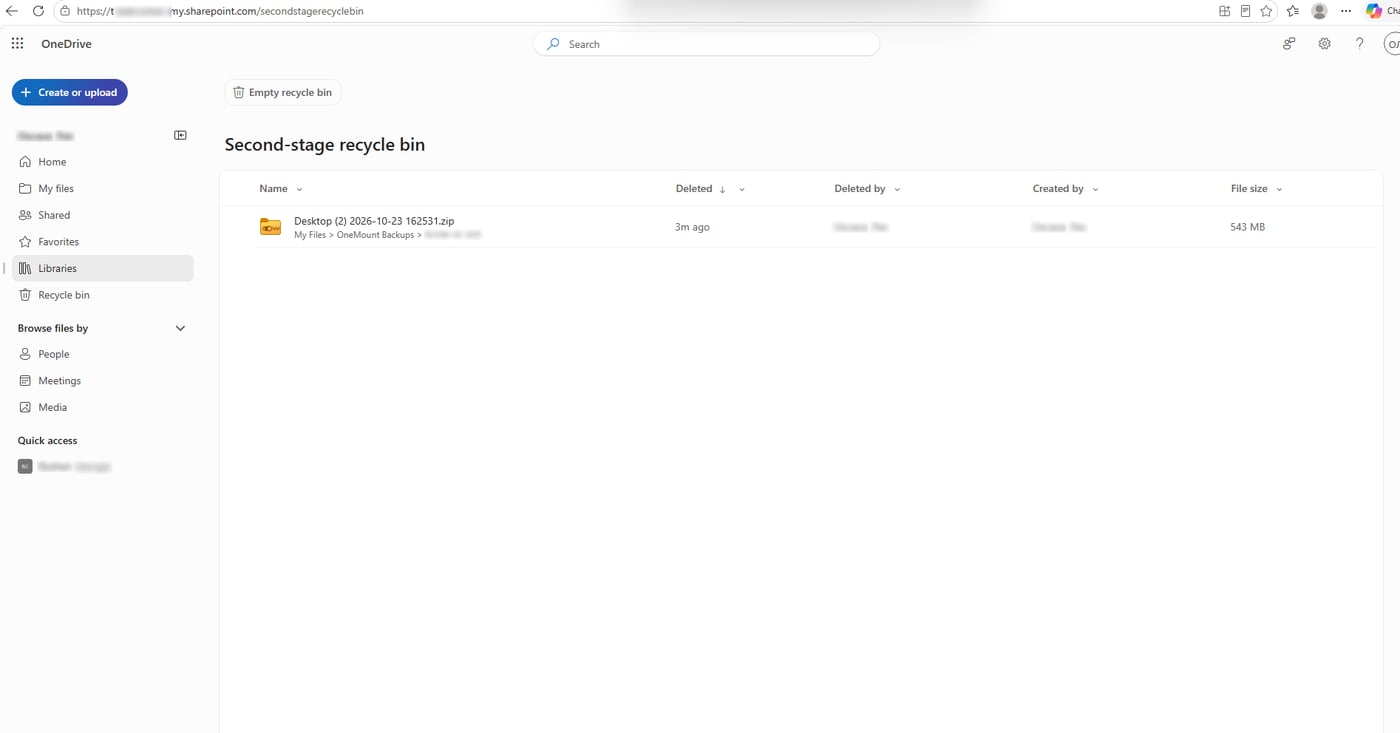
We observed The file was gone for good, and no admin approval was needed. The reason is simple: in their own OneDrive the user is the owner — the site collection admin. They can delete anything and empty both recycle bins. Ransomware running under their account can do the same.
What's left after that. Microsoft states Microsoft Support can restore a OneDrive as a whole to a point within the last 14 days — not individual files, and the rollback also undoes everything changed since. And if the employee has already left and the account was deleted, their OneDrive is kept for only 30 days by default.
So OneDrive is good at rescuing you from accidental mistakes. It doesn't protect against deliberate deletion of every file, because everything it has lives in the same account. Next: what OneDrive can actually do, how we tested it, and how to keep a copy the user can't erase.
Sync is not backup
Most “is OneDrive a backup?” debates mix up two things. Sync makes every copy identical as fast as possible — exactly what you want while you work, and exactly what hurts on the day something breaks: the damage syncs too. A backup is a point-in-time snapshot that later changes don't touch.
| Sync (OneDrive) | Backup | |
|---|---|---|
| What it copies | The current state, continuously | A snapshot, on a schedule |
| Deleted file | Disappears everywhere, then the recycle bin | Stays in every earlier snapshot |
| Corrupted file | Replaces the good copy; the old one lives on as a version | Earlier snapshots don't change |
| Hundreds of files at once | One by one, or roll back the whole OneDrive | The whole set from one snapshot |
The confusion isn't the users' fault. Windows 11 offers to “back up” Desktop, Documents and Pictures, but what it actually turns on is OneDrive folder sync — often during setup of a new PC, as PCWorld and Office Watch reported. Calling it a backup doesn't change how it works.
What Microsoft keeps for you: version history, recycle bin, Restore your OneDrive
For work and school accounts (OneDrive for Business and SharePoint Online) — Microsoft states:
| Feature | What it does | Limit |
|---|---|---|
| Version history | Previous versions of every file, any file type | 500 versions by default; in Automatic mode all versions from the first 30 days, thinned out after that (docs) |
| Recycle bin | Deleted files and folders; second stage for the site owner | 93 days from deletion; counts against storage (docs) |
| Restore your OneDrive | Rolls the whole OneDrive back to a point in time | 30 days; relies on versions and the recycle bin (docs) |
| OneDrive of a departed employee | Kept after the account is deleted | 30 days by default (docs) |
| Microsoft 365 Backup | A separate paid service with restore points | Up to 1 year; $0.15 per GB per month (docs) |
That's a decent toolkit, and the honest answer is not “OneDrive will lose your files”. The cloud corrupting a file on its own is practically a non-issue. The real risk is a file damaged by you, by an app on your PC or by an attacker — and sync faithfully passing that damage to the cloud.
Three OneDrive recovery tests
A dedicated Windows 11 virtual machine with the standard OneDrive client, a test account without admin rights (Microsoft 365 Business Standard), Desktop and Documents redirected to OneDrive, default tenant settings. The data set: 263 realistic files (Word, Excel, PDF, PowerPoint, images), 188 MB, generated by a script. Before every destructive step we recorded SHA-256 checksums: a file counts as intact only if it matches the original byte for byte.
Test 1. A corrupted file — OneDrive coped
The most everyday case: an app crashes while saving, or someone saves the wrong content. We overwrote an Excel workbook with random bytes of the same size.
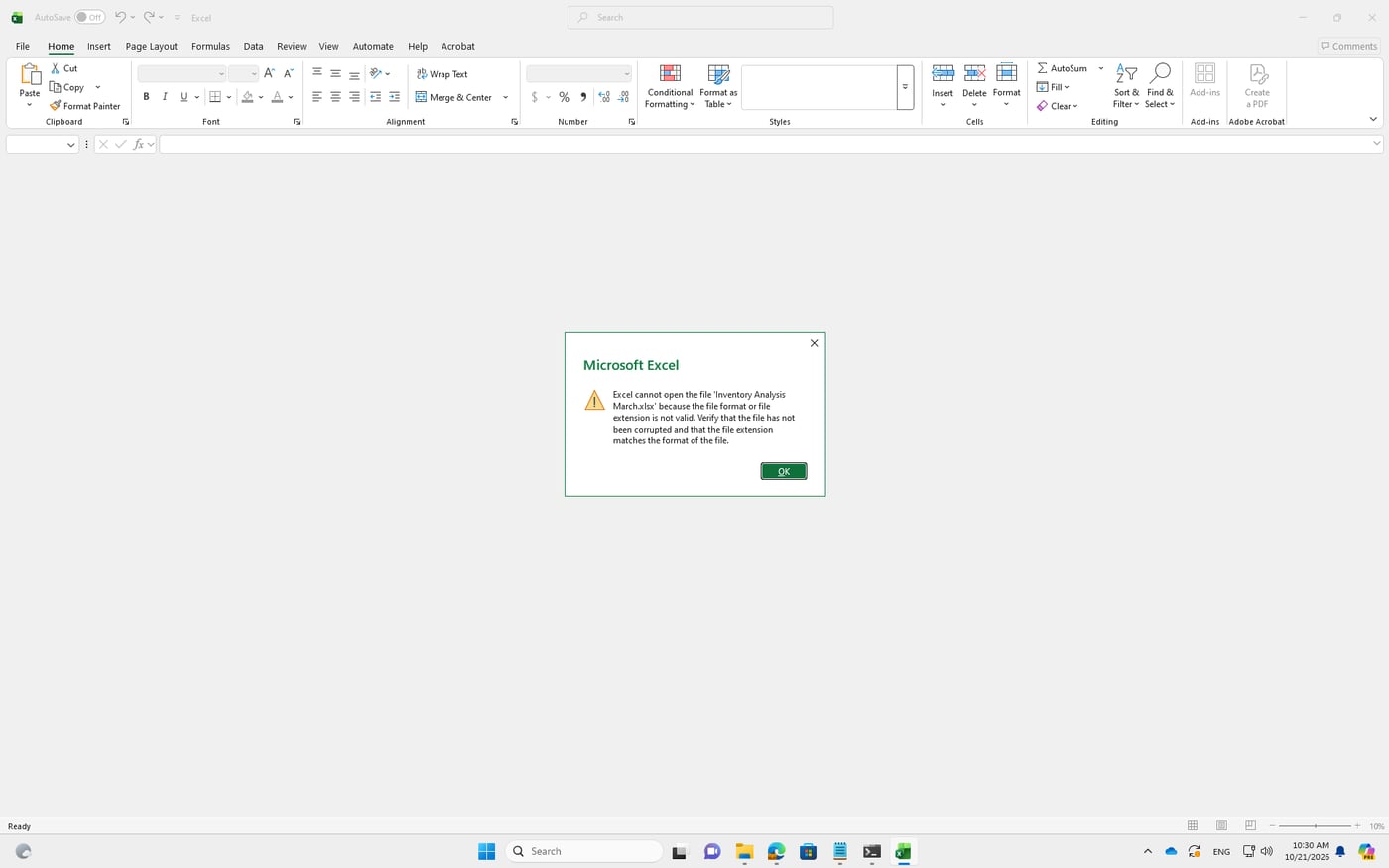
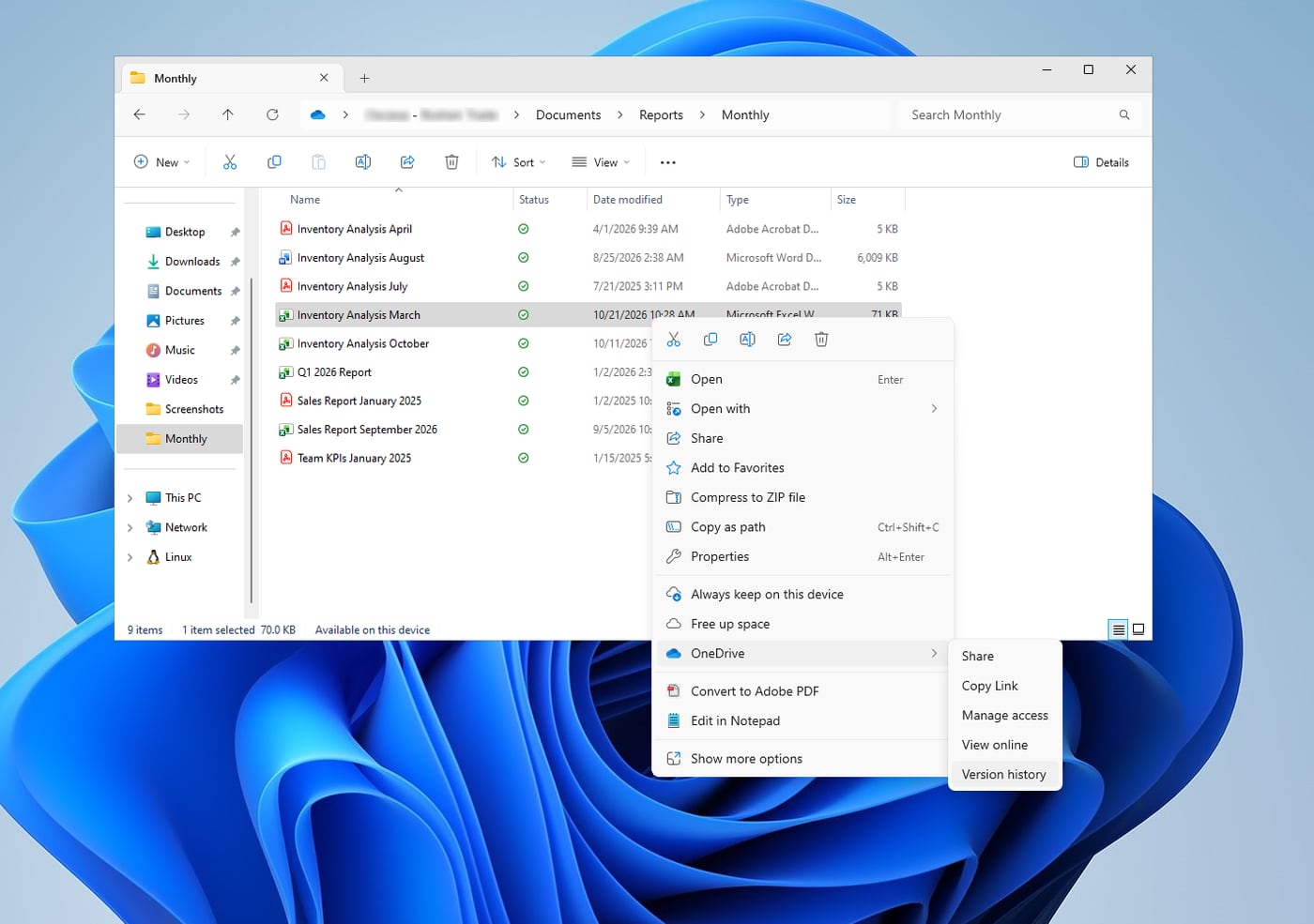
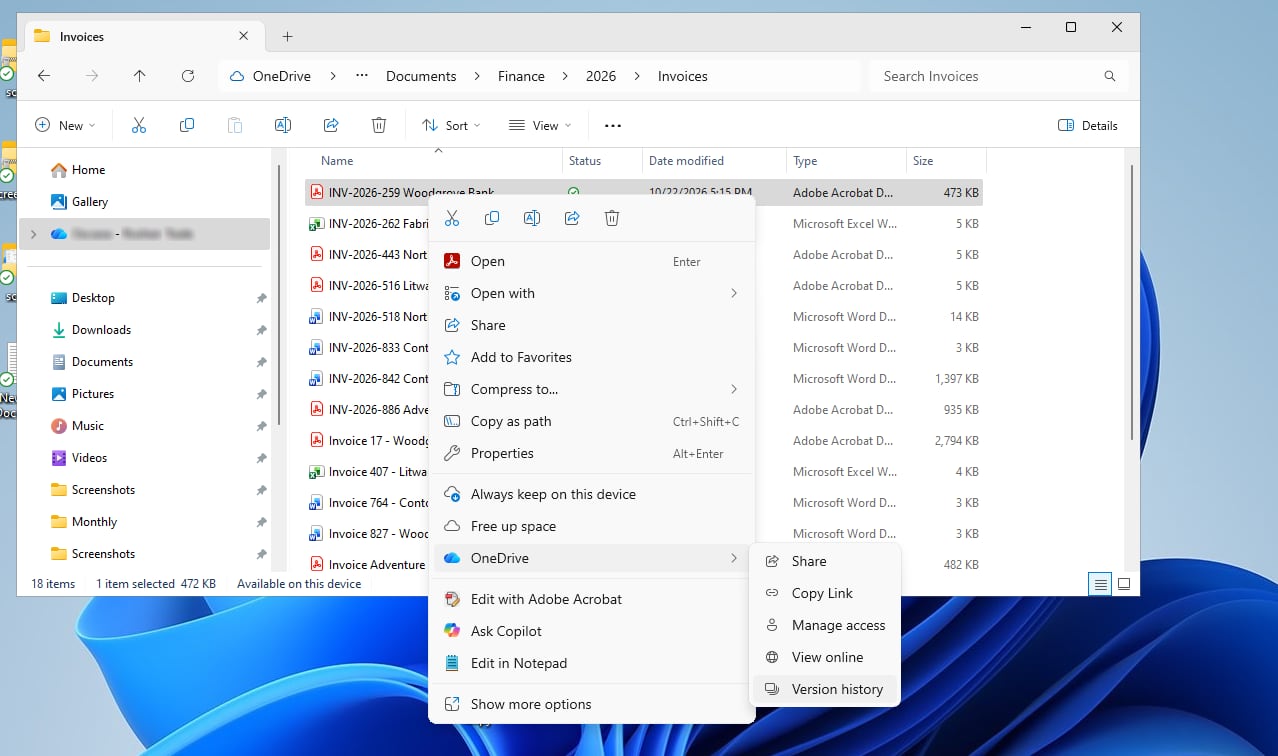
We measured The damaged version reached the cloud within seconds (in one of three runs, in 2 min 23 s). Recovery: File Explorer → right-click the file → OneDrive → Version history → previous version → Restore. Within 30 seconds to 3 minutes the file on the PC matched the original byte for byte again.
- Until the PC catches up, the file still looks corrupted, even though the cloud copy is fine. Don't restore twice.
- Several saves in quick succession can merge into one version — “every save is a version” isn't guaranteed.
- Opening a file in Excel on the web creates a new version, even with no edits. When hunting for a good version, check the history instead of opening files one after another.
Test 2. A deleted folder — one click
We deleted a folder of financial documents — 58 files, 39.4 MB — with the ordinary Delete key. Within 10 seconds it was gone from the cloud. In the OneDrive recycle bin it showed up as a single entry, and Restore brought back 58 of 58 files in seconds, folder structure included.
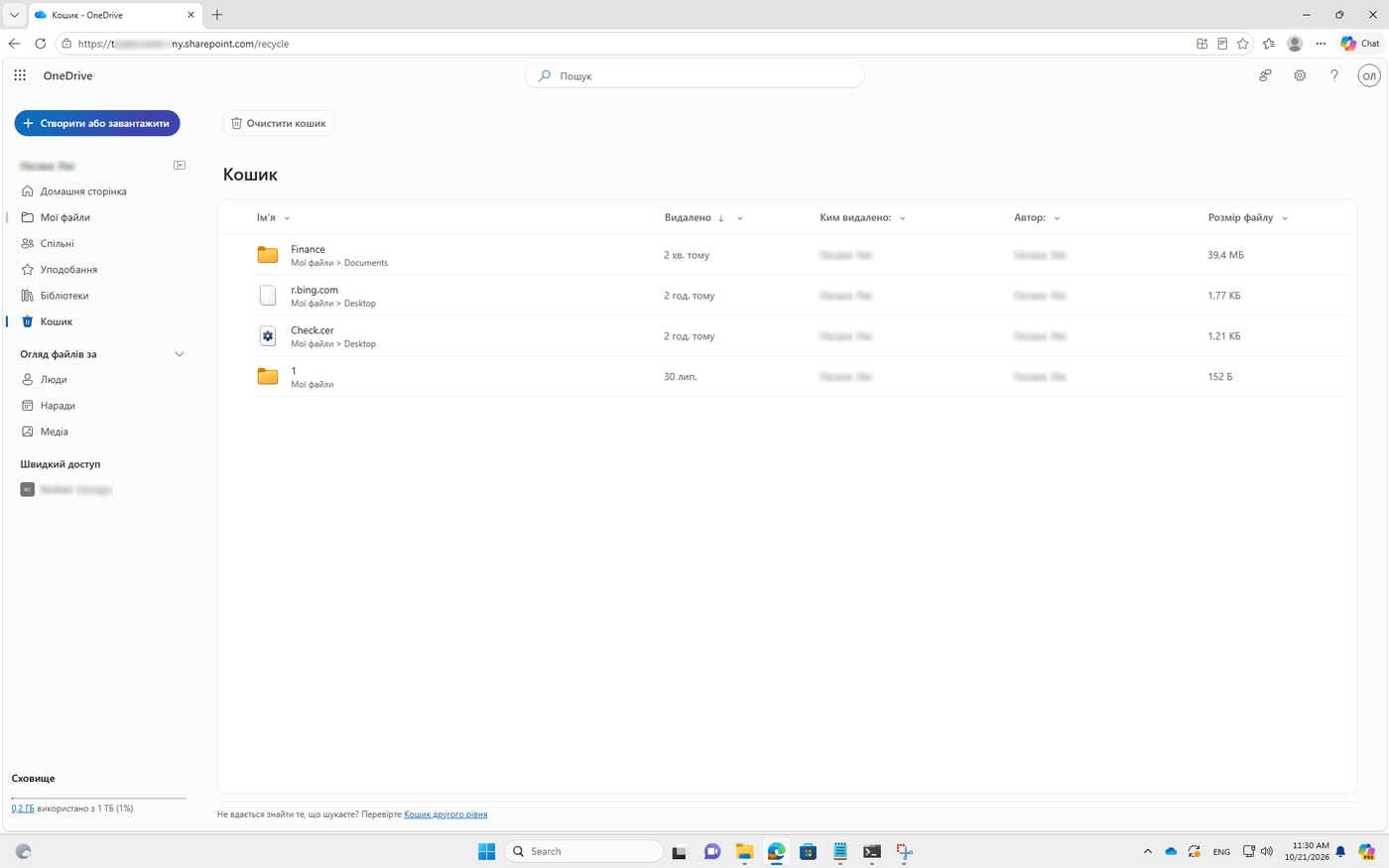
Two small details with consequences. Windows has two recycle bins: the Windows one lives only on that PC, so for a broken or stolen laptop only the OneDrive recycle bin helps. And restored files come back as online-only (Files On-Demand) — they won't open without an internet connection.
Test 3. Everything corrupted — and no one warned us
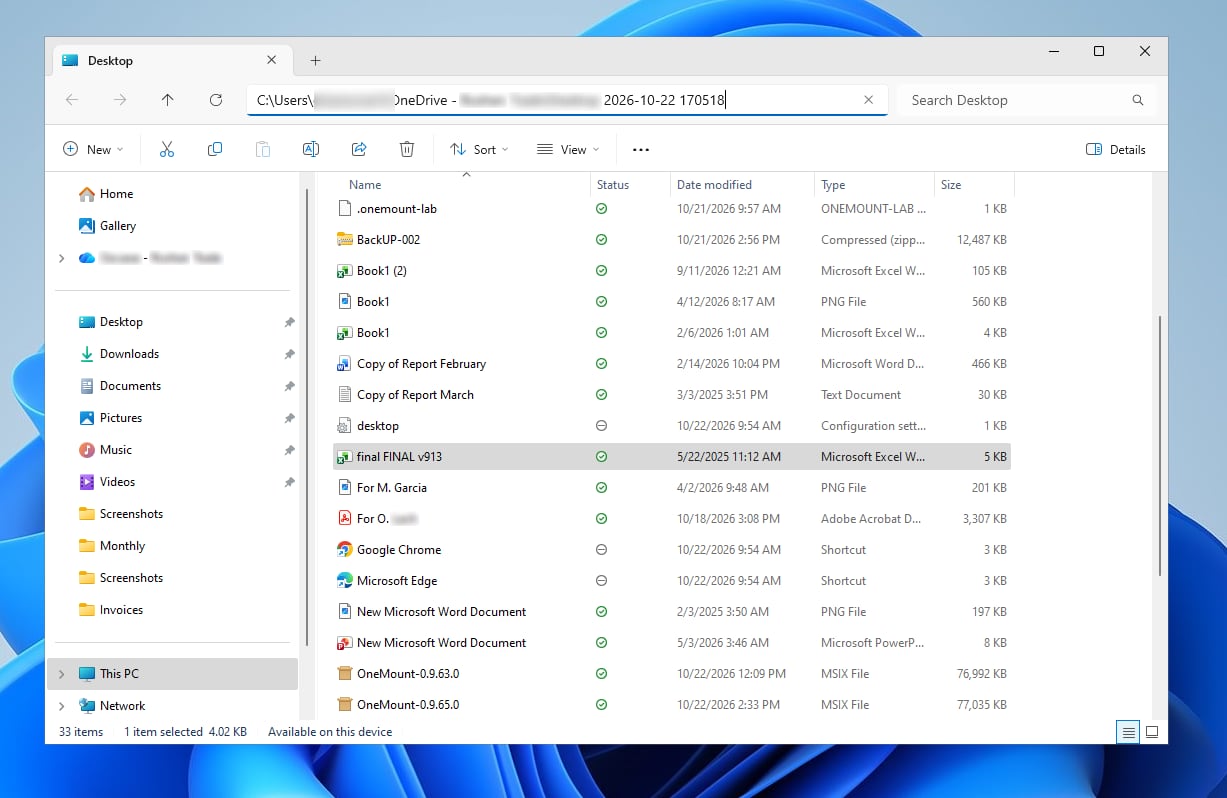
Ransomware or a faulty script doesn't damage one file, it damages everything in reach. We corrupted the contents of the test user's entire Desktop and Documents — including everything that had piled up over days of testing. Names, folders and sizes stayed the same: at first glance everything is in place, until you try to open it.
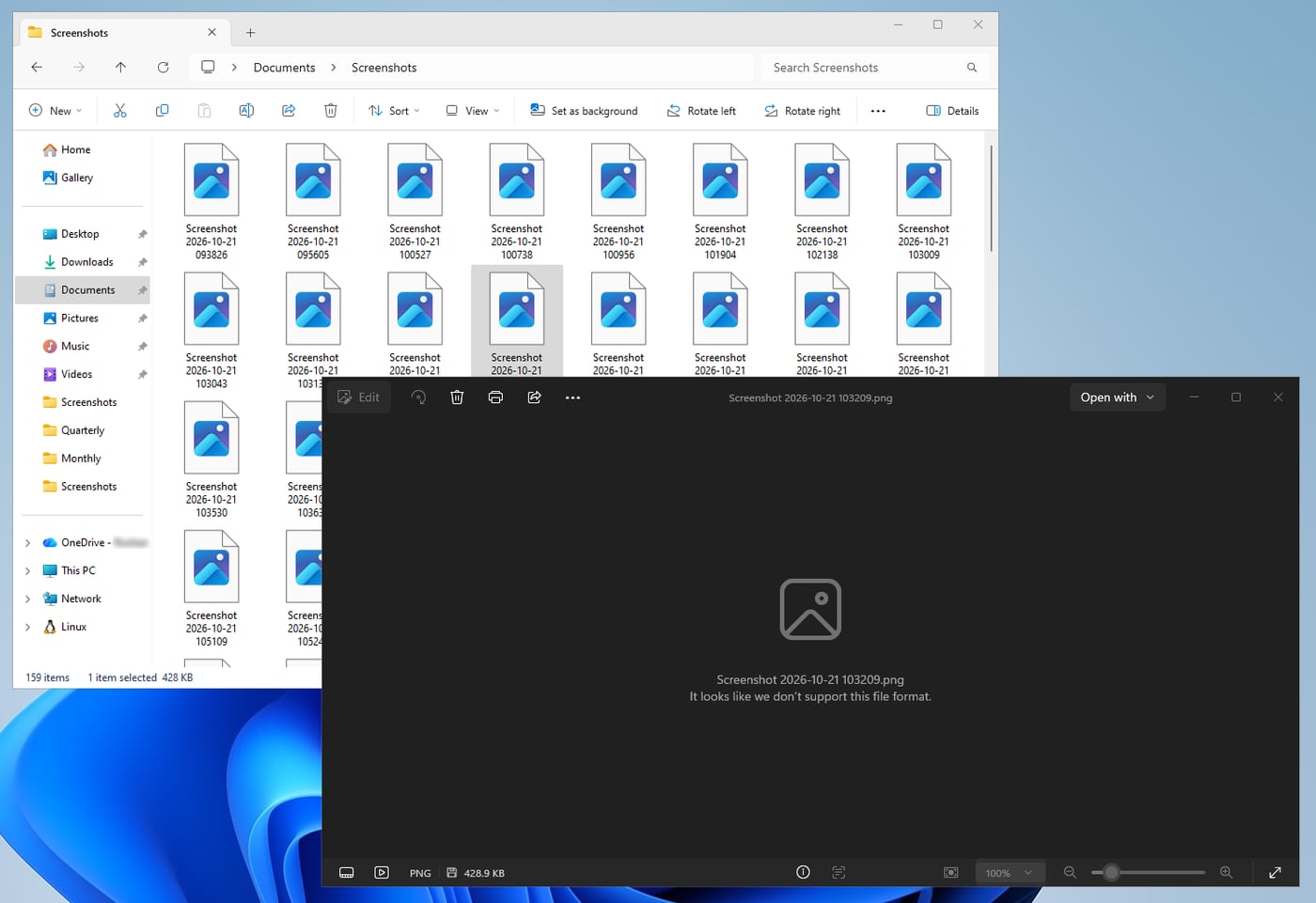
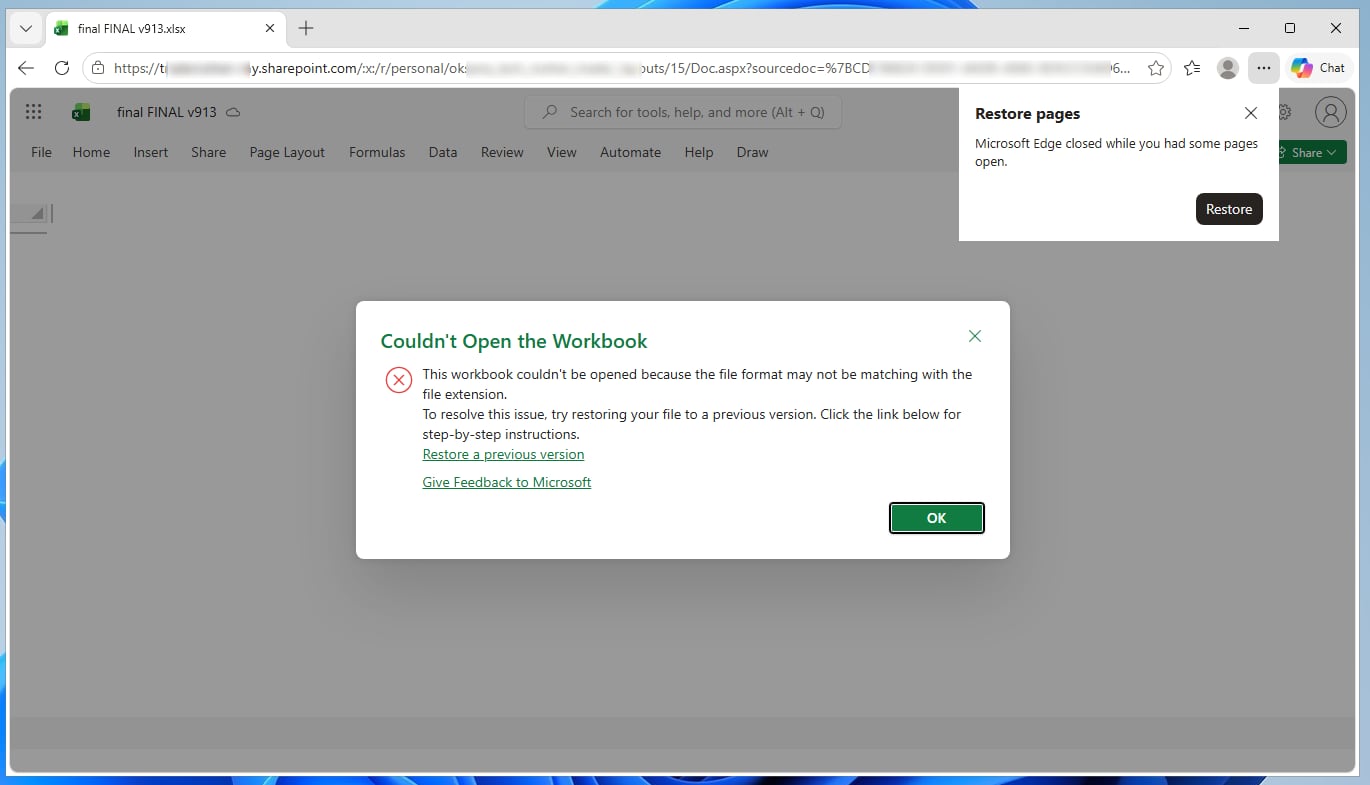
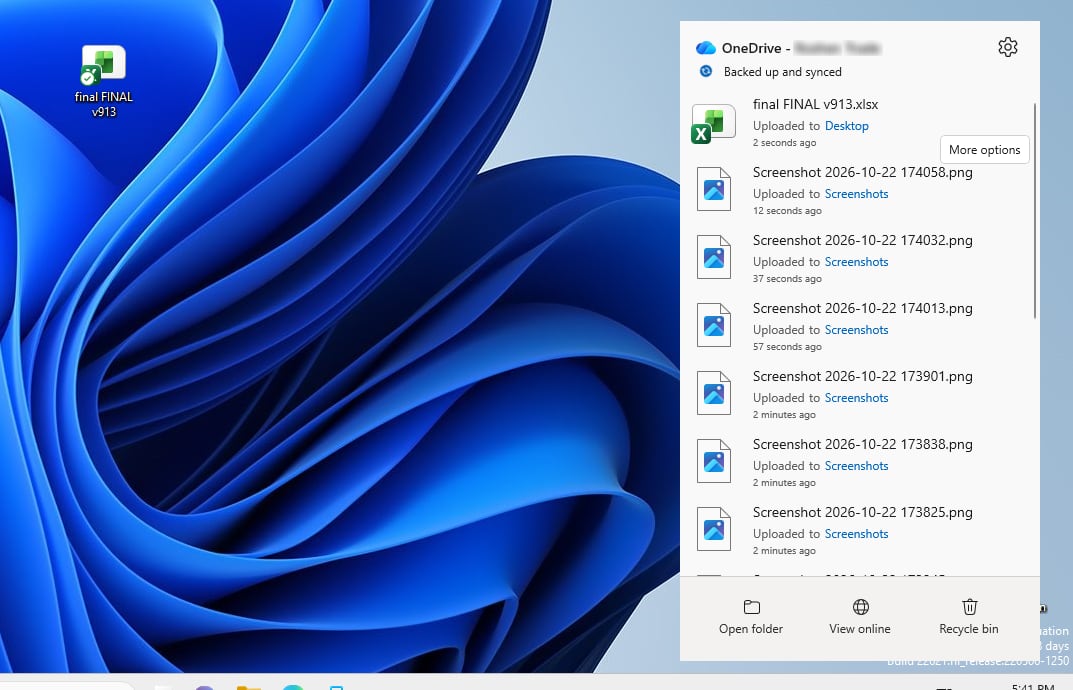
We measured 531 of 532 files (~778 MB) in 123 seconds. We observed OneDrive showed no warning about a mass change — just “synced”. The recycle bin was empty: nothing had been deleted.
Path 1 — version history. Where a good version exists, it restores correctly. But every file has to be restored separately: open, history, version, Restore, next. For hundreds of files that's hours of identical clicks.
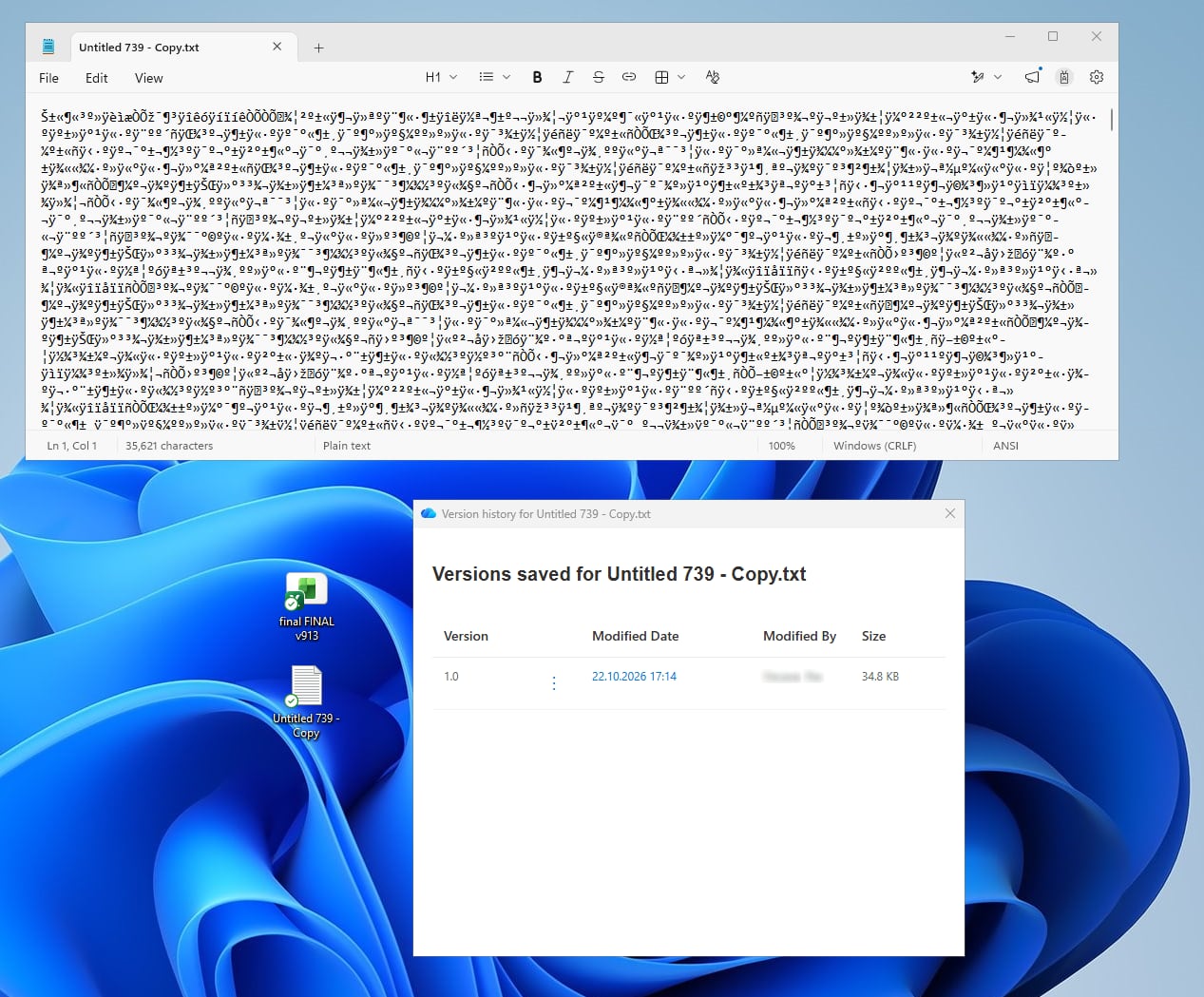
And not every file has a good version. We observed One text document had a single version in its history — already corrupted. There was nothing to go back to. We found it by chance; how many such files hide among the 531 is impossible to check by hand.
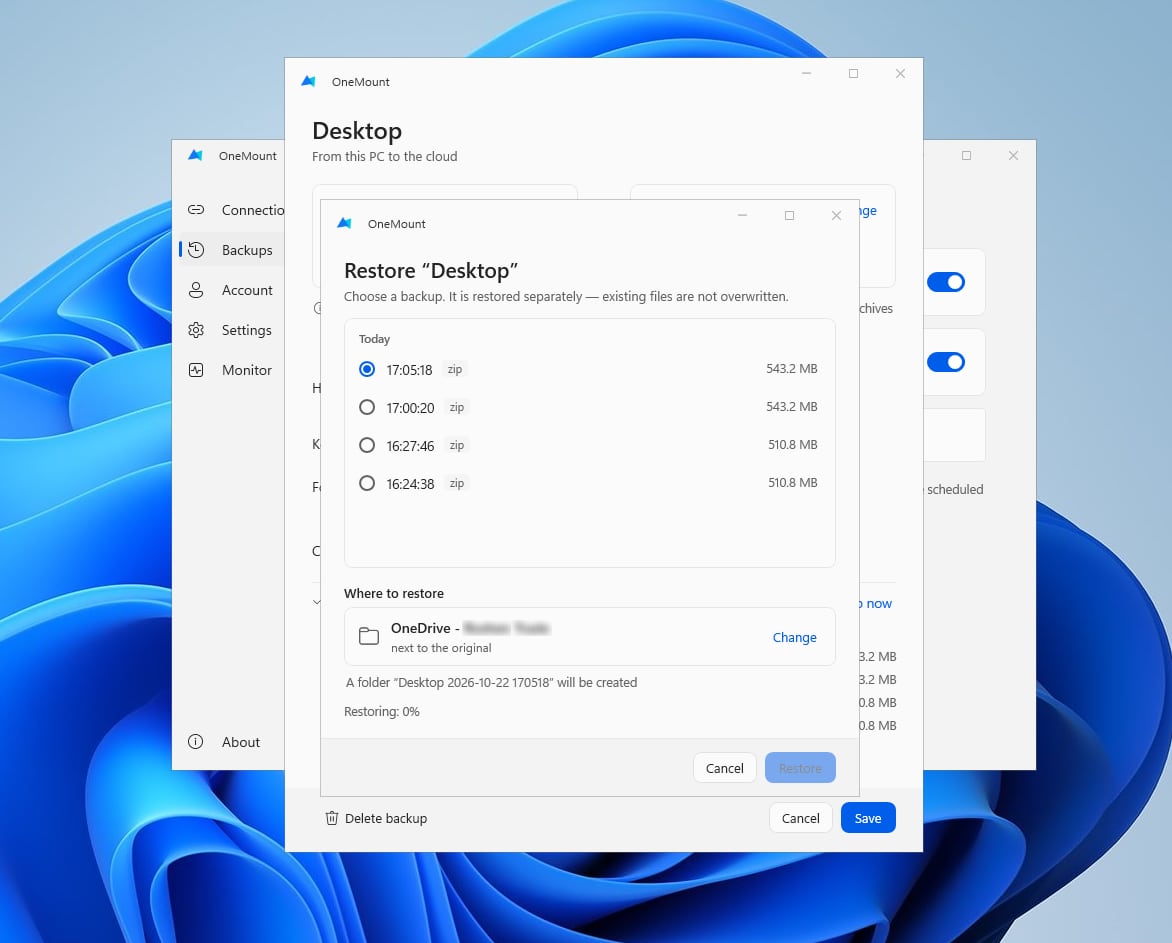
Path 2 — a backup alongside sync. By its nature, sync repeats every change — useful or harmful. So what you add to it is the thing OneDrive doesn't have: a regular snapshot of your folders that nobody changes after it's made. A Desktop corrupted today doesn't touch yesterday's snapshot, and instead of restoring hundreds of files one by one you restore the state as of a specific date.
For the test we used the backup feature in OneMount — our app that complements OneDrive rather than replacing it: on a schedule, it packs PC folders into dated archives in SharePoint or OneDrive. We picked the copy made before the attack, and the whole Desktop came back in one step into a separate folder named with the backup date. Existing files aren't overwritten, so you can compare calmly and take what you need. The same principle works with any backup tool — what matters is that the copy lives apart from the files being synced.
| After mass corruption | OneDrive version history | Backup (snapshot) |
|---|---|---|
| Actions for 500+ files | several per file | one for the whole folder |
| Finding what's broken | check everything | not needed — the whole snapshot comes back |
| File with no good version | lost | restored as of the backup time |
Our interpretation OneDrive also has Restore your OneDrive — rolling the whole OneDrive back to a point before the attack, within 30 days. For mass corruption it's a strong built-in tool, provided the versions are intact. But it also rolls back all the useful work done since, and it won't help if the recycle bins were emptied along with the files — as in the scenario at the start of this article.
Ransomware in 2026: why attacking OneDrive and SharePoint is easier than you think
“That won't happen to us, it's complicated” is the most common reaction. But ransomware doesn't need to hack Microsoft 365. It only needs to run in the user's session — from an email, a USB stick or a “handy” utility: from then on it has the same rights as the person at the keyboard. And it can reach cloud files in three ways.
- Locally, like classic ransomware. It damages files on disk, and the OneDrive client dutifully uploads the damaged versions to the cloud — and to synced SharePoint libraries too. That's exactly what we saw in test 3: 531 files in 2 minutes, without a single warning.
- Through the browser. The user is already signed in to Microsoft 365, so the program can open the browser with their profile or steal session cookies and act on their behalf on every site they can reach. Multi-factor authentication doesn't help here: it protects the sign-in, not a session that's already open.
- Through the API. With the user's token, a few requests to SharePoint or Microsoft Graph are enough to list the available sites, overwrite or delete files and empty the recycle bins. No windows, no clicks.
Research Back in 2022 Proofpoint described a scenario specifically for SharePoint and OneDrive: an attacker in a compromised account lowers a file's version limit to one and encrypts the file several times — no good older versions remain. No admin rights are needed, every step can be automated with the APIs and PowerShell, and Microsoft replied that the features work as intended (Proofpoint). A related session-theft technique — a browser extension that steals Entra ID cookies and bypasses MFA for Outlook, Teams, SharePoint and OneDrive — was demonstrated by researchers in 2025 under the name Cookie-Bite.
AI removed the last barrier
Writing such a script used to take an experienced developer. Now anyone who can describe the task in words can do it. Research In August 2025 ESET found PromptLock — the first known ransomware that generates its own scripts with a language model; for now it's a prototype, not a live attack (ESET). The same month Anthropic reported a criminal with only basic coding skills who used AI to build and sell ready-made ransomware for $400–1,200 each (Anthropic). The takeaway is simple: everything we did by hand in this article — corrupting hundreds of files, deleting folders, emptying recycle bins — now fits in a small script that anyone can write.
When your Windows password is also your Microsoft 365 password
In many companies accounts are synced from on-premises Active Directory to Microsoft Entra ID: people sign in to Windows and Microsoft 365 with the same password. Convenient — but a compromised PC or domain becomes a key to the cloud as well. Microsoft states In August 2025 Microsoft described an attack by the Storm-0501 group: the attackers took over on-premises Active Directory and an Entra Connect server, reset the password of a synced account with the Global Administrator role that had no MFA — and the new password synced to the cloud. They then exfiltrated data, deleted snapshots, restore points and backups in Azure, and demanded the ransom over Teams (Microsoft Security Blog). Backups in the same tenant were the first thing they destroyed.
What follows from this. Anything the user can do, a program running on their behalf can do too. So protection rests on two things that don't depend on the user:
- a copy that can't be changed from their account — the add-only folder from step 1 below;
- a copy outside the tenant — on a local disk or NAS, out of reach even for a compromised Microsoft 365 admin.
Plus account hygiene: phishing-resistant MFA, separate cloud-only (not AD-synced) admin accounts, and limited session lifetime through Conditional Access.
Why OneDrive isn't a backup: the 3-2-1 rule
The classic 3-2-1 backup rule: three copies of your data, on two different types of storage, with one kept apart from the rest. The modern 3-2-1-1-0 variant adds one immutable copy and zero errors in restore tests. With OneDrive alone you have one copy mirrored in several places: version history and the recycle bin live in the same account. They don't reach events like these:
- every file deleted and both recycle bins emptied — by an employee on their way out or an attacker with their password;
- a compromised or deleted account, a disabled license;
- an admin or script mistake that purges versions or recycle bins;
- a deletion noticed after more than 93 days.
| 3-2-1 requirement | OneDrive alone | The setup below |
|---|---|---|
| 3 copies | PC + cloud mirror | PC · OneDrive with version history · a separate scheduled copy |
| 2 storage types | one copy — changes sync | a copy from the cloud to a local disk or NAS |
| 1 kept apart | no — same account | a separate tenant or a local disk |
| +1 immutable | no | an add-only folder: the user can't change or delete the copy |
A 3-2-1 backup in Microsoft 365: three steps
The goal: add an independent scheduled copy to OneDrive that can't be erased from the user's account and doesn't grow forever. All with your own Microsoft 365, no third-party cloud.
Where to put the backup folder. Strongest: a separate tenant with its own SharePoint site, or a local disk or NAS (a cloud-to-PC copy): events in your main tenant can't reach them. Simplest: a separate SharePoint site in the same tenant — it protects against mistakes and ransomware on PCs, but not against tenant-level events. The key is that users are not owners there.
Step 1. An add-only backup folder in SharePoint
SharePoint has no built-in “can add, can't delete” permission level, but it's easy to build. You need a site owner.
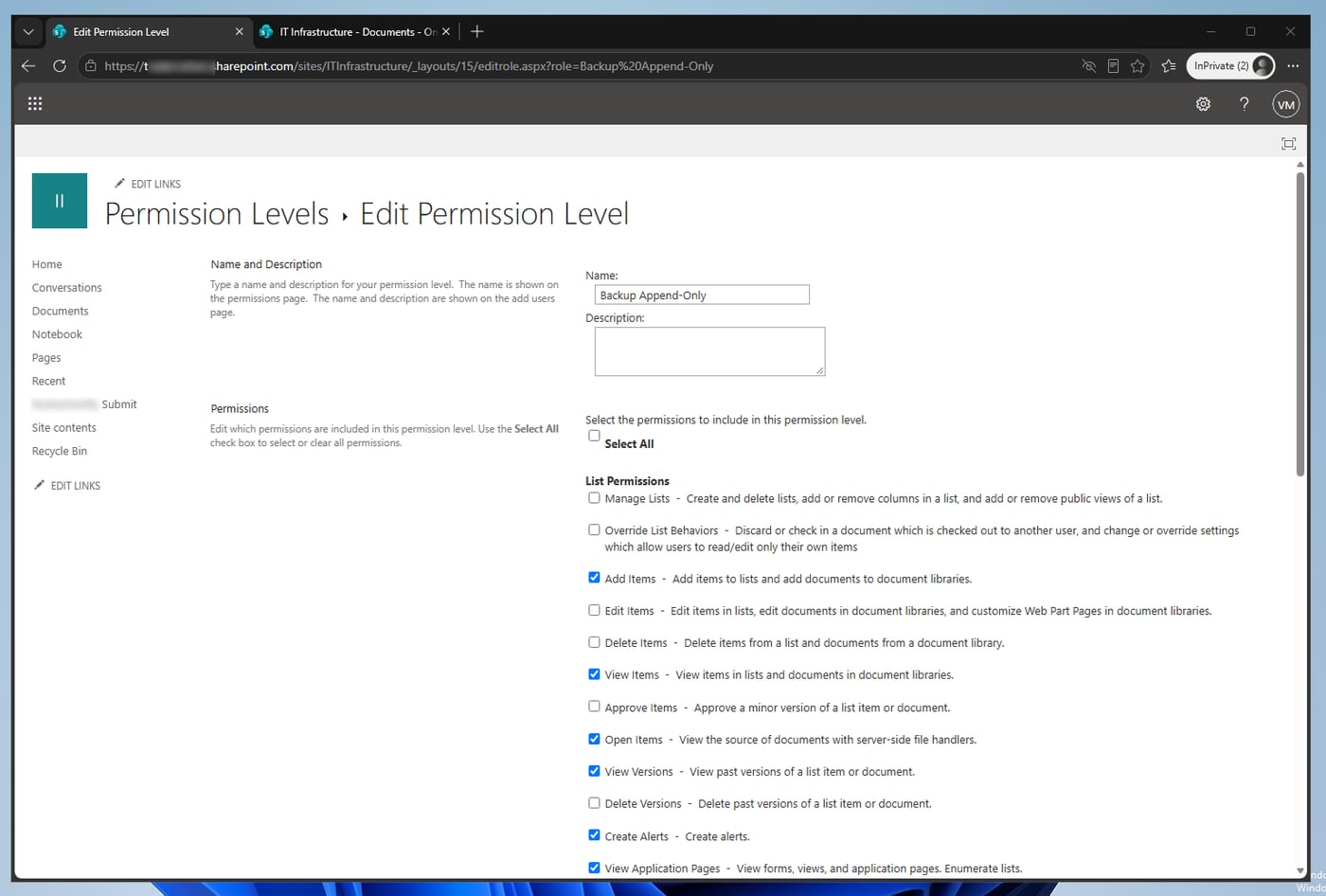
- Permission level. ⚙ → Site permissions → Advanced permissions settings → Permission Levels →
Contribute → Copy Permission Level. Name it
Backup Append-Only. Clear just three permissions: Edit Items, Delete Items, Delete Versions. - Unique permissions on the folder. Backup folder → ⋯ → Manage access → Advanced settings → Stop Inheriting Permissions.
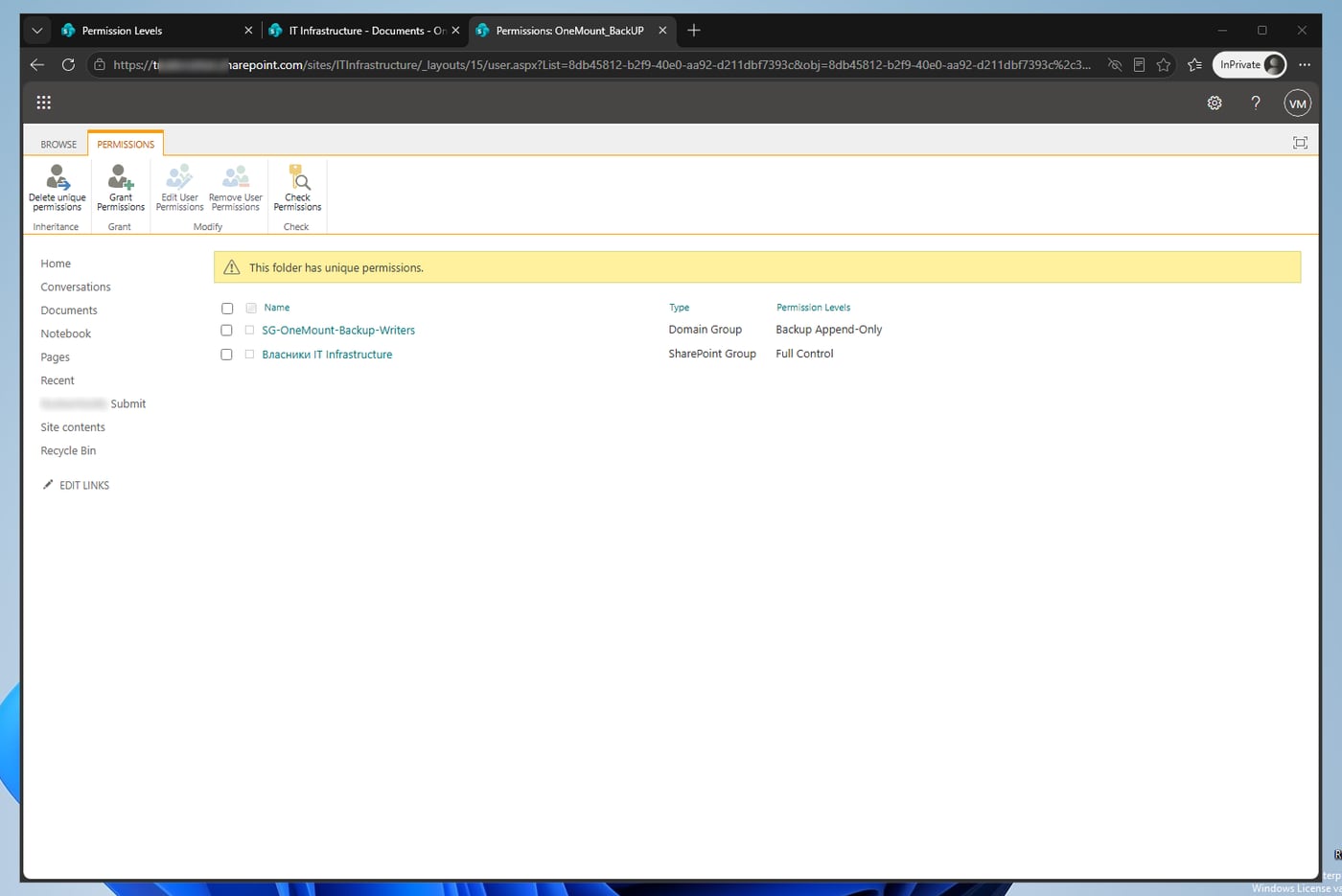
- Remove edit rights. Remove the site Members group (Edit) from the folder — effective permissions combine across all groups, and with Edit a user could delete files. Keep the Owners group.
- Grant add-only. Grant Permissions → a security group with the users whose backups will land here → the Backup Append-Only level, without an invitation email.
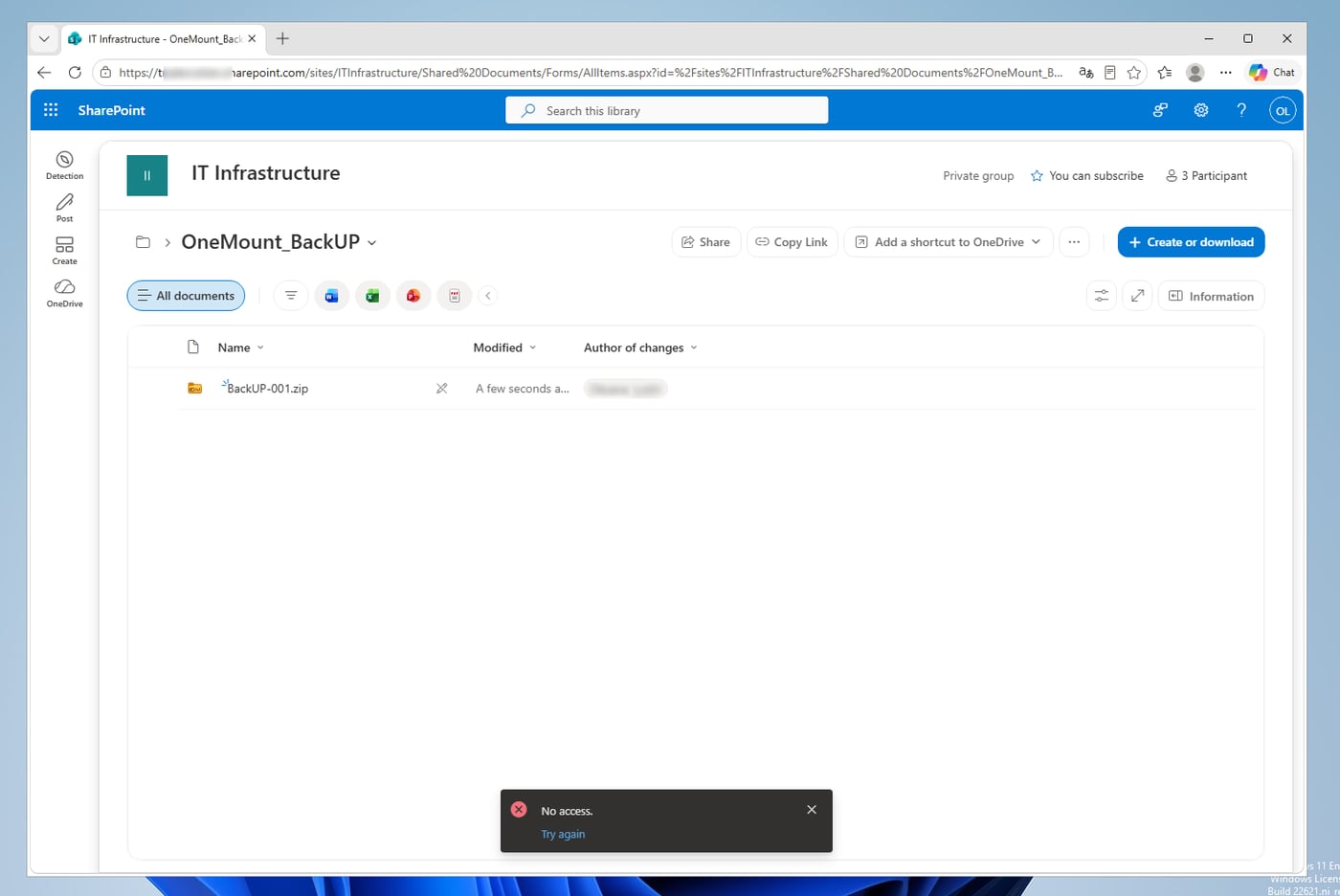
We observed As a regular user, uploading a new archive works; changing or deleting an existing one returns No access; downloading one for a restore works.
This is a permission, not immutable storage: the site owner and the tenant admin can still delete. It protects against user mistakes and ransomware on a PC, not against a compromised admin.
Step 2. Backup rotation without the recycle bin
A headache that rarely gets written about: deleted old backups land in the site recycle bin and sit there for up to 93 days, eating quota. With a daily 5 GB archive, around 450 GB of “deleted” data is always sitting in the recycle bin. On top of that, the users from step 1 can't delete — someone else has to clean up.
The fix is a Power Automate flow running as the site owner. When a new archive
<Source> yyyy-MM-dd HHmmss.zip appears in the folder, the flow takes the archives of the same source
in the same folder, keeps the N newest and deletes older ones permanently — but only
those older than D days (7 by default). OneMount puts each PC's copies in its own subfolder, so “Desktop” from two
computers is counted separately. We measured The standard “Delete file” action sends a
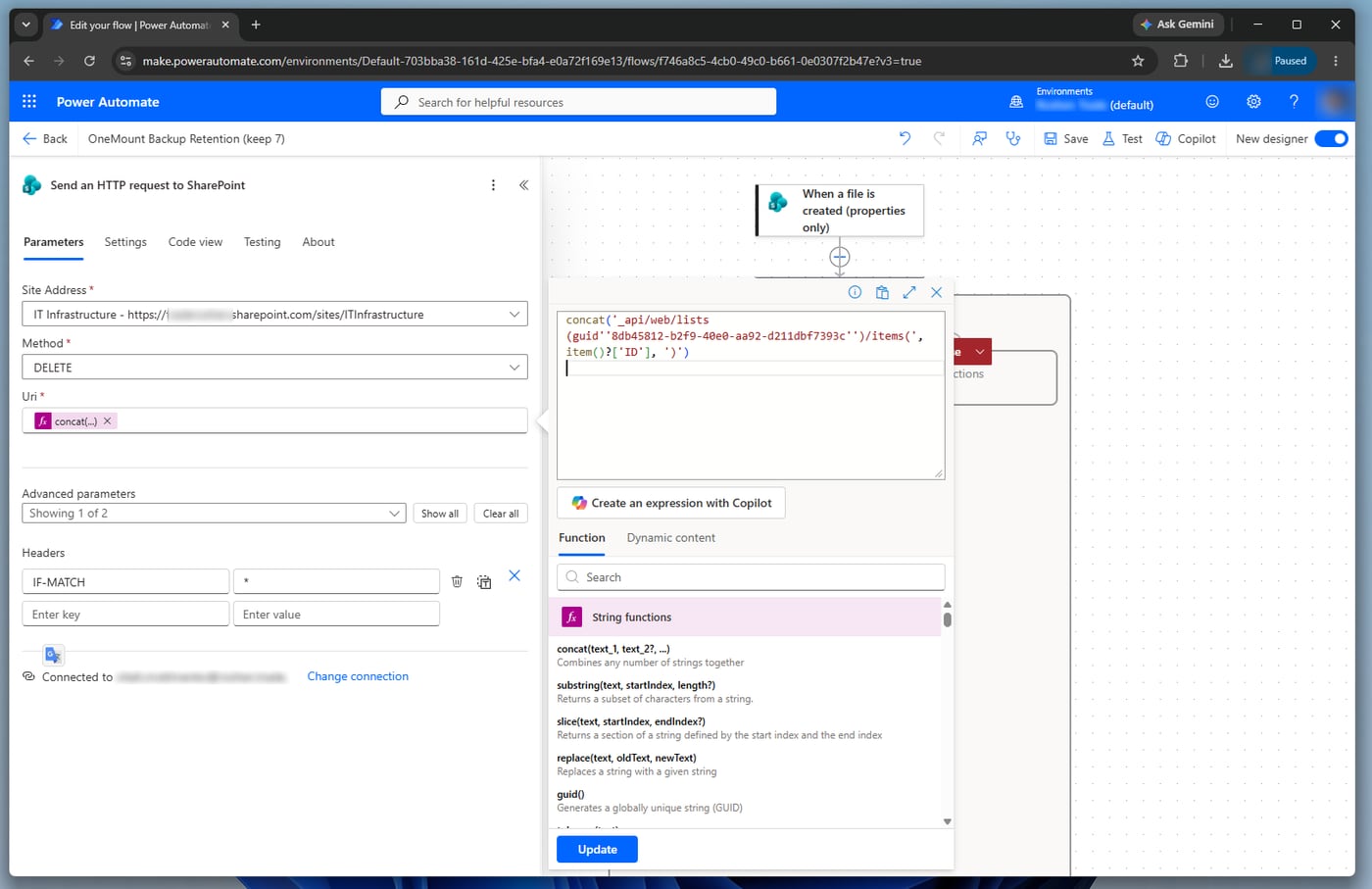
file to the recycle bin; permanent deletion is a DELETE request through “Send an HTTP request to SharePoint” — neither
recycle bin contained the deleted archives, and each flow run took about half a second.
What if the attacker is smarter? They wipe the Desktop and Documents, then drop seven empty archives into the backup folder in a row. A “keep 7” flow will dutifully keep the seven newest — the empty ones — and permanently delete every real backup. That's why the flow has a second condition: no copy is deleted until it's D days old, however many new archives arrive. SharePoint sets the creation date, and a user can't change file properties in an add-only folder.
We simulated 20 days of daily backups, then seven empty archives in a minute: with the N rule alone 0 real copies survive; with a 7-day minimum age, all 7 copies from the last week do.
Two flows: rotation and cleanup of abandoned PCs
Wakes up within minutes of every new backup and removes the surplus old copy in the same folder right away: keeps the N newest and never touches anything younger than the minimum age.
Once a day. A PC broke, was handed to someone else, its user left — no backups arrive, so flow 1 never looks there. After 14 days without backups only the last copy stays; 30 days after it was created, it goes too.
Set the “abandoned” threshold longer than a vacation and your rarest backup schedule: a PC switched off for two weeks looks exactly like a broken one to the flow, and its history would shrink to a single copy.
Option A · The generator — recommended (10 minutes)
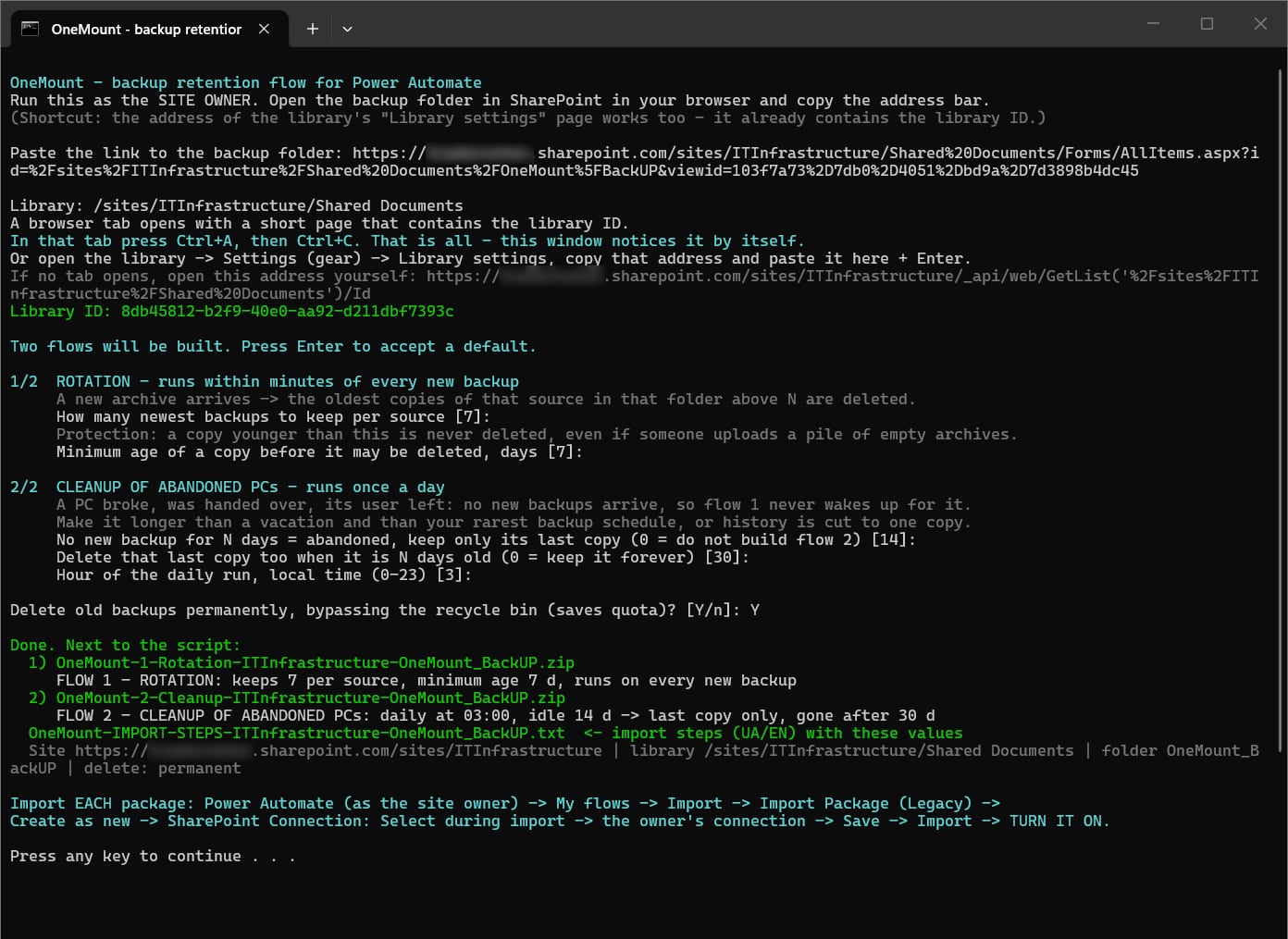
The generator installs nothing in your tenant: it builds two .zip packages that Power Automate imports as
ready-made flows — manifest.json with the name and description, and definition.json with
the whole flow, your site, library, folder and numbers already filled in. That's exactly why it exists: five clicks
instead of a couple of dozen fields and expressions.
- Download onemount-retention-flow.zip,
extract it and run
Create-RetentionFlow.batas the site owner (signed in as the owner in the browser too). - Paste a link to the backup folder from the address bar — the generator works out the site, library and folder. On the small page with the library ID press Ctrl+A, Ctrl+C — the generator window picks it up.
- Answer two blocks of questions (Enter keeps the default; each has a hint). Next to the script you get
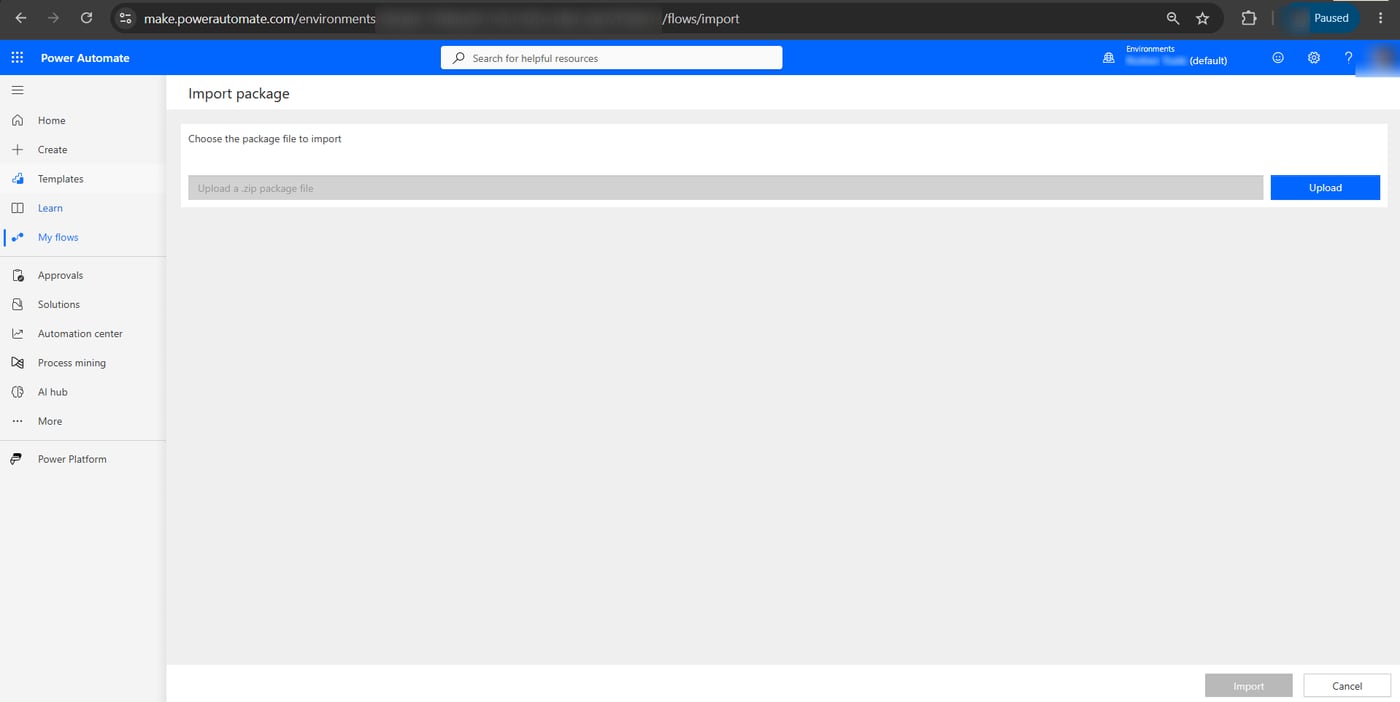
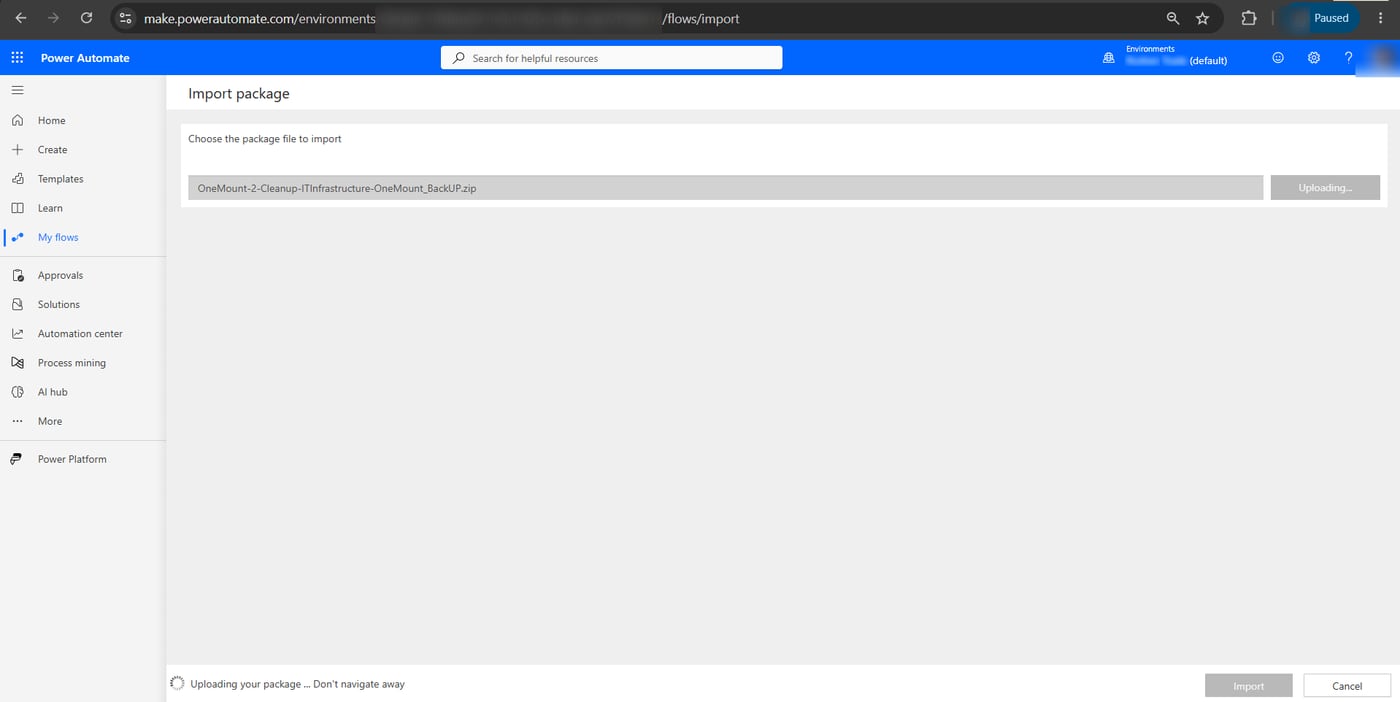
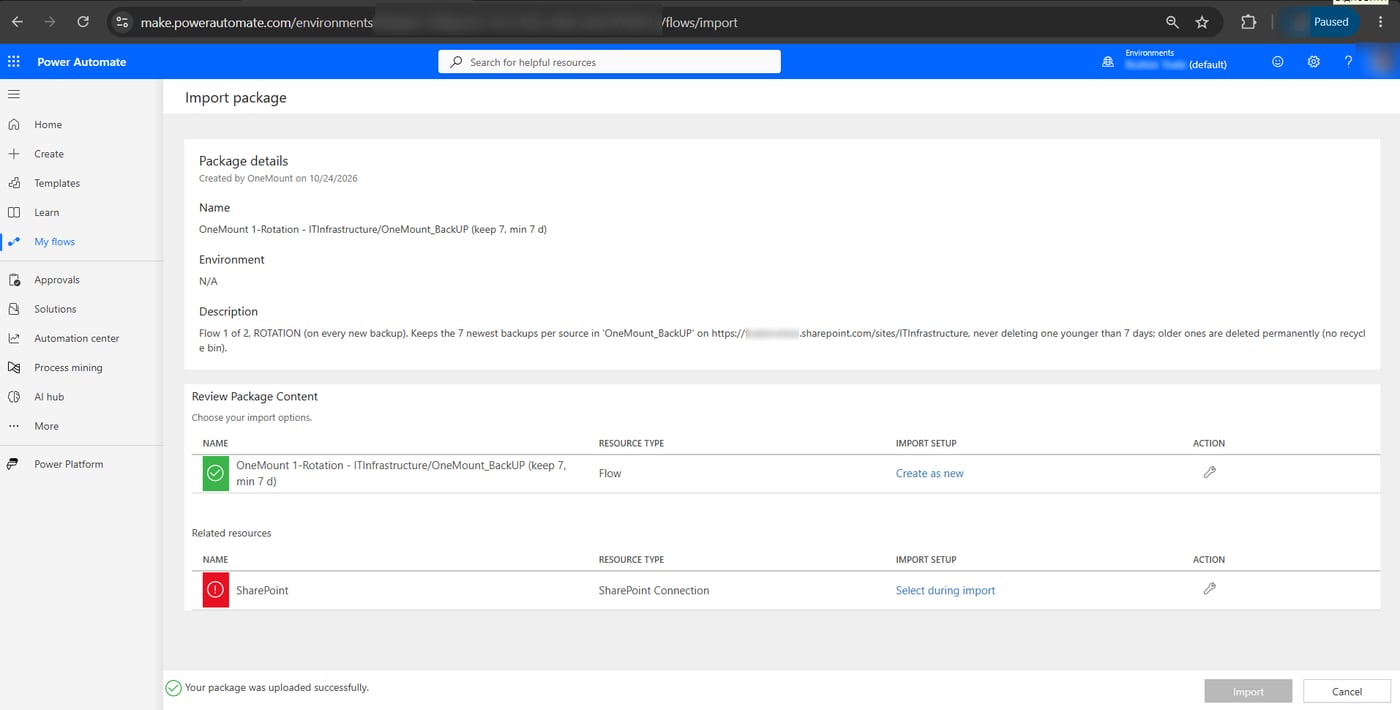
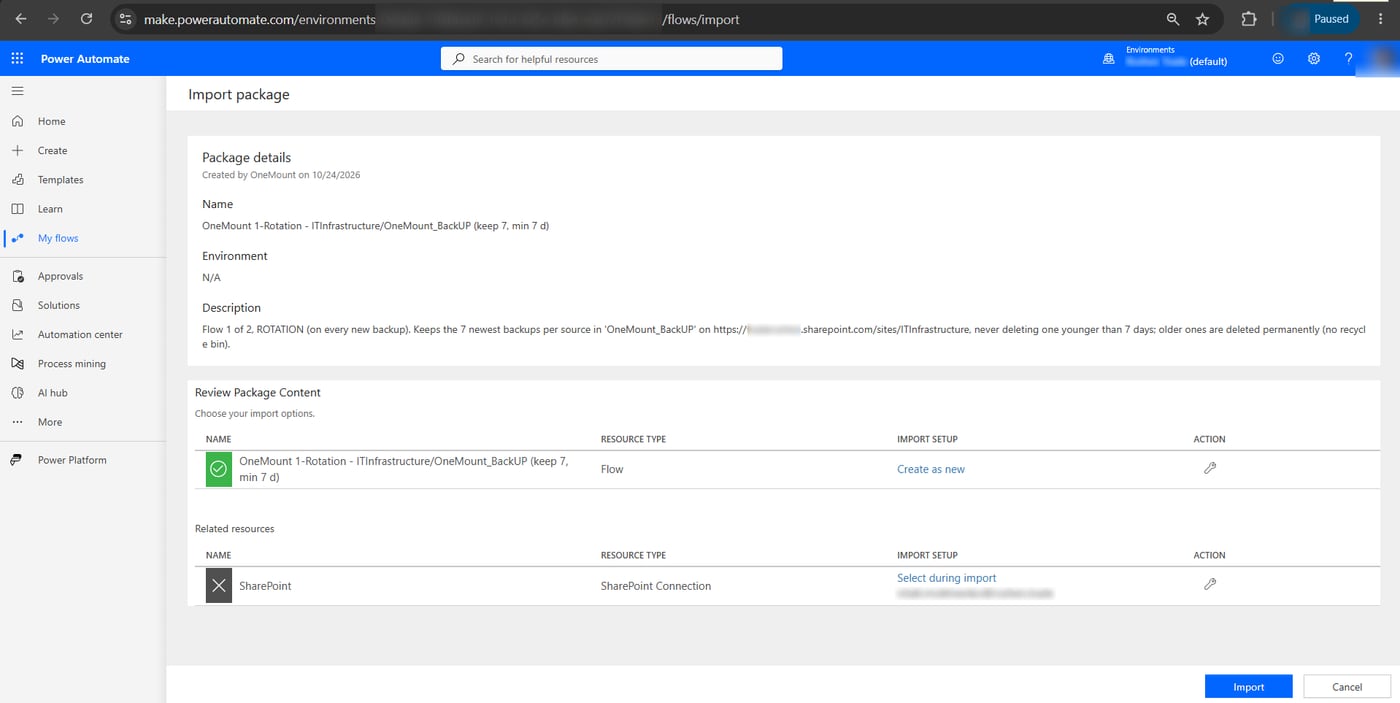
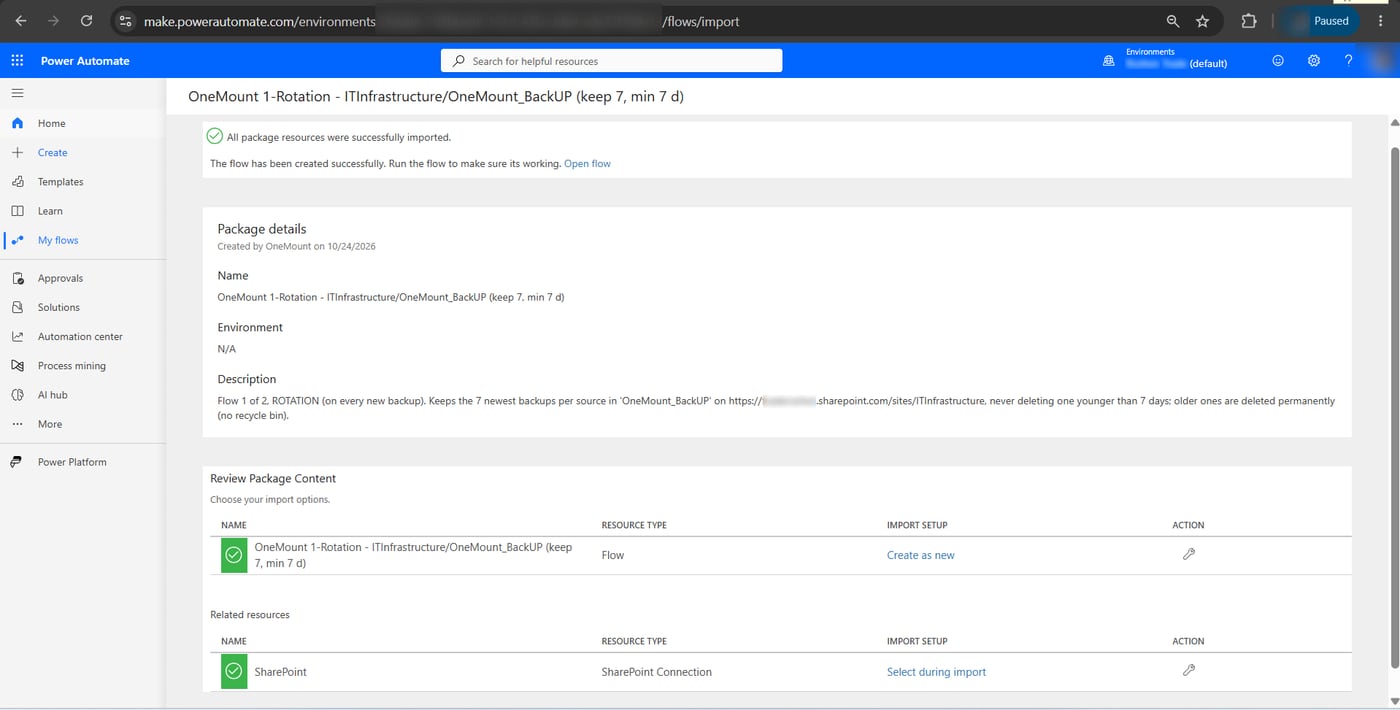
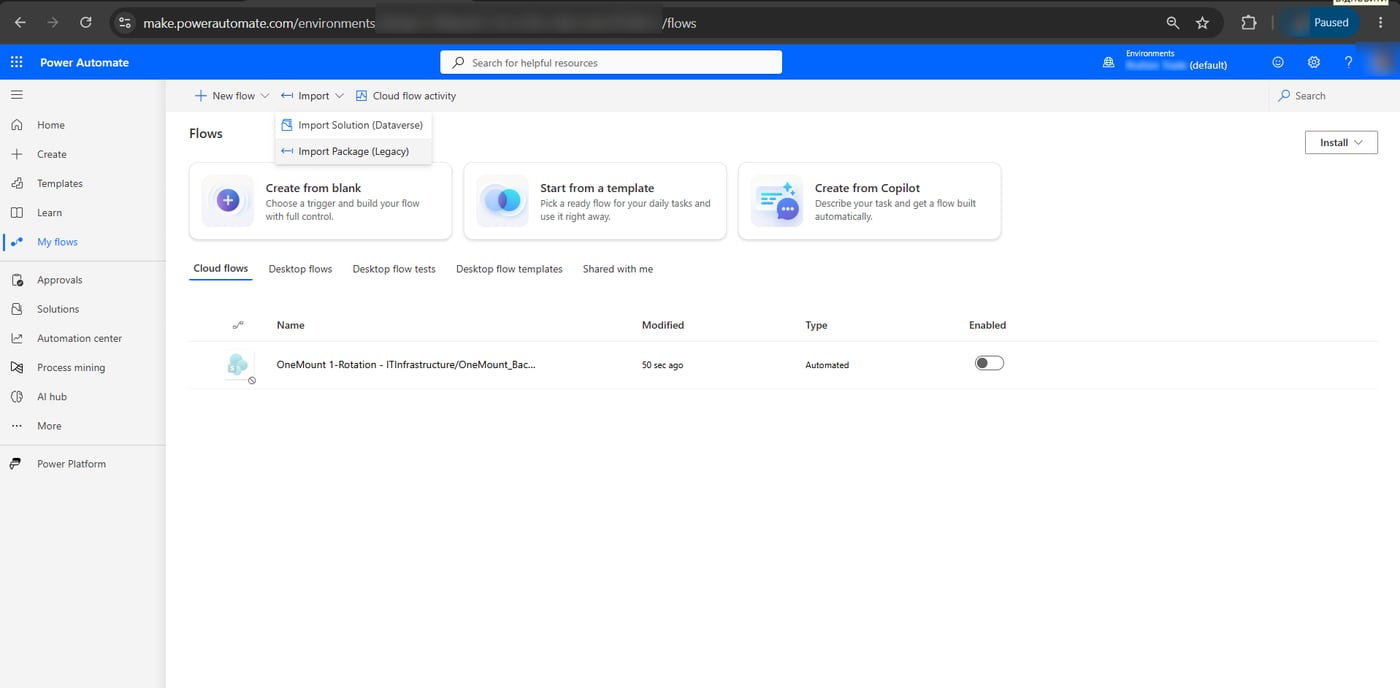
OneMount-1-Rotation-….zip,OneMount-2-Cleanup-….zipandOneMount-IMPORT-STEPS-….txt— import steps with your own names and numbers. - Import each package: Power Automate → My flows → Import → Import Package (Legacy) → Upload. Leave the flow row on Create as new; in the red SharePoint Connection row choose Select during import → the site owner's connection (none yet — + Create; click the row so a ✓ appears) → Save → Import.
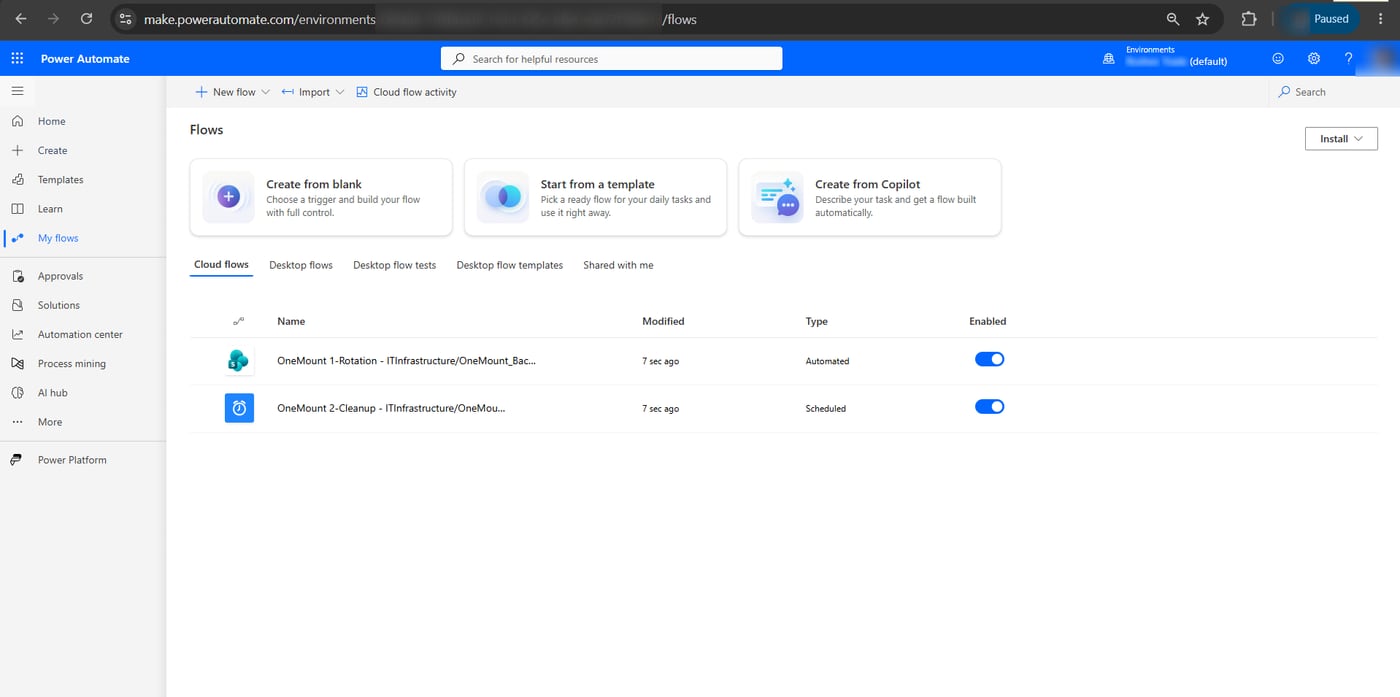
- Turn both flows on in My flows — an imported flow is off. Flow 1 is Automated, flow 2 is Scheduled. Turn off or delete any older retention flow for the same folder.
← scroll sideways · click a screenshot to enlarge →
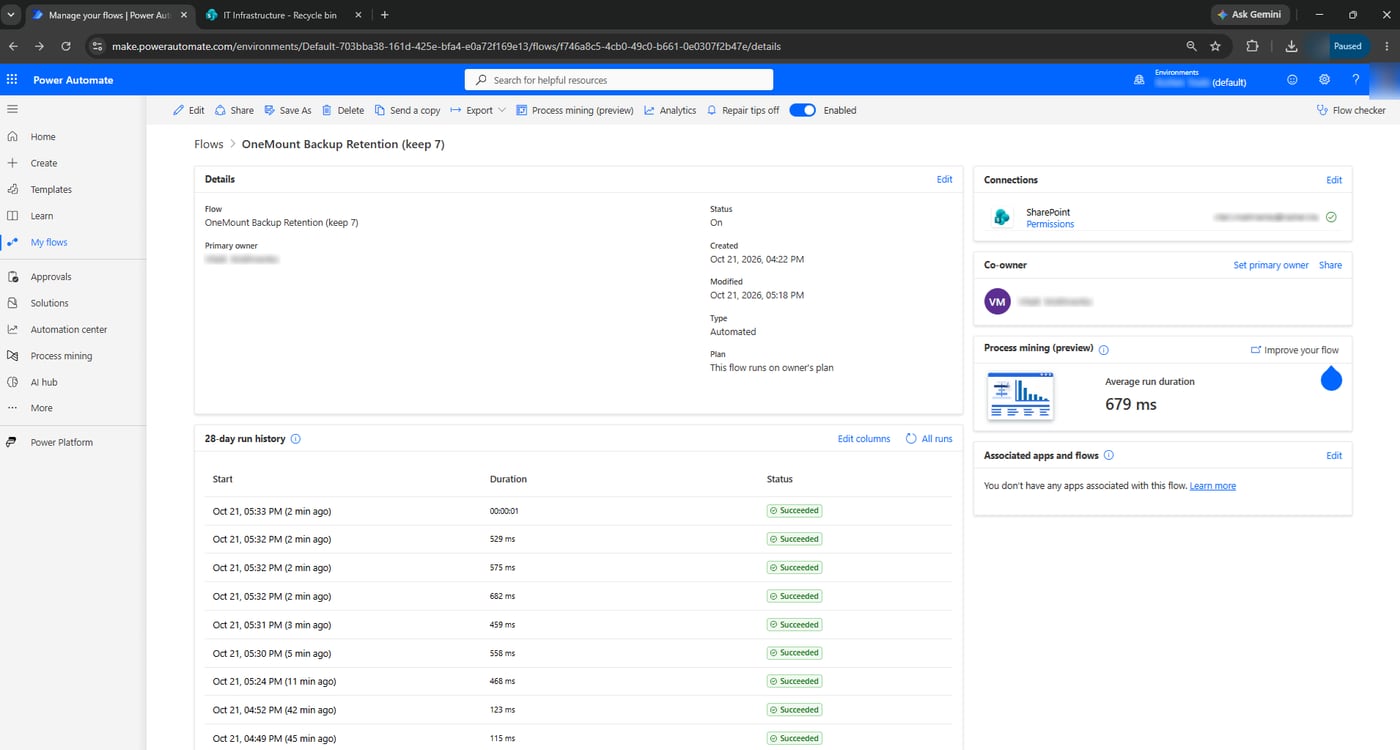
Checking it works. Flow 1 fires for archives created after it's turned on, with a delay of up to
~5 minutes (with a Microsoft 365 license the trigger polls the folder about that often): drop a new backup in and check
the run history. A successful run with no deletions is normal while there are no more than N copies or they're younger
than the minimum age. Flow 2 doesn't have to wait for the night: open it → Test → Manually
→ Run flow. To test rotation, build the packages with
Create-RetentionFlow.bat -Keep 1 -MinAgeDays 0.
Option B · Build the flows manually
Useful for understanding what's inside, or if package import is blocked in your environment. General rules: paste
expressions through the fx tab (or Edit in advanced mode in Filter array); name the actions
exactly as shown — the expressions refer to them (a space becomes _: “Active sources” →
body('Active_sources')). Replace OneMount_BackUP, 7 copies, 7 / 14 / 30 days and the library ID with your own.
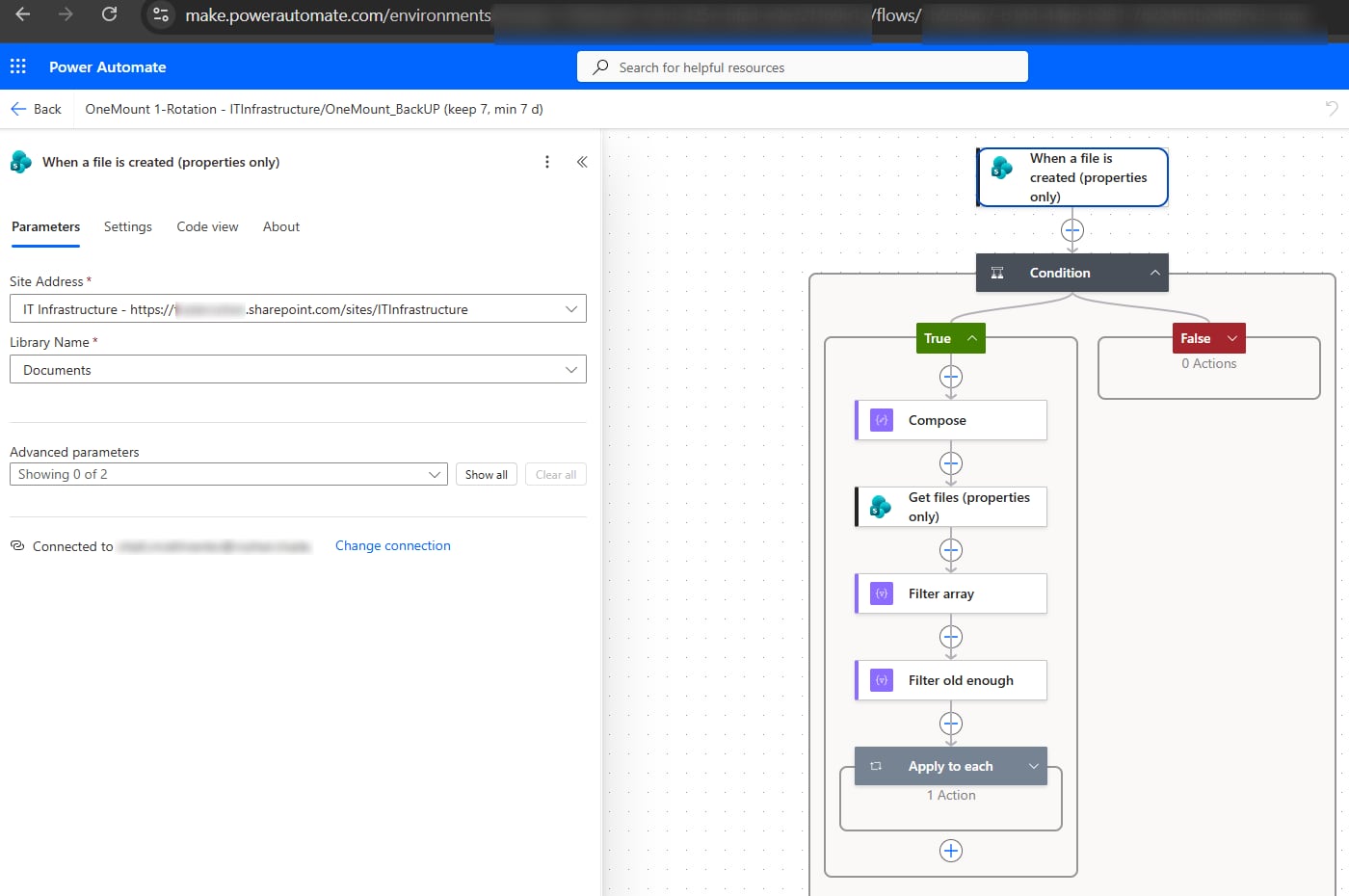
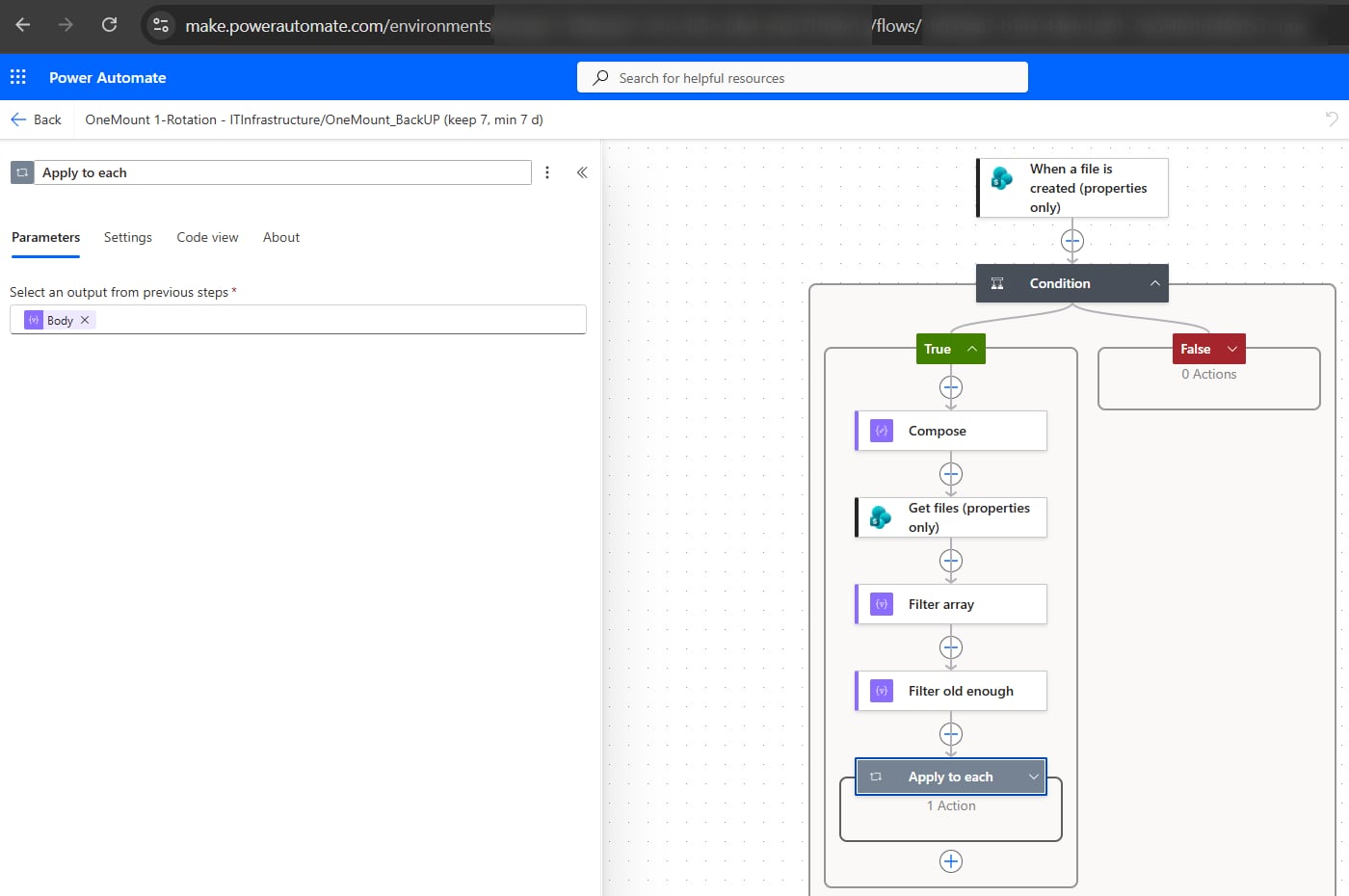
Flow 1 · Rotation Automated cloud flow · 7 steps
- Trigger — When a file is created (properties only) (SharePoint): pick Site Address and Library Name from the list, using the site owner's connection.
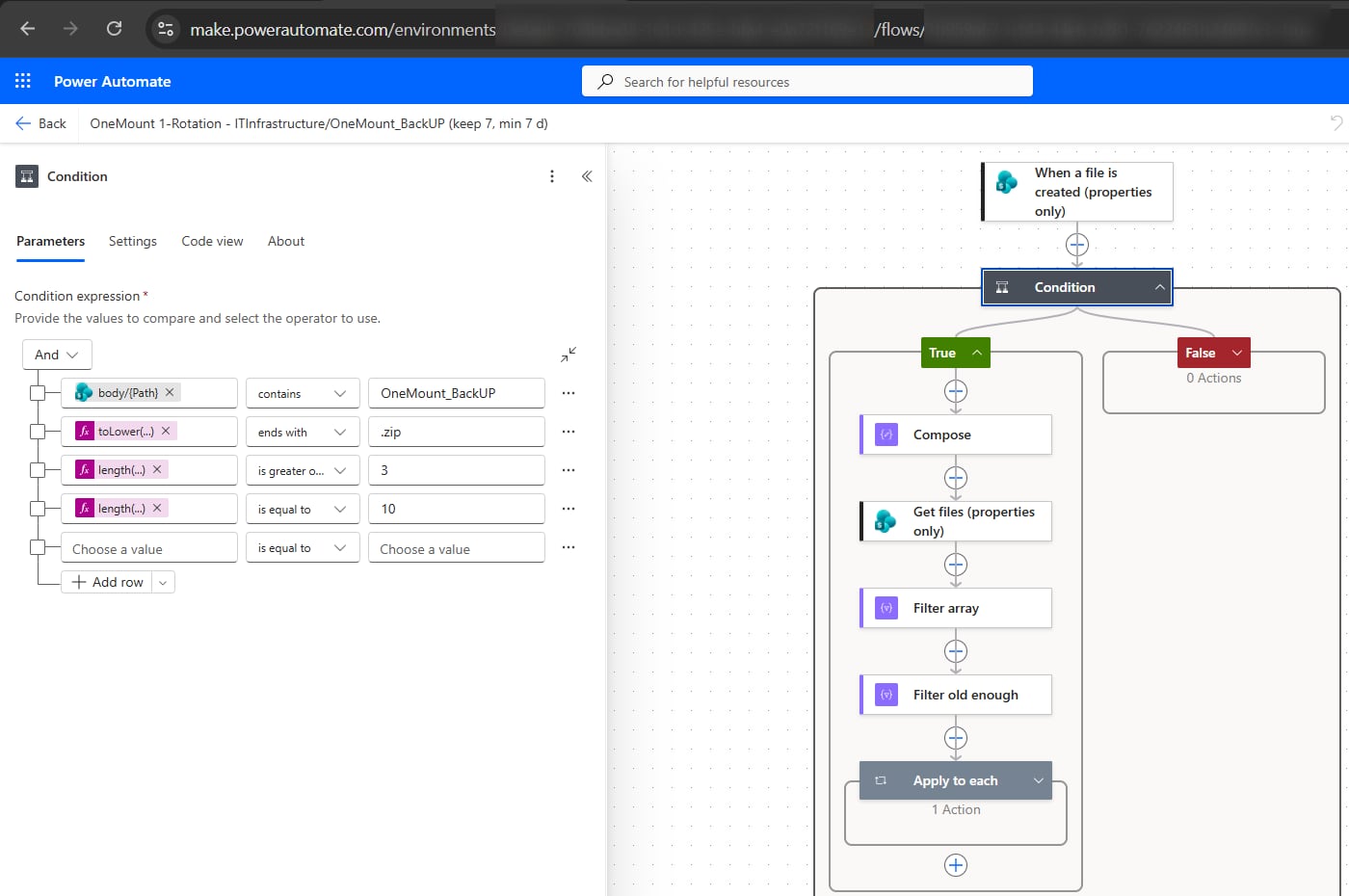
- Condition, all rows joined with And; left side is the expression, operator and value as in the label:
1 · contains →
OneMount_BackUPtriggerOutputs()?['body/{Path}']2 · ends with →.ziptoLower(triggerOutputs()?['body/{FilenameWithExtension}'])3 · is greater or equal to →3length(split(triggerOutputs()?['body/{FilenameWithExtension}'], ' '))4 · is equal to →10(date in the name)length(first(skip(split(triggerOutputs()?['body/{FilenameWithExtension}'], ' '), max(0, sub(length(split(triggerOutputs()?['body/{FilenameWithExtension}'], ' ')), 2))))) - True branch → Compose — the source name without date and time (“Desktop 2026-10-20 230000.zip” → “Desktop”):
Inputs
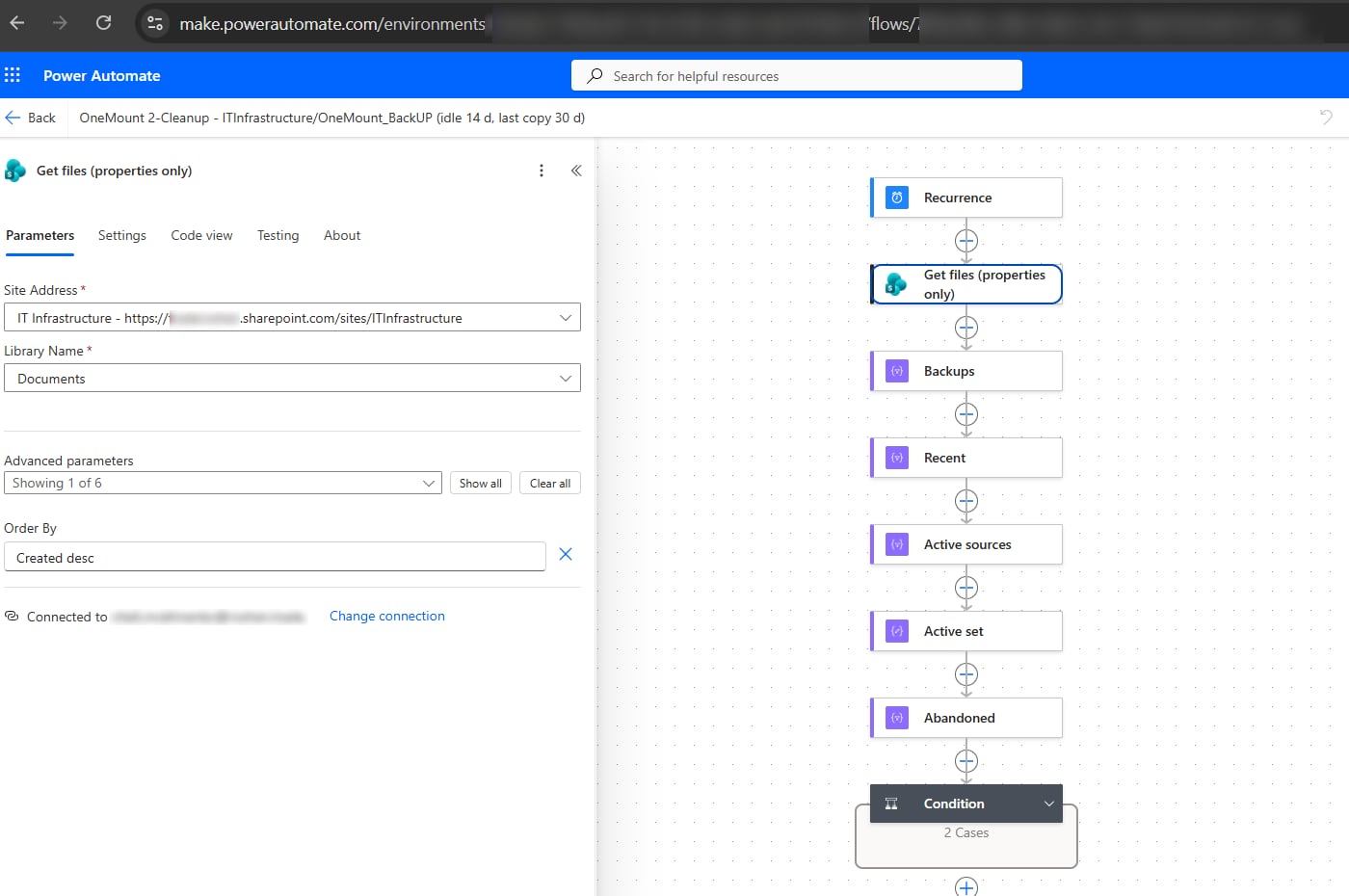
join(take(split(replace(triggerOutputs()?['body/{FilenameWithExtension}'], '.zip', ''), ' '), max(0, sub(length(split(replace(triggerOutputs()?['body/{FilenameWithExtension}'], '.zip', ''), ' ')), 2))), ' ') - Get files (properties only) — same site and library, Order By:
Created asc; Settings → Pagination On, Threshold5000(without it the flow sees only 100 files). - Filter array — From:
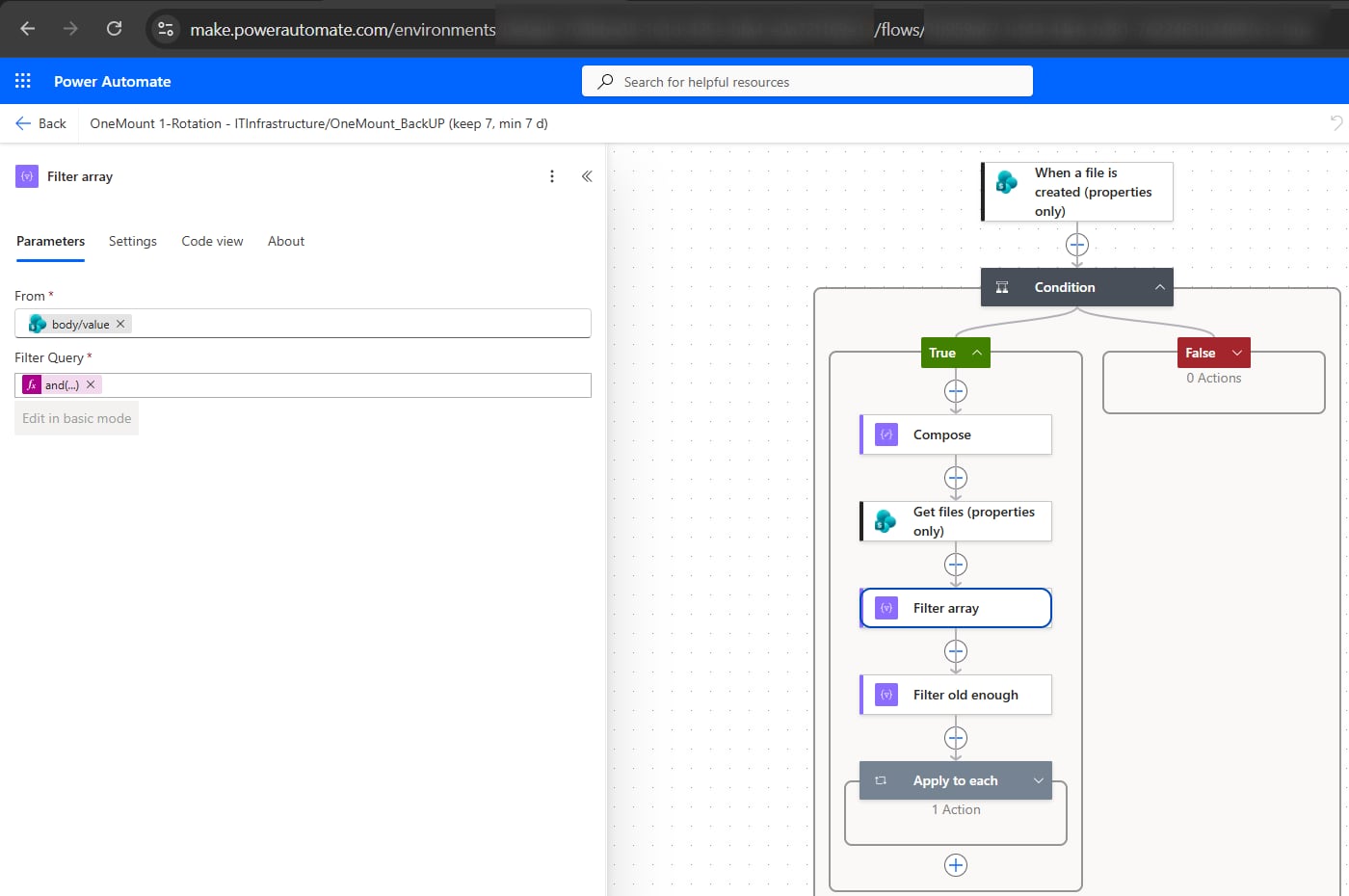
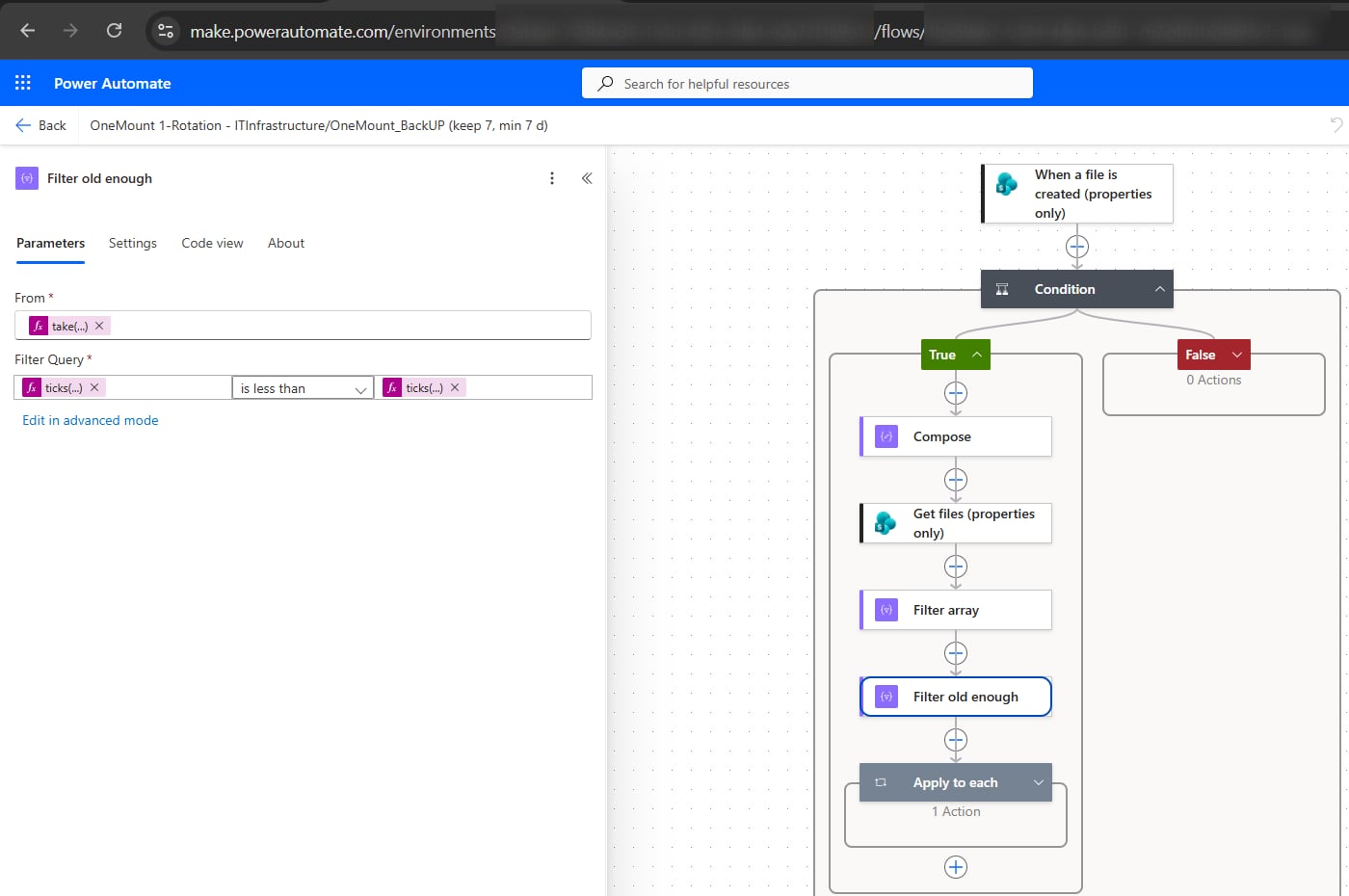
body/valueof Get files; Edit in advanced mode — archives of the same source in the same folder:Filter query@and(equals(item()?['{Path}'], triggerOutputs()?['body/{Path}']), endsWith(toLower(item()?['{FilenameWithExtension}']), '.zip'), equals(join(take(split(replace(item()?['{FilenameWithExtension}'], '.zip', ''), ' '), max(0, sub(length(split(replace(item()?['{FilenameWithExtension}'], '.zip', ''), ' ')), 2))), ' '), outputs('Compose'))) - Another Filter array named Filter old enough — beyond the N newest and older than the minimum age:
From · N = 7
take(body('Filter_array'), max(0, sub(length(body('Filter_array')), 7)))Filter query · 7 days@less(ticks(item()?['Created']), ticks(addDays(utcNow(), -7)))
- Apply to each over
Bodyof Filter old enough → inside it Send an HTTP request to SharePoint: your site, MethodDELETE, HeadersIF-MATCH=*— permanent deletion that skips the recycle bin. The library ID is in the Library settings address afterList=. Save.Uriconcat('_api/web/lists(guid''<library ID>'')/items(', item()?['ID'], ')')
← scroll sideways · click a screenshot to enlarge →
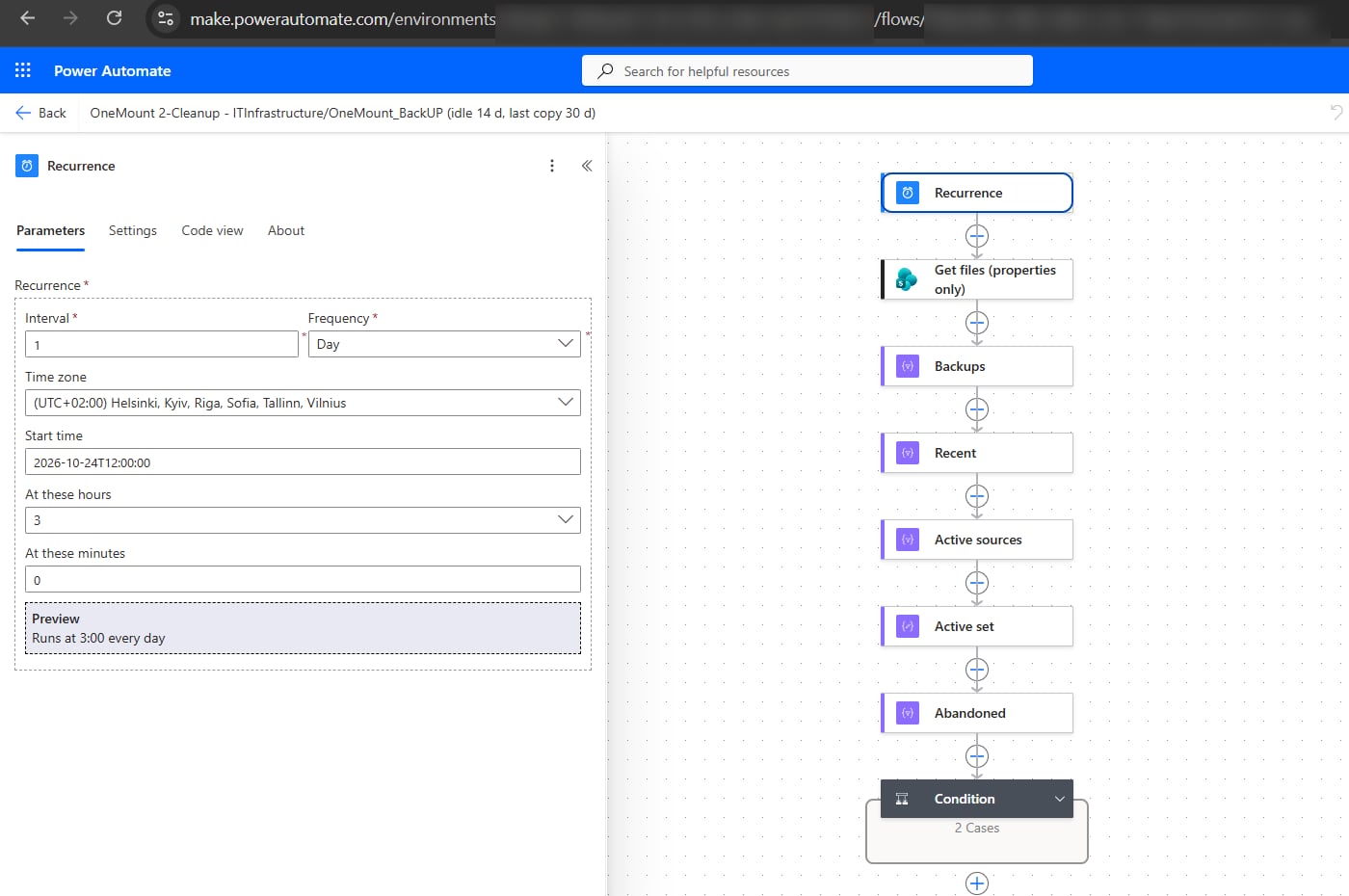
Flow 2 · Cleanup of abandoned PCs Scheduled cloud flow · 9 steps
- Recurrence: Interval
1, FrequencyDay, your time zone, At these hours3, At these minutes0. - Get files (properties only) — site and library, Order By:
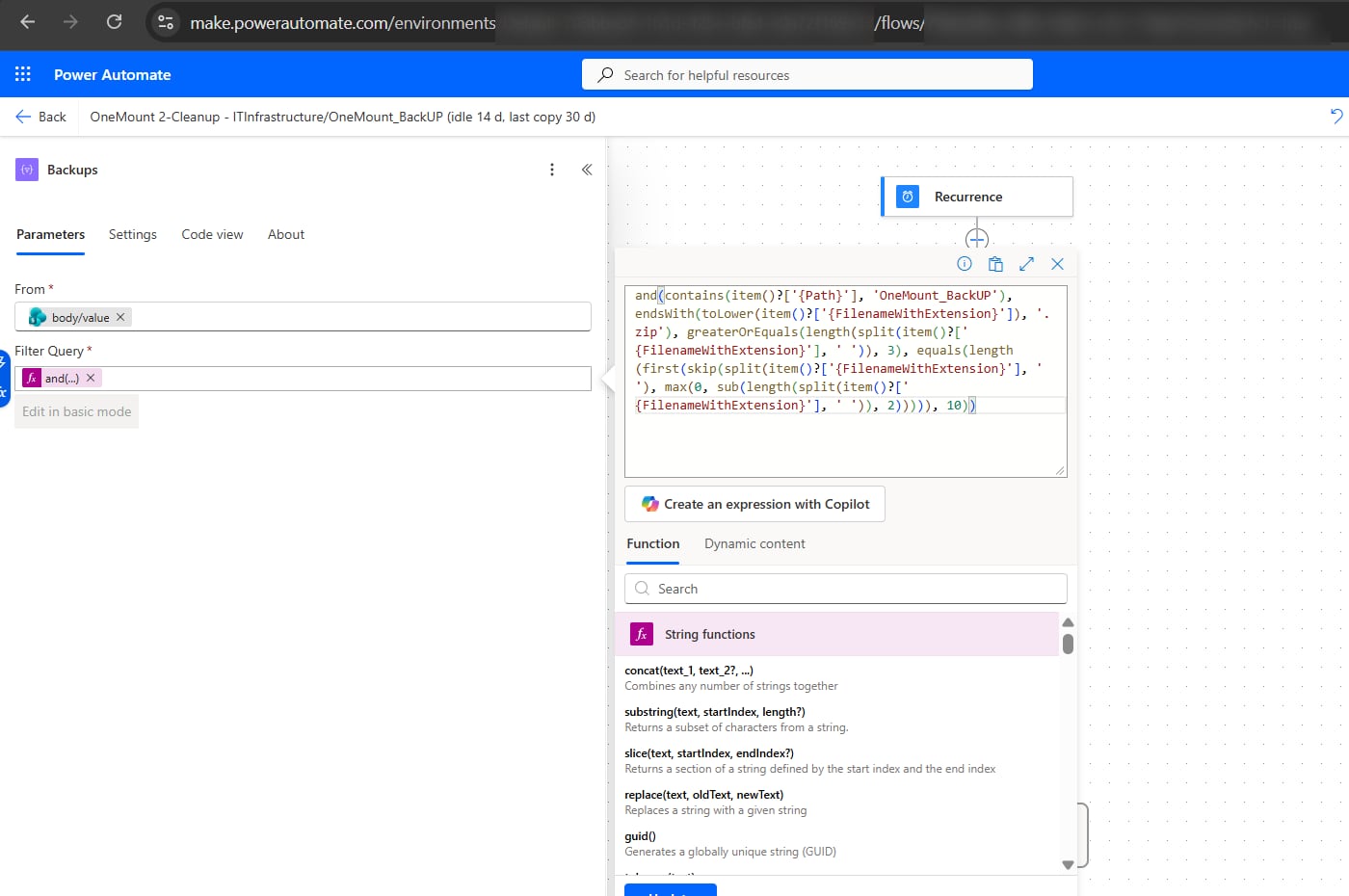
Created desc(newest first — so in a large library a live PC never looks abandoned); Pagination5000. - Filter array named Backups — From
body/value; only OneMount archives in your folder:Filter query@and(contains(item()?['{Path}'], 'OneMount_BackUP'), endsWith(toLower(item()?['{FilenameWithExtension}']), '.zip'), greaterOrEquals(length(split(item()?['{FilenameWithExtension}'], ' ')), 3), equals(length(first(skip(split(item()?['{FilenameWithExtension}'], ' '), max(0, sub(length(split(item()?['{FilenameWithExtension}'], ' ')), 2))))), 10)) - Filter array “Recent” — From
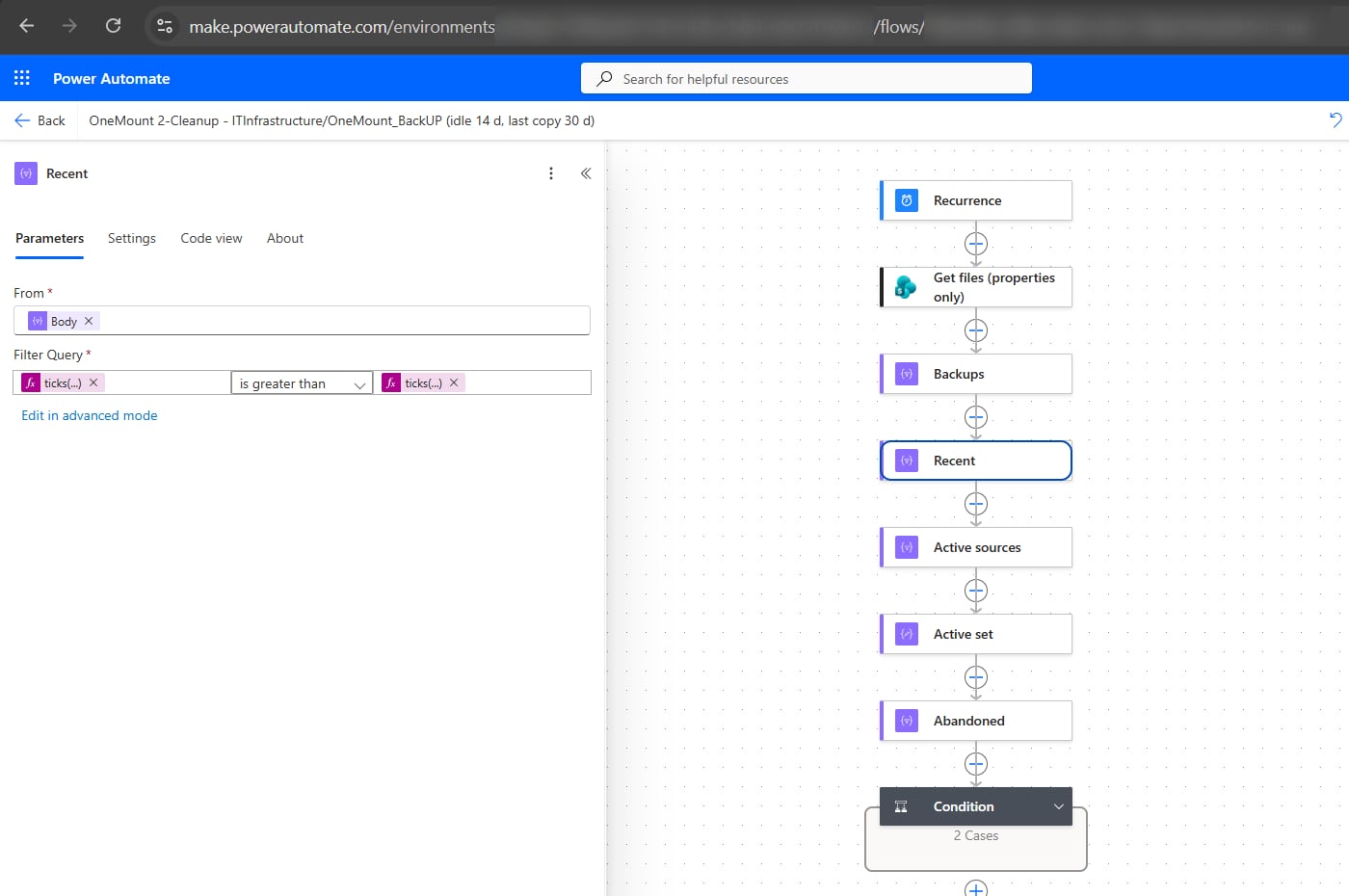
Bodyof Backups; copies from the last 14 days:Filter query · 14 days@greater(ticks(item()?['Created']), ticks(addDays(utcNow(), -14)))
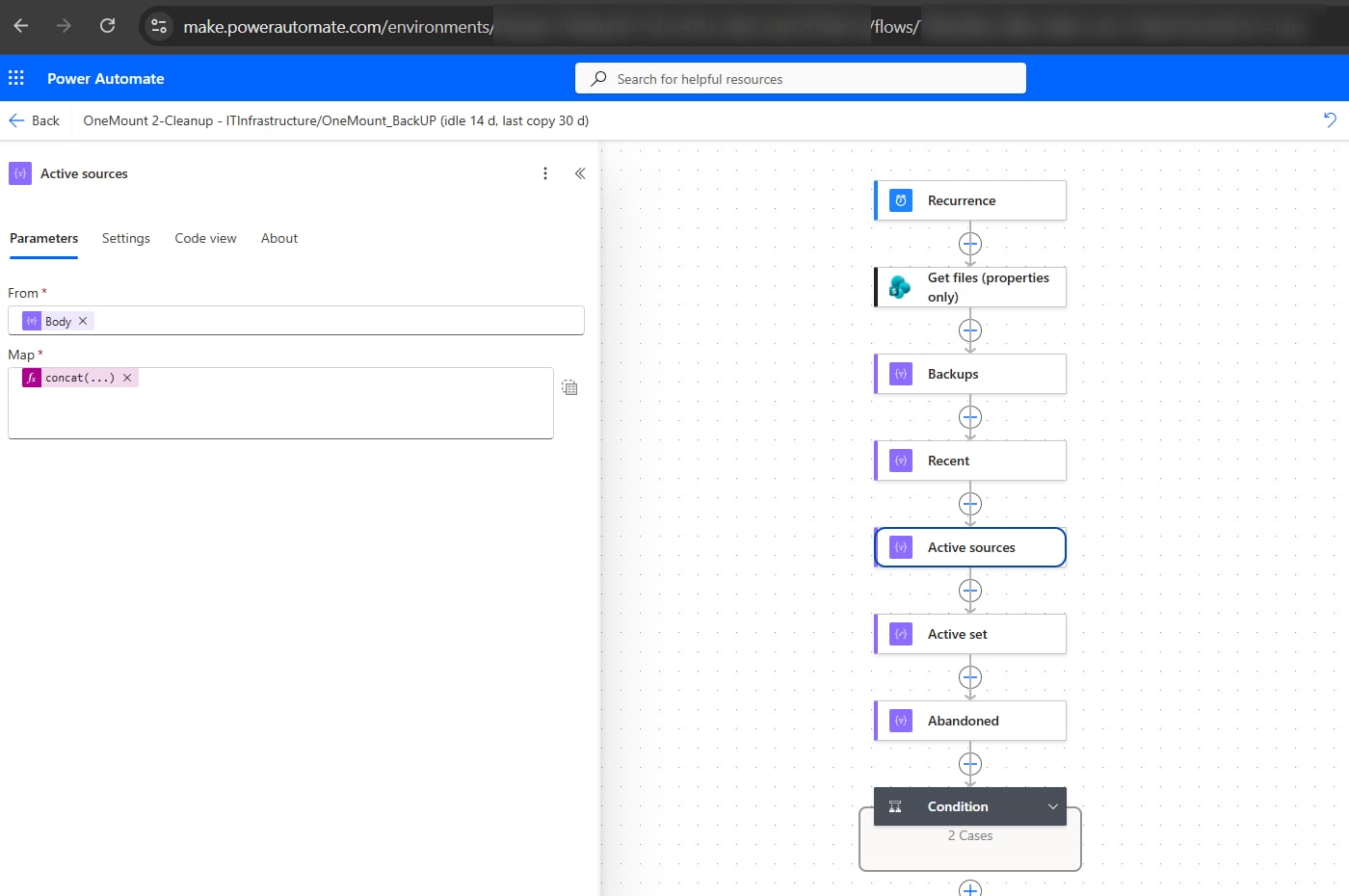
- Select “Active sources” — From
Bodyof Recent; Map in text mode (the button to the right of Map) — a “folder|source” key:Mapconcat(item()?['{Path}'], '|', join(take(split(replace(item()?['{FilenameWithExtension}'], '.zip', ''), ' '), max(0, sub(length(split(replace(item()?['{FilenameWithExtension}'], '.zip', ''), ' ')), 2))), ' ')) - Compose “Active set” — the list without duplicates:
Inputs
union(body('Active_sources'), body('Active_sources')) - Filter array “Abandoned” — From
Bodyof Backups; copies of sources that aren't active:Filter query@not(contains(outputs('Active_set'), concat(item()?['{Path}'], '|', join(take(split(replace(item()?['{FilenameWithExtension}'], '.zip', ''), ' '), max(0, sub(length(split(replace(item()?['{FilenameWithExtension}'], '.zip', ''), ' ')), 2))), ' ')))) - Condition:
length(body('Abandoned'))is greater than0. In the True branch, three actions: Select “Abandoned keys” (From Body of Abandoned, Map — the same expression as in step 5); Select “Mark newest” — flags the last copy of each source; Filter array “To delete” — everything except the last copy, and the last copy itself once it's over 30 days old:Mark newest · Fromrange(0, length(body('Abandoned')))Mark newest · Map: IDbody('Abandoned')[item()]?['ID']Mark newest · Map: Createdbody('Abandoned')[item()]?['Created']Mark newest · Map: Newestnot(contains(take(body('Abandoned_keys'), item()), body('Abandoned_keys')[item()]))To delete · From Body of Mark newest · Filter query · 30 days@or(not(item()?['Newest']), less(ticks(item()?['Created']), ticks(addDays(utcNow(), -30))))
- In the same branch, after To delete — Apply to each over
Bodyof To delete with the same Send an HTTP request to SharePointDELETEas in flow 1. Save.
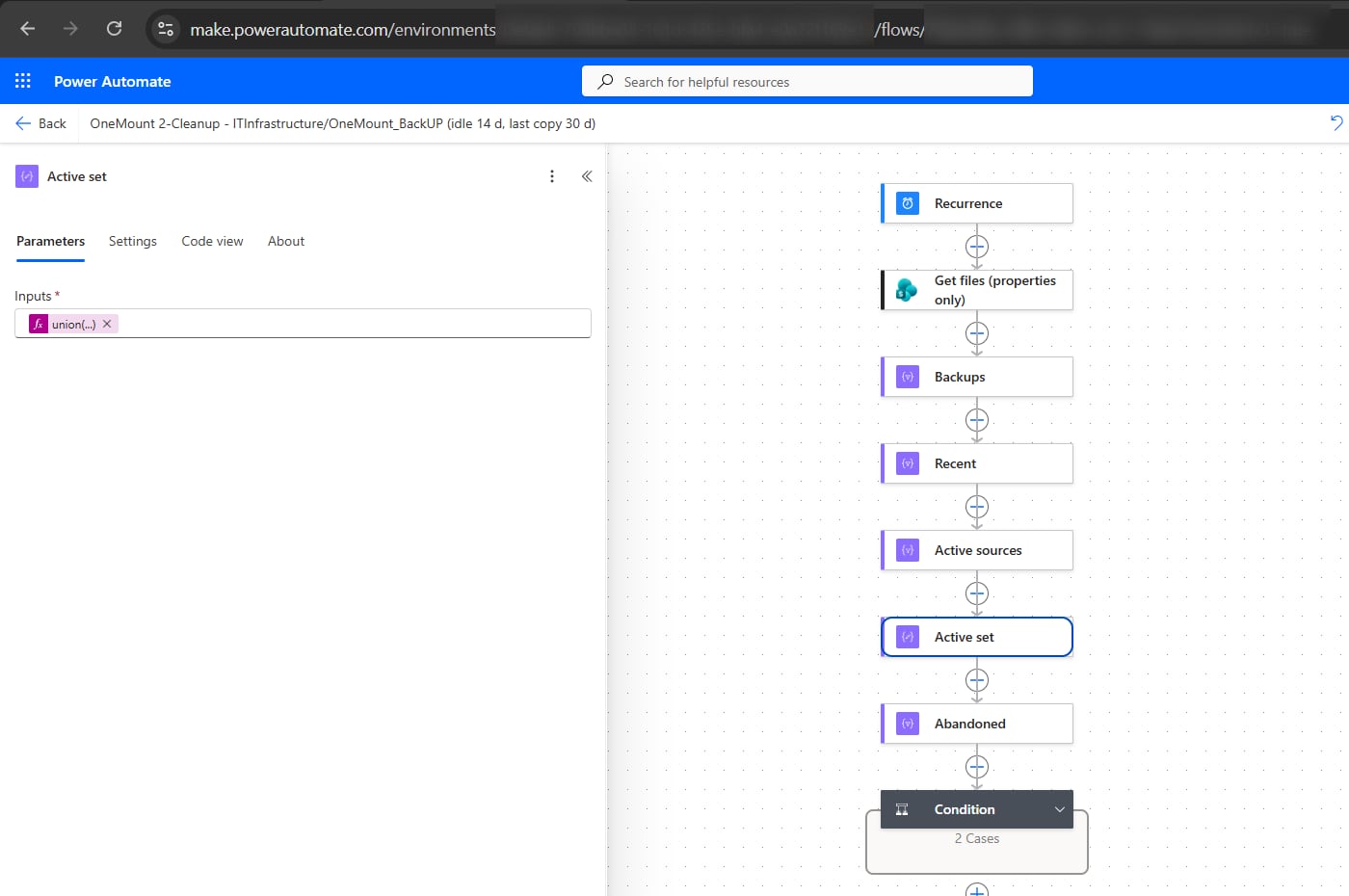
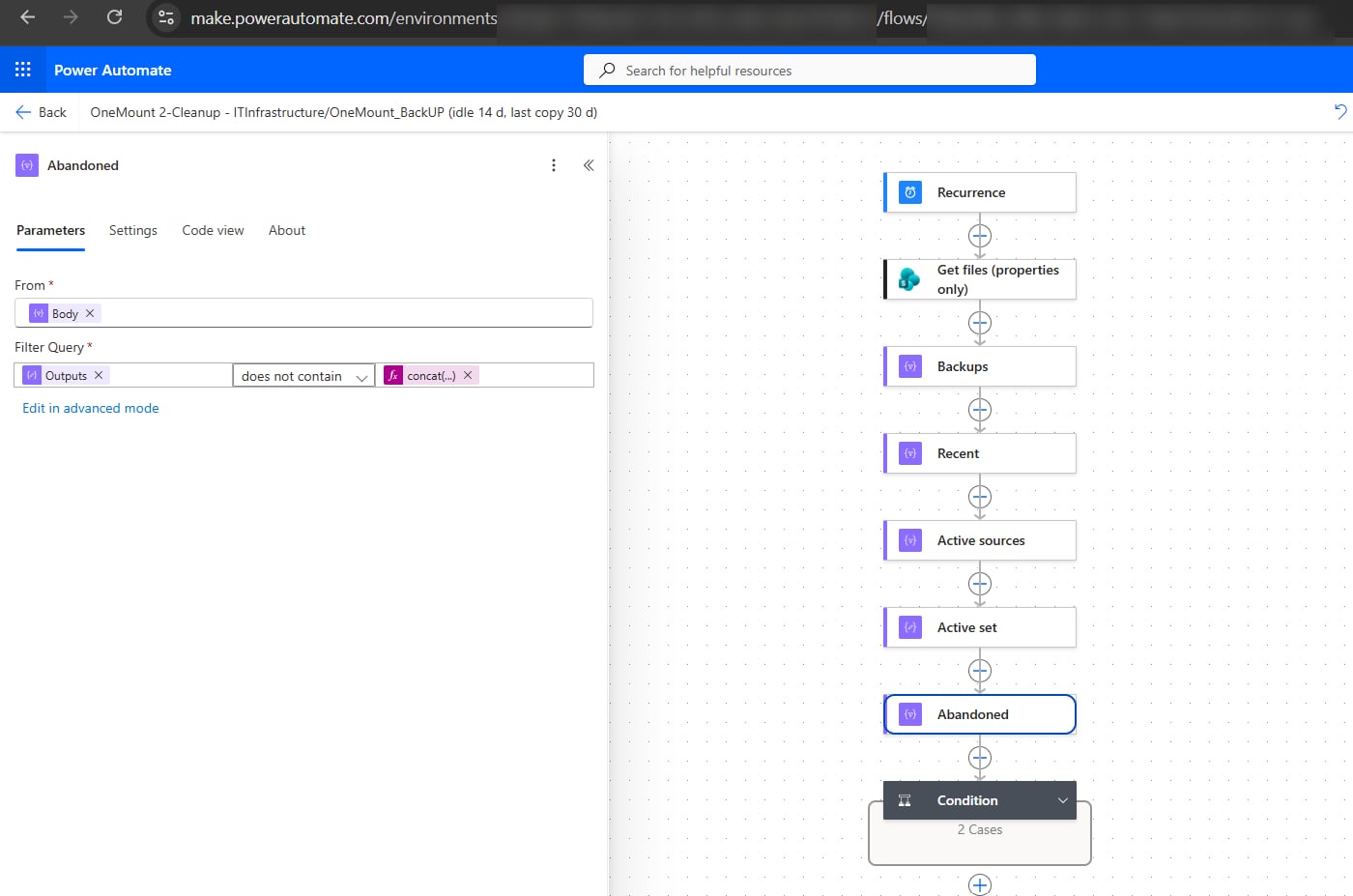
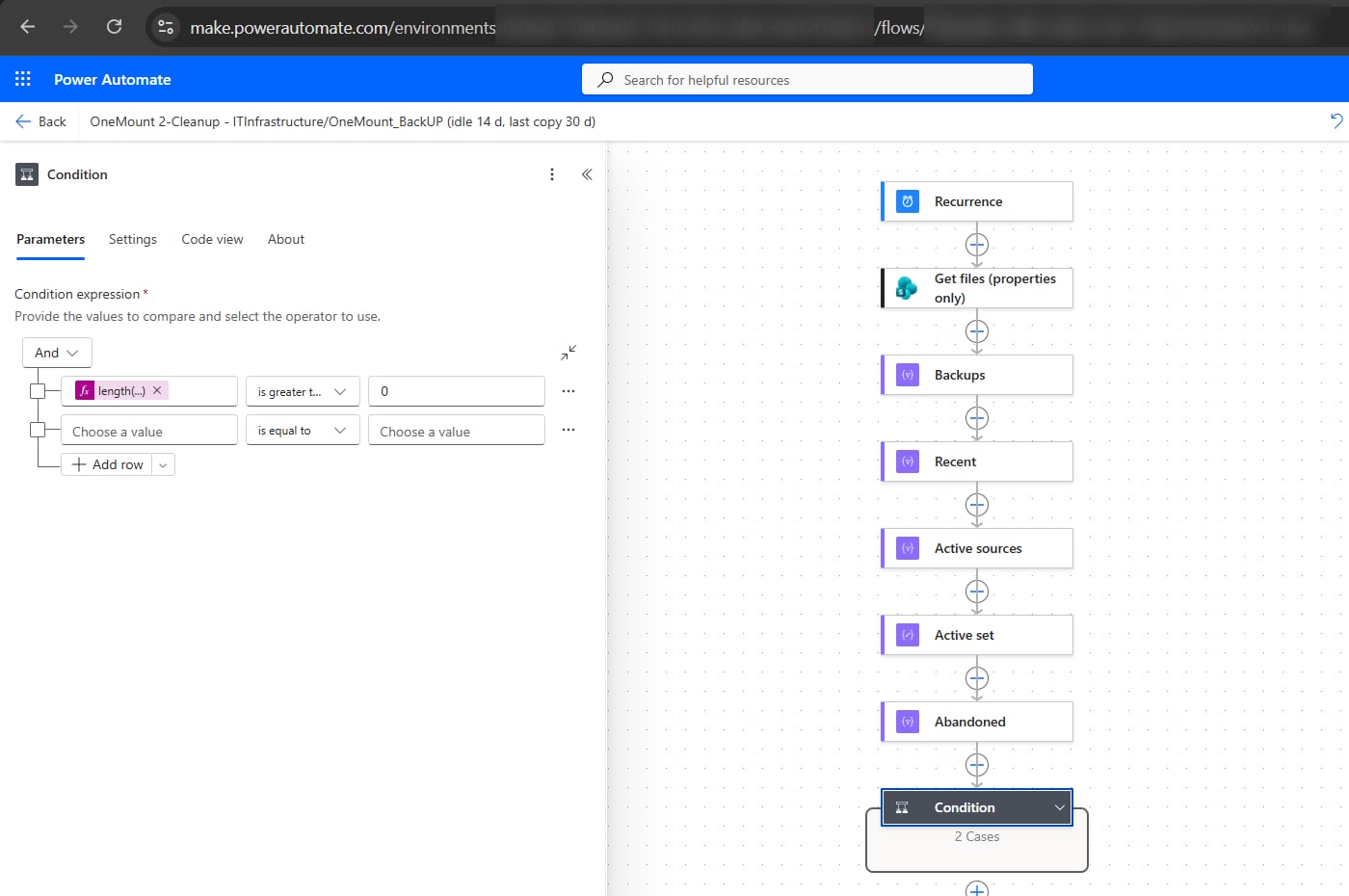
← scroll sideways · click a screenshot to enlarge →
The price of permanent deletion — the recycle bin no longer covers a mistake in the
flow itself. That's why both flows touch only .zip archives with a date in the name, count each source in
each folder separately, and never delete anything younger than the minimum age. Run them on test values first.
Step 3. Scheduled backups
Steps 1 and 2 work with any tool that puts dated archives into SharePoint. We use OneMount: a four-step wizard — direction, what to copy, where, how often.
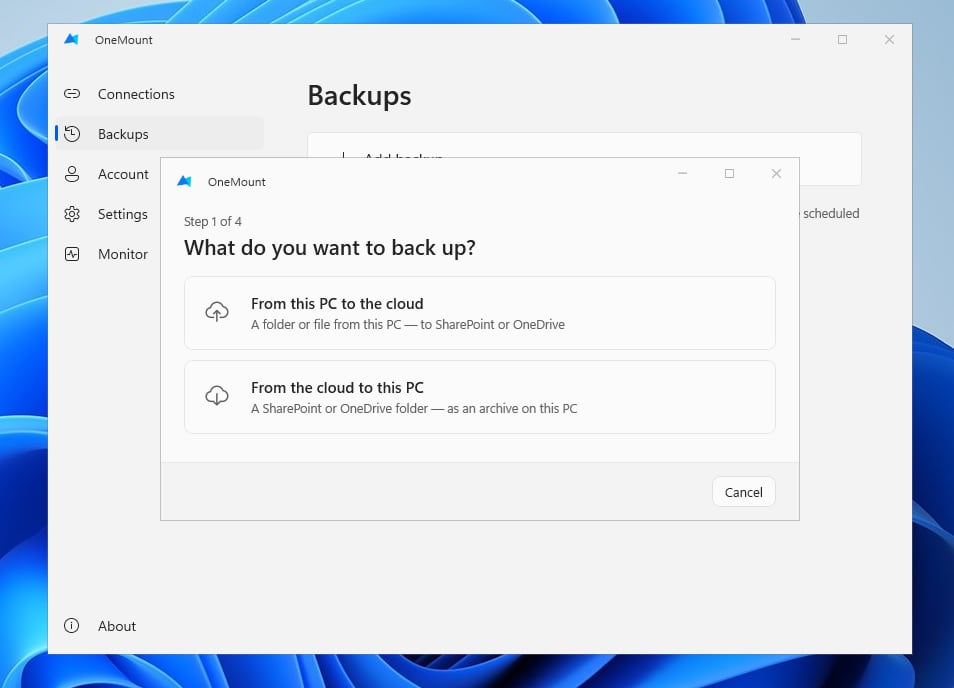
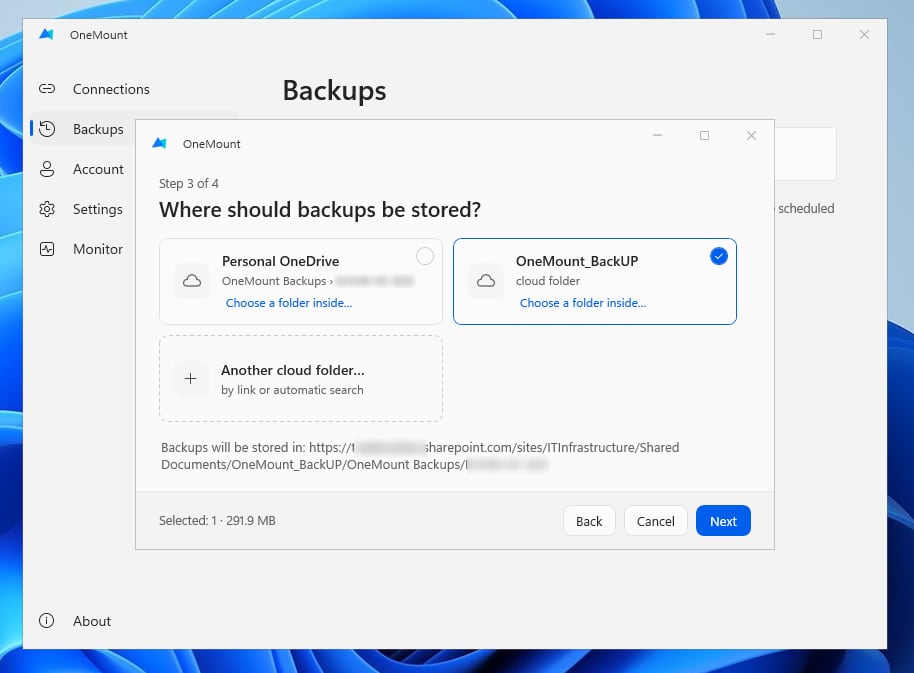
- Snapshots, not sync. Every run creates a new dated archive that nothing writes to afterwards.
- Works with an add-only folder. OneMount checks the permissions itself and flags them on the backup card. Large archives go through the user's OneDrive and SharePoint server-side copy — add permission is enough.
- Both directions. PC folders to SharePoint or OneDrive; SharePoint libraries to a local disk or NAS — the copy outside Microsoft 365 that 3-2-1 calls for.
- Restore the whole set at once, straight from the cloud; existing files aren't overwritten.
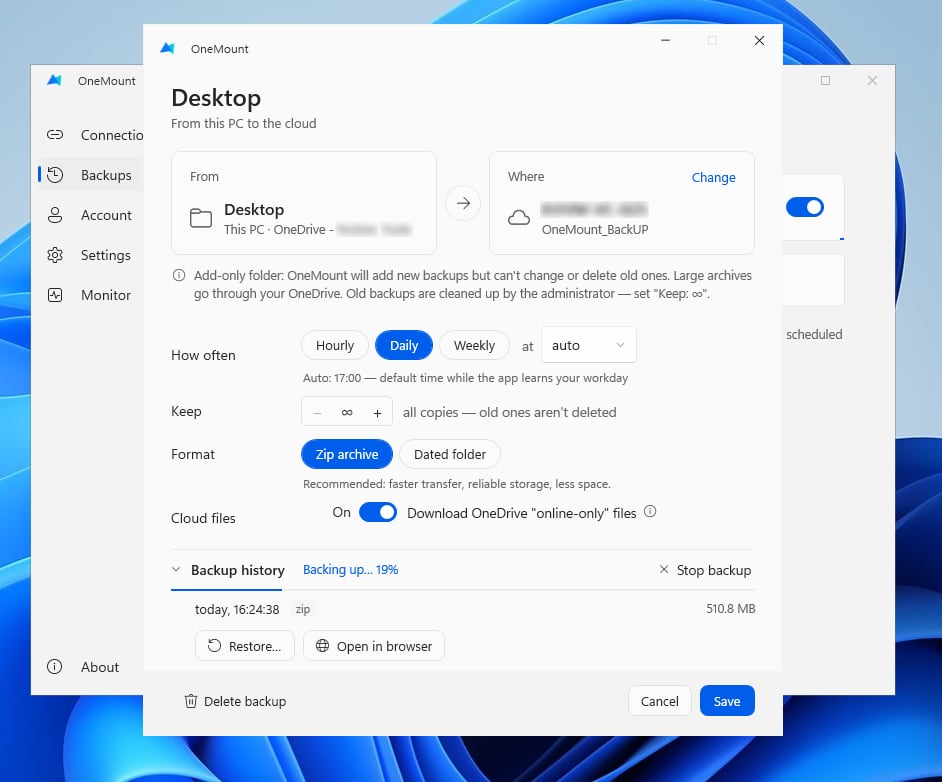
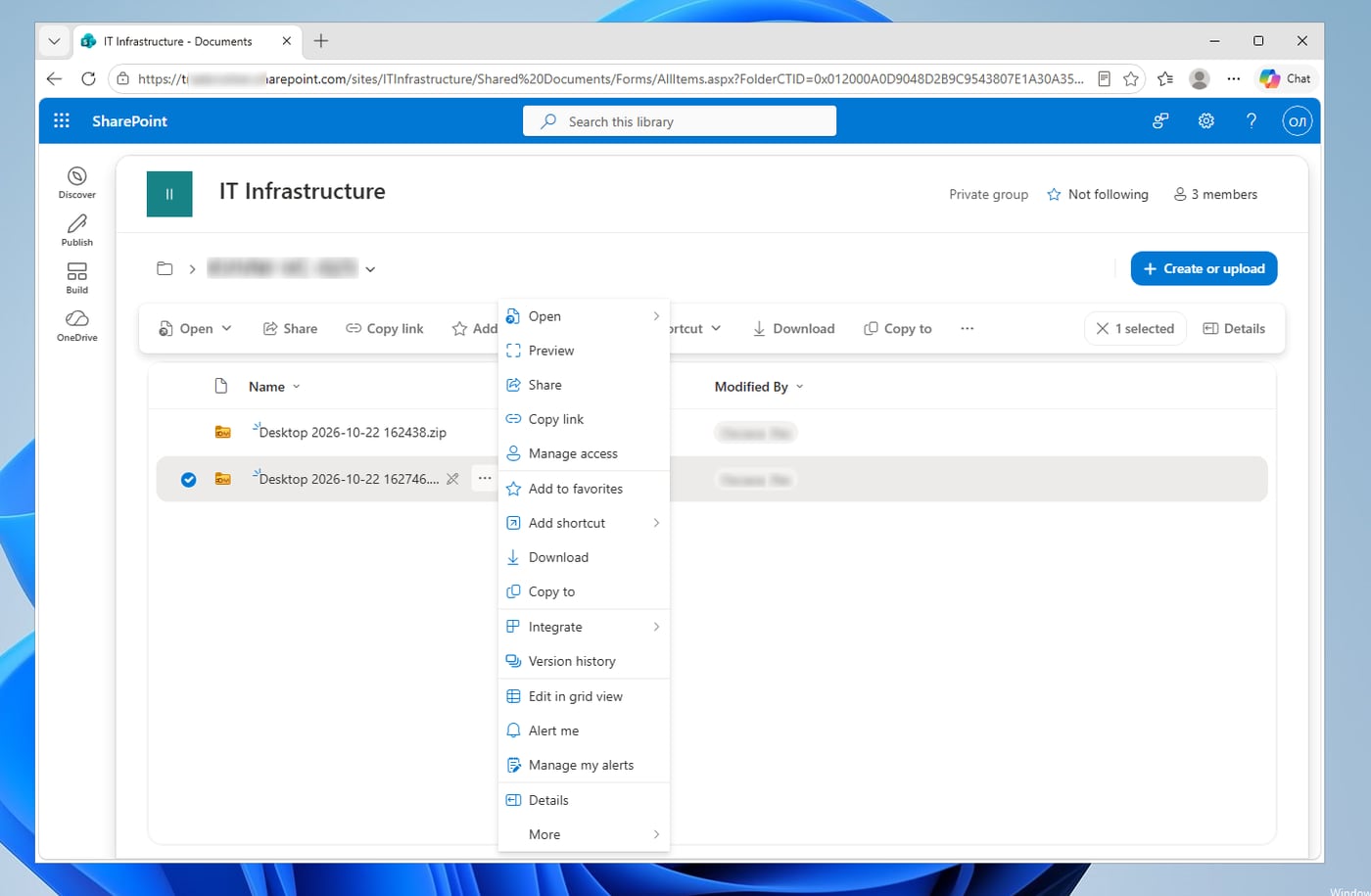
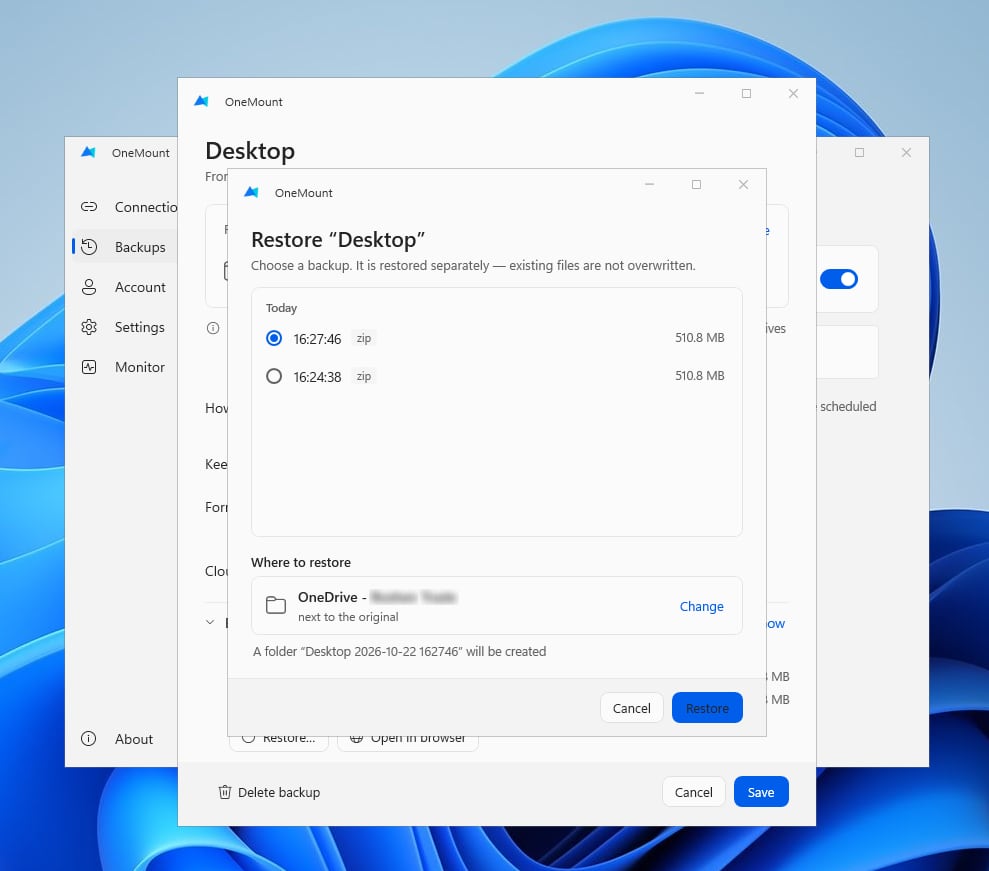
We observed As a regular user, a 510.8 MB Desktop backup landed in the add-only folder, a second copy the same day sat next to it, and the user couldn't delete either archive.
What to back up: shared SharePoint libraries matter as much as OneDrive
So far we've talked about a user's files. But in most organizations the most valuable data lives in shared SharePoint site libraries: contracts, accounting, HR documents, projects. Microsoft Teams files are site libraries too. And the risk there is often higher than in personal storage:
- one person, consequences for the whole department. A site member with edit rights can delete a folder dozens of colleagues work in, and a site owner can also empty both recycle bins;
- damage spreads further. Files encrypted on one PC sync into the library, and from there to the computers of everyone who syncs it;
- it's noticed late. A shared folder belongs to “nobody”: missing files often get looked for when only days are left in the recycle bin.
So set priorities by what a loss would cost the business, not by where the files happen to live:
| Data | Priority | How to back it up |
|---|---|---|
| Department libraries: finance, contracts, HR, projects | highest | from the cloud to a disk or NAS, daily |
| Microsoft Teams files | high | the same — they are site libraries |
| PC Desktop and Documents | high | from the PC into an add-only folder — the setup above |
| Users' OneDrive | depends on the role | from the cloud to a disk or NAS; a must for key people |
| Rarely changing archives | lower | weekly |
OneMount backs up site libraries with the same mechanism as PC folders: the “From the cloud to this PC” direction, dated snapshots on a schedule, restore of the whole set into a separate folder. How to fit it into your infrastructure is the admin's call. A typical option is a dedicated always-on computer or server: OneMount, signed in with an account that can read the libraries you need, writes copies to a local disk or NAS. That copy lives outside Microsoft 365 — exactly the separate copy the 3‑2‑1 rule asks for — and the jobs and their status can be managed centrally.
Can you keep backups in the user's OneDrive?
It's tempting: every employee already has 1 TB of OneDrive, while shared tenant storage may not stretch to 20–40 GB Desktop backups for a thousand people. But as we saw at the start, the user owns their OneDrive, and an add-only permission level doesn't apply there: they can delete the backup together with both recycle bins.
The only thing that can restrain them is a Microsoft Purview retention policy, set up by a compliance admin. Microsoft states It doesn't stop anyone from deleting files or emptying recycle bins, but before a deletion or change it keeps a copy in the hidden Preservation Hold library, and neither the user nor ransomware can remove it from there until the period ends (docs). That's what stops files from disappearing without a trace — whether it's an employee on their way out or an attacker with their password.
- Microsoft Purview portal → Data lifecycle management → Retention policies → New retention policy.
- Locations — OneDrive accounts only (for a pilot, a few users or a group).
- Retain items for a specific period, for example 90 days; at the end — Do nothing.
- It takes up to 7 days to apply; check the status with
Get-RetentionCompliancePolicy -DistributionDetail. The library appears after the first change or deletion under the policy:https://<tenant>-my.sharepoint.com/personal/<user>/PreservationHoldLibrary.
The price of this option. We didn't test it, and here's why we don't recommend it as the main one:
- the policy covers the whole OneDrive — everything the person changes and deletes is retained;
- space comes out of the user's own quota, and every removed backup takes it twice: in the recycle bin and in the Preservation Hold library;
- only an admin can get a copy back;
- it's the same account and tenant — not 3-2-1.
Another option: back up OneDrive to a network share
You can also go the other way: back up the user's OneDrive from the cloud to a local disk or network
share (\\server\share). In the OneMount wizard that's the “From the cloud to this PC” direction:
choose the OneDrive and a network folder the user can write to as the destination.
We observed The backup landed as an archive in the network share, just like on a regular disk.
Such a copy lives outside Microsoft 365 — the separate copy from the 3-2-1 rule.
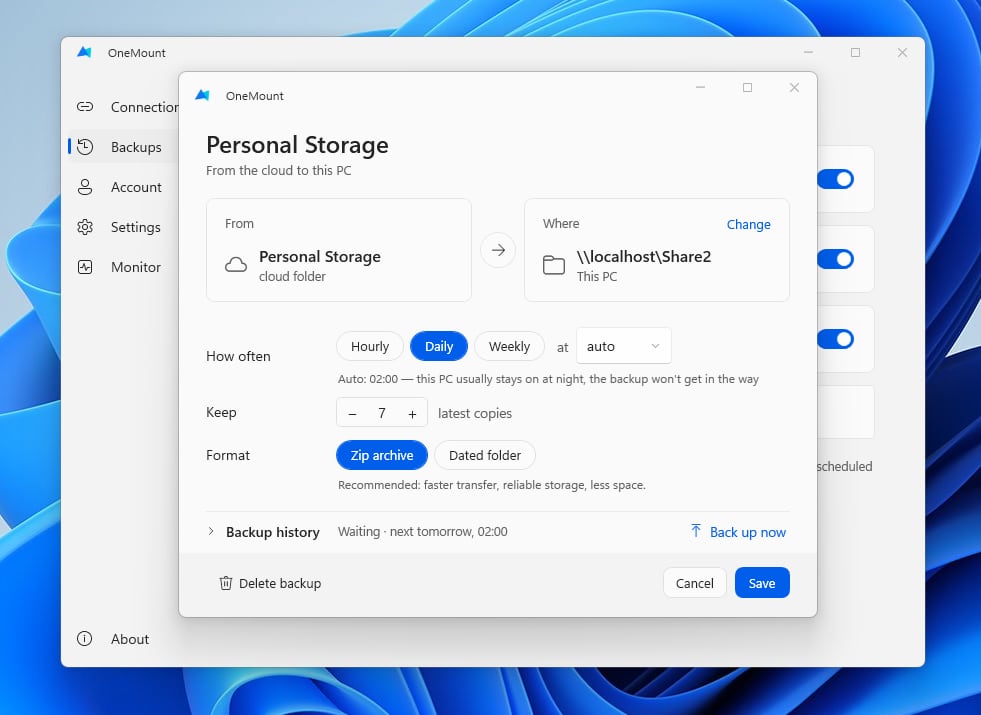
One important caveat: it copies what is in the cloud. If OneDrive on someone's PC hasn't been syncing for a while (it happens, and can go unnoticed for months), the newest files simply aren't in the cloud — or in the backup. So this option complements a backup from the PC rather than replacing it. And remember: whoever can write to a network share can usually delete from it too — set its permissions separately.
Our interpretation For a company whose work product belongs to the company, the most reliable option is backups in a separate tenant or a separate SharePoint site with an add-only folder where users aren't owners. A Purview policy on OneDrive is a fallback for when there is no separate storage at all.
What is OneMount
OneMount is a specialized Windows app for working with SharePoint Online and OneDrive for Business. It complements OneDrive rather than replacing it:
- maps SharePoint and OneDrive libraries as drives in File Explorer — with a drive letter, without sync or local copies, with Office co-authoring;
- runs scheduled backups — PC folders to SharePoint or OneDrive and SharePoint libraries to a local disk, with one-step restore;
- is managed centrally — from the admin portal or Group Policy, and the admin sees backup status on every PC.
No third-party cloud and no Azure app registration: your data stays in your Microsoft 365. How to map SharePoint as a network drive →
FAQ: OneDrive and backups
Is OneDrive a backup?
Not in the full sense. OneDrive is sync with good recovery features: individual corrupted and deleted files came back byte for byte in our tests. But it's a single copy of your data in the same account, so on its own it doesn't meet the 3-2-1 rule, and after mass corruption it restores files one at a time.
Can an employee delete all their files from OneDrive before leaving?
Yes. In their own OneDrive the user is the owner: they can delete files and empty both recycle bins. We tested it on a 543 MB file — it disappeared without any admin involvement. You can protect the work with a separate copy the user doesn't control, or with a Microsoft Purview retention policy.
What happens if all OneDrive files are encrypted, or deleted along with the recycle bin?
OneDrive syncs mass encryption to the cloud like any other change. Individual files come back from version history one at a time; the whole OneDrive can be rolled back with Restore your OneDrive to a point before the attack within 30 days, if you notice in time. Deletion with both recycle bins emptied is worse: an attacker under the user's account has the same rights as the OneDrive owner, individual files can't be recovered, and Microsoft Support can only roll back the entire OneDrive within 14 days. That's why you need a copy in a place this account can't delete from.
How long are deleted files kept in OneDrive for Business?
93 days in the recycle bin (first and second stage combined). Anything deleted from the second-stage recycle bin can no longer be recovered as individual files.
How many versions does OneDrive keep?
500 per file by default. In Automatic mode, all versions from the first 30 days, with older ones thinned out. Version history works for any file type — we restored both Excel and PDF files.
Can SharePoint allow adding files but not deleting them?
Yes: copy the Contribute permission level without Edit Items, Delete Items and Delete Versions, break inheritance on the folder and grant the new level. Remember that permissions from all of a user's groups are combined.
Why does site storage keep filling up even though old backups are deleted?
Because deleted items sit in the site recycle bin for up to 93 days and count against the quota. Delete old backups with a REST DELETE request — it skips the recycle bin.
Can ransomware encrypt files in OneDrive and SharePoint?
Yes. A program running in the user's session has their rights: it encrypts files on disk and OneDrive uploads the damaged versions to the cloud; or it uses an already open browser session or token to change and delete files through the API on every site the user can reach. If the Windows password is synced to Microsoft 365, a compromised PC or domain opens the cloud too. What protects you is a copy that can't be changed from the user's account, and a copy outside the tenant.
Is a file server more reliable than OneDrive?
Not by itself — it depends on the setup. Windows Server has Shadow Copies of Shared Folders (the Previous Versions tab), and NAS devices such as Synology or QNAP take file system snapshots. But these are scheduled snapshots — by default on Windows at 7:00 and 12:00 on weekdays, up to 64 of them — not a history of every change like OneDrive's: anything changed between snapshots can't be recovered. The upside: ransomware encrypting a shared folder from a user's PC can't touch the snapshots on the server, and on a NAS they can be made immutable. The weak spots: an attacker with admin rights on the server deletes shadow copies with a single command, and the snapshots live on the same server, so they aren't a separate 3‑2‑1 copy. The conclusion is the same as for OneDrive: you need a separate backup alongside it. And if people are used to a mapped drive letter, keep it with SharePoint mapped as a drive.
Do I need Microsoft 365 Backup if I already have OneDrive?
It's the native choice if you need to restore whole sites and OneDrives up to a year back and have an admin to run it. It costs $0.15 per GB per month — around $4,500 a month for 30 TB — and doesn't cover files that exist only on PCs.
How OneDrive copes with truly large libraries — the 1,000,000-file sync test →
Sources
- Microsoft Learn — version history limits for document libraries and OneDrive.
- Microsoft Learn — plan version storage (Automatic mode).
- Microsoft — restore deleted files or folders in OneDrive.
- Microsoft — Restore your OneDrive.
- Microsoft Learn — OneDrive retention and deletion.
- Microsoft Learn — retention policies for SharePoint and OneDrive.
- Microsoft Learn — handling ransomware in SharePoint Online.
- Microsoft Learn — Microsoft 365 Backup pricing.
- Microsoft Security Blog — Storm-0501: from on-premises AD to cloud-based ransomware (August 2025).
- Proofpoint — encrypting SharePoint and OneDrive files through the version limit (June 2022).
- ESET — PromptLock, the first known AI-powered ransomware (August 2025).
- Anthropic — report on AI misuse, including ransomware development (August 2025).
- SkylFlow's own tests, October 21–23, 2026: an isolated VM, a test account without admin rights, SHA-256 checksums and timings for every run.