
Quick answer: how to fix the OneDrive red X
OneDrive flagged the item as unable to sync — but if it also says “Up to date,” the flag may be stale.
Check the OneDrive taskbar icon for real errors first. If there are none:
- Files: shift the modified time by one second.
- Folders: rename, wait a few seconds, rename back.
- Desktop: turn Desktop backup off (“Only in OneDrive”) and on again.
Reset and restarts didn’t help. Findings from one tested PC, not official Microsoft fixes — confirm your files are in the cloud first.
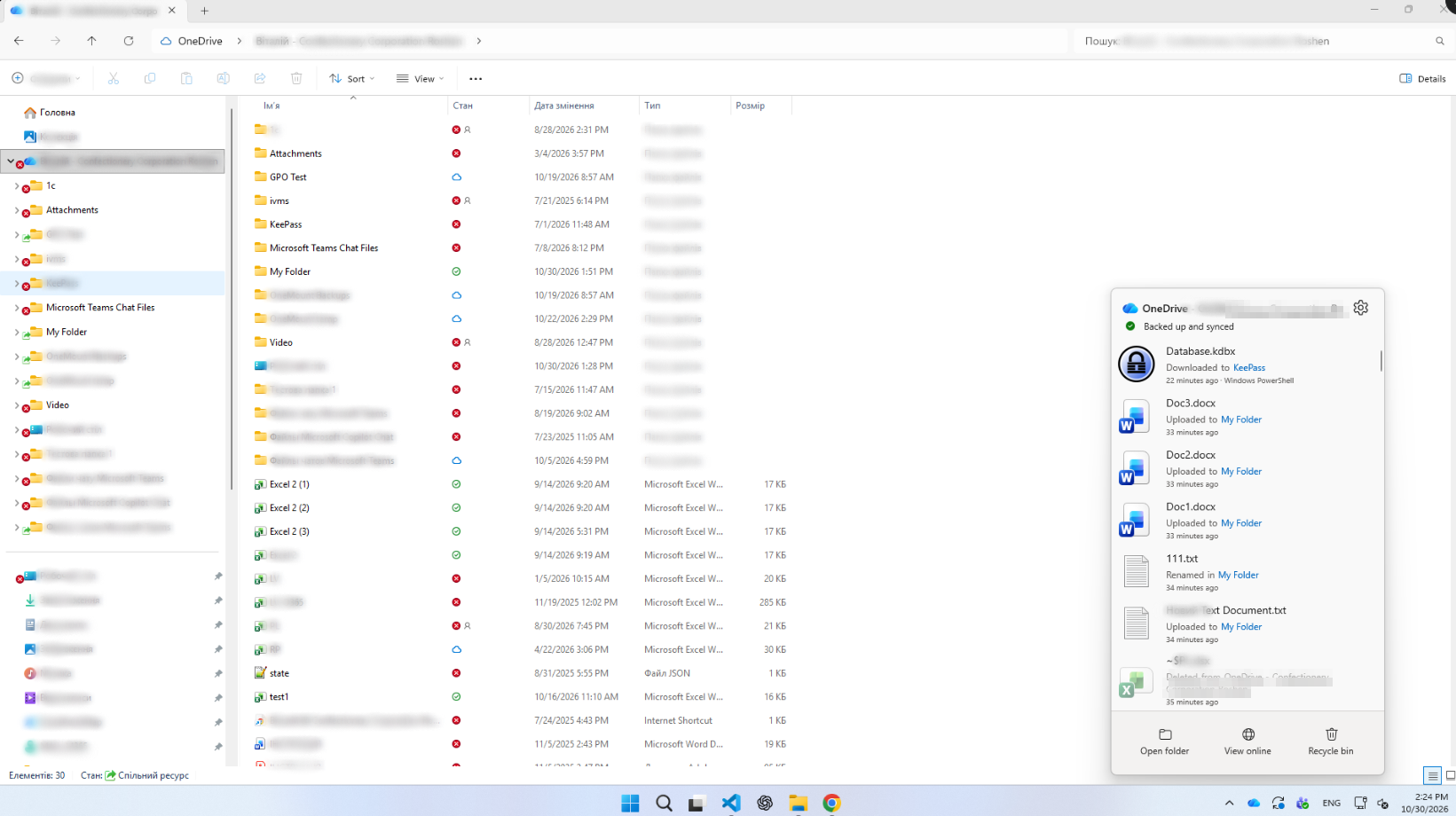
What the OneDrive red X icon means
Microsoft calls it the sync error icon: a red circle with a white cross means the item can’t sync. On a folder it usually means something inside failed — one deep file can mark every folder above it.
You can see it:
- On files and folders — the item itself didn’t sync.
- On the OneDrive cloud in the taskbar — click it to see which items fail and why.
- On Desktop icons, if your Desktop is backed up to OneDrive.
A grey X on a shortcut is just a broken shortcut; a grey crossed-out cloud means OneDrive isn’t running or signed in.
Why OneDrive says “Up to date” but files still have a red X
There are three separate statuses:
- Overall status in the panel — in our tests it only showed whether transfers were running.
- Per-item status in Explorer — tick, cloud or red X (“Error” in the Availability status column).
- Folder status — inherited from its contents.
Telling detail: after a reboot, before OneDrive started, Explorer showed no red X; a minute after launch they were back. The red X is OneDrive’s stored verdict, and it can outlive the problem.
When files really aren’t syncing — real cases and what to do
Our icons were merely stuck, but often the red X is real: uploads have stopped and newer work exists only on the PC. Two typical Microsoft Q&A reports:
- Red X icons right after upgrading to 1 TB: a full account blocks uploads, and an upgrade can take 24 hours.
- Red X icons for days, a Desktop file that wouldn’t save, files opening as garbage — don’t re-save those, or you may overwrite a good copy.
If your files really aren’t syncing:
- Read the error. Click the OneDrive icon — failing items are listed with the reason.
- Check storage. Settings → Manage storage. A full account blocks every upload.
- Close the file. Files open in another app can’t sync.
- Fix the name or path. Illegal characters and long paths (limits below).
- Check permissions. A read-only shared folder can’t take your changes.
- Move it out and back once the rest has synced (Microsoft’s tip).
- Protect the newest copy before any reset or unlink; restore damaged files from Version history.
Once the cause is fixed, the tricks below make OneDrive retry immediately.
Our case: why it was hard to find the file behind a red folder
The sync-problems list should name the culprit. Ours named nothing that matched Explorer.
How we measured.
- Each item’s Explorer status (
System.StorageProviderState; red X = “Error”), before and after every attempt. - A full Desktop inventory (path and size) before and after the backup change.
What we tried that did not work
The standard advice — each one run and measured:
| Attempt | Result |
|---|---|
onedrive.exe /reset (“Reset completed”) | No change |
| Quit and restart OneDrive, many times | No change |
| Restart Explorer, reboot the PC | No change once OneDrive started |
| “Free up disk space” / “Download all files” | No change |
| Toggling file and folder attributes | No change |
Removing files OneDrive ignores (Thumbs.db and similar) | No change |
How to remove the OneDrive red X
OneDrive re-checked an item only when that item changed — so give it a harmless change. Try each step on one item first and confirm it exists in OneDrive on the web.
Shift the modified time by one second
The file turned back to a tick or cloud within seconds. Nothing downloaded; content unchanged.
How to run it: right-click the file → Copy as path. Press Win+X → Terminal, paste the lines below with your path, press Enter.
# one red file: modified time +1 second (content is not changed)
$f = Get-Item 'C:\Users\you\OneDrive - Company\Folder\file.xlsx'
$f.LastWriteTime = $f.LastWriteTime.AddSeconds(1)
Rename the folder, then rename it back
Folders stayed red after their files were fixed. Rename (e.g. add “-x”) with F2, wait ~10 seconds, rename back.
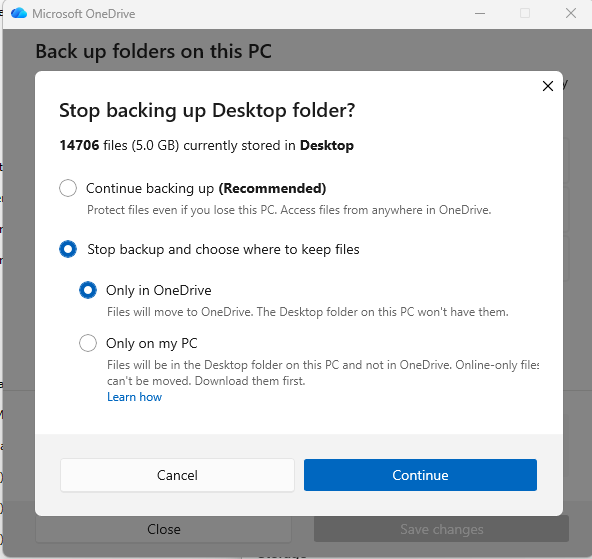
Turn Desktop backup off and on again
The last red X sat on the Desktop folder itself, though everything inside was fine. Renaming didn’t help.
Before you start: close open files, check the Desktop folder exists in OneDrive on the web, and don’t save to the Desktop until you finish.
- OneDrive → Settings → Sync and backup → Manage backup, switch Desktop off.
- Choose “Stop backup” → “Only in OneDrive”. Files stay in the cloud; the Desktop looks empty for a moment.
- Switch Desktop backup back on and save.
- Check your items are back and nothing is duplicated.
Result: 0 red X icons, nothing lost.
The files that had never synced
Of 16,248 Desktop items none disappeared — but 13 new ones appeared: audit reports, a remote-desktop file, CSV exports, notes. They had sat for months in the old local Desktop folder while OneDrive said “Backed up.” Re-enabling the backup merged them in.
“Backed up and synced” is not a guarantee that every file on your PC is in the cloud.
Why long-running sync develops problems
A sync client keeps a local copy, a cloud copy and its own record of both — and over months of updates, renames and new PCs, that record drifts. Typical tickets:
- red X on healthy folders — and silence on files never uploaded;
- endless “Processing changes” on large libraries (our story on that);
- conflicted copies with the PC name in the file name;
- fixes — reset, unlink, full re-sync — that take hours and may not help.
How to prevent OneDrive sync errors
OneDrive sync is still the right tool for your own Desktop, Documents and Pictures. Keep it healthy:
- Path length: under about 255 characters for synced files (longer often won’t open in Windows and Office); up to 400 for cloud-only files.
- No illegal characters —
" * : < > ? / \ |— or leading/trailing spaces. - No app databases on a synced Desktop: password vaults, accounting data, Outlook
.pst, projects. - Check now and then for local strays — “Backed up” can hide them.
Read-only check — the 20 longest paths. Win+X → Terminal, paste, Enter. It only lists files.
# 20 longest paths in your OneDrive — read-only, lists only
Get-ChildItem $env:OneDrive -Recurse -Force -ErrorAction SilentlyContinue |
  Where-Object { $_.FullName.Length -gt 250 } |
  Sort-Object { $_.FullName.Length } -Descending |
  Select-Object @{n='Length';e={$_.FullName.Length}}, FullName -First 20
OneDrive and SharePoint without sync
You don’t have to sync to work with your files. OneMount connects OneDrive and SharePoint libraries directly as a local drive; files open from the cloud when needed:
- nothing to download first — the drive is ready in seconds;
- no sync queue or sync status, so no red X;
- far less local disk used;
- your usual Windows apps, with Office co-authoring kept.
Outages and permissions still matter, but the sync layer where these problems lived is gone. Our advice: sync your personal Desktop, Documents and Pictures; connect large shared libraries as a drive without sync. More: how to map SharePoint as a network drive.
FAQ
What does a red X mean on OneDrive files?
OneDrive couldn’t sync the item. On a folder, something inside failed — the OneDrive taskbar icon shows what and why.
Why does OneDrive say “Up to date” but show a red X?
Overall and per-item status are separate. Items can keep an old “can’t sync” verdict until they change.
How do I remove a red X from a OneDrive folder?
Re-check the items inside by shifting their modified time one second. If the folder stays red, rename it and back — not for special folders like Desktop.
How do I fix a red X on my Desktop?
Turn Desktop backup off in Manage backup, choose “Only in OneDrive,” then turn it back on. It took seconds and lost nothing.
Does resetting OneDrive remove the red X?
Not in our test — every red X returned as soon as OneDrive started.
What should I do if files really aren’t syncing?
Read the error, check storage, close the file, fix the name or path, check permissions. Back up the newest copy before any reset or unlink.
Can I lose files when turning off OneDrive backup?
Not with “Only in OneDrive”: we compared 16,248 items and nothing was lost. “Only on my PC” is riskier.
Can I use OneDrive and SharePoint without syncing?
Yes — via the website, or with apps like OneMount that connect a library as a local drive with no sync icons.
Sources
- Microsoft — What do the OneDrive icons mean?
- Microsoft — Restrictions and limitations in OneDrive and SharePoint
- Microsoft — Troubleshoot file upload issues with OneDrive
- Microsoft Q&A — red X on files after upgrading to 1 TB
- Microsoft Q&A — red X by files, but they don’t work
- Microsoft Q&A — red X remain, but OneDrive says files are synced
Steps 1–3 and all figures are our own findings from one tested PC.